Updates are included with every AgroPOS licence, Offline and Cloud. A new version comes as a setup file that you run over the installed AgroPOS; your data, licence and settings stay as they are. This guide covers where a new version comes from, installing it, the one-time move from the older AgroPOS 1.x, and updating a Multi-Counter shop.

Swipe to see the whole screen · tap to close
How a new version reaches you
AgroPOS does not check for updates by itself. Settings → About → Software Update shows the Installed version and says: "Updates are delivered by the AgroPOS installer. When Innobrains sends you a new version, run its setup — your data and settings stay as they are."
A new version comes:
- from your account: sign in at /portal/login, open Downloads, and under Windows installer click Download installer. The file is named like
InnoBrainsAgroPOS_Setup_v2.0.1.exe. The panel shows the Version, the date Released and What's new in this version; - from Innobrains, who may send you the setup file directly.
Every release is listed on What's new.
How to install an update
- Finish the bill on screen, then close AgroPOS. If it is still open, the setup says "AgroPOS is still open and cannot be updated." Close it and click Retry; nothing has been changed yet.
- Run the new setup file and follow it, as when you first installed. When Windows asks whether the app may make changes, choose Yes.
- On the last page, leave Start AgroPOS ticked and click Finish.
If AgroPOS shows "AgroPOS is being updated… Please wait. AgroPOS will open by itself when the update has finished.", let it finish.
What an update keeps
- Your data: bills, khata, stock and everything else stay in AgroPOS's data folder, which the setup never touches.
- Your licence: you do not activate again.
- Your settings, users and roles, which are kept with the data.
If a setup does not finish, it says "Your data is safe: it is stored separately and was not touched." Restart the PC and run it again, or call Innobrains on +92-315-7500264. Uninstalling also asks whether to delete the business data; choose No to keep it.
Moving from the older AgroPOS 1.x
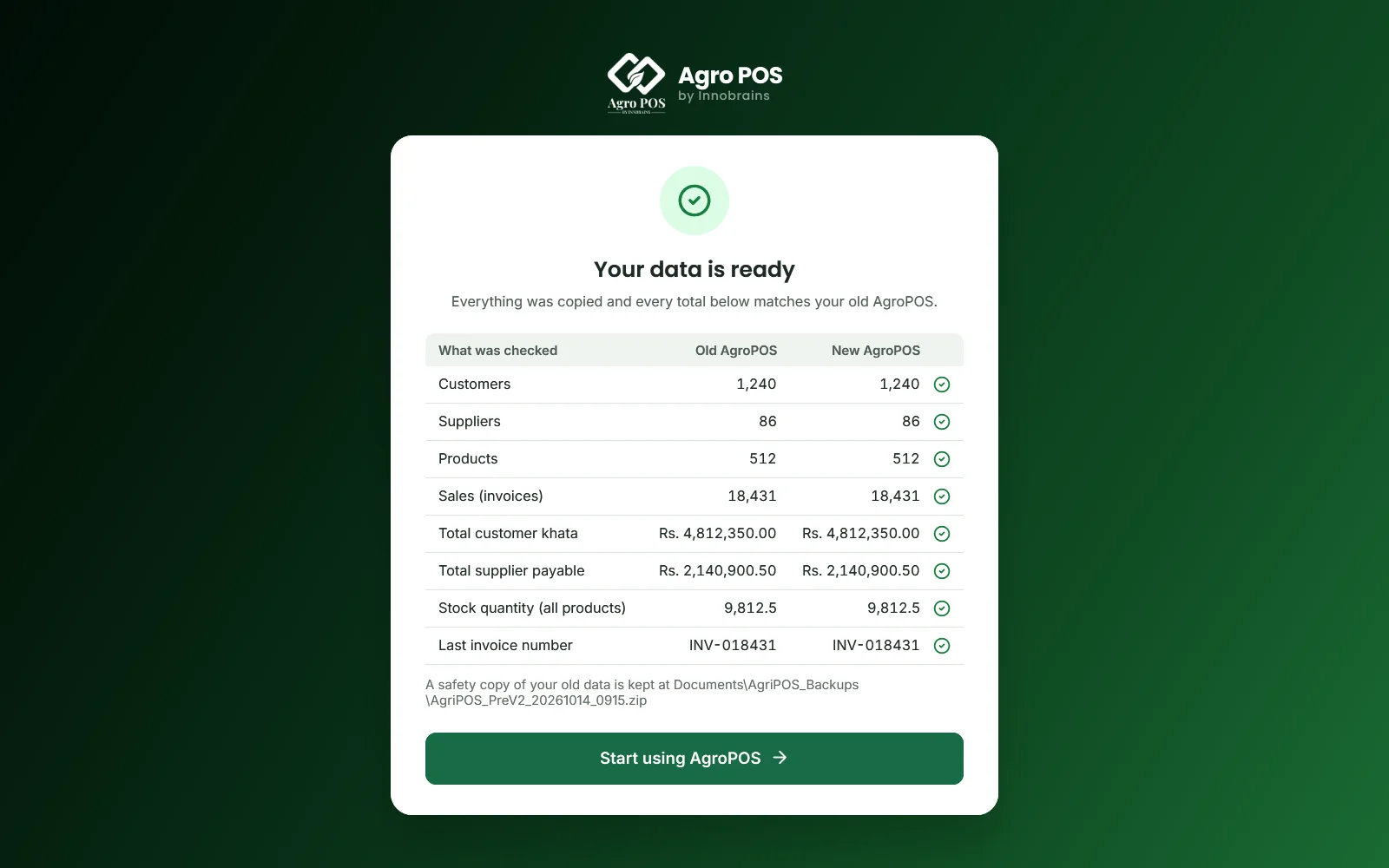
Shops on the older AgroPOS get the new version through the old program's own updater once it is published for them, or by running the new setup file. If the old program has not updated itself, install the new AgroPOS by hand (the same steps in Urdu). On the first start, AgroPOS shows Moving your data to the new AgroPOS: "This happens once and usually takes a minute or two. A safety copy of your data is made first; your old data is not changed."
It goes through ten steps, from Finding your AgroPOS data and Making a safety copy of your data to Checking every total still matches and Bringing over your licence and settings. Do not turn off the PC; if AgroPOS closes, it carries on the next time it opens.
- Your data is ready: every total matches the old AgroPOS, shown in a table of Old AgroPOS and New AgroPOS, with where the safety copy is kept. Click Start using AgroPOS and sign in as before.
- Some totals do not match: your old data is untouched. Send the report to Innobrains on WhatsApp before you carry on.
- One thing to do before AgroPOS can continue: for example "The old AgroPOS is still open. Close it (check the taskbar), then press Retry." Nothing has been changed.
- AgroPOS could not finish the upgrade: nothing in your old data has changed. Ask Innobrains for the previous installer, which puts the old AgroPOS back with your data exactly as it was.
Updating a Multi-Counter shop
Every PC of a Multi-Counter shop runs the same setup file, and the main counter and the tills must run exactly the same version. Update the main counter first, then each till.
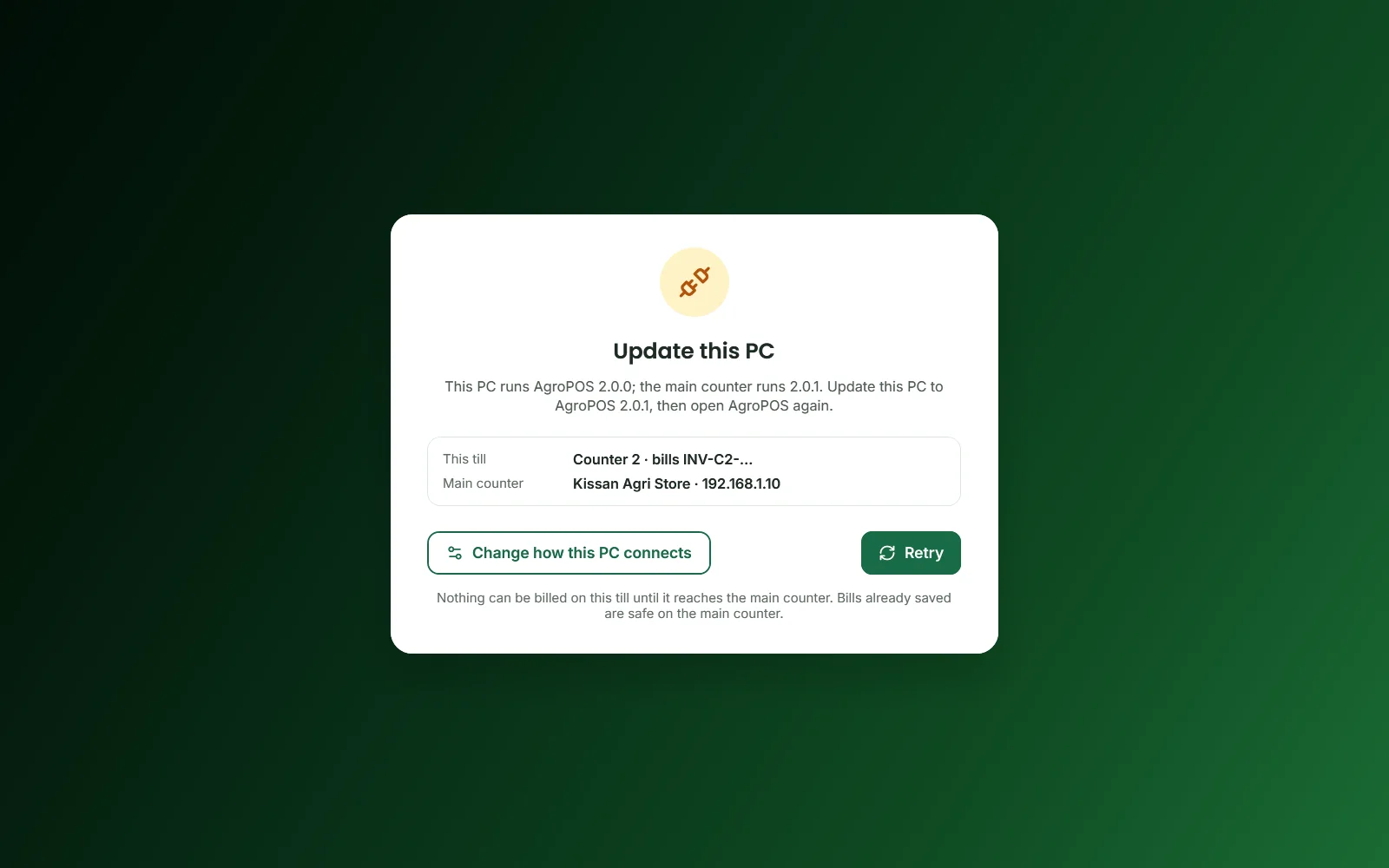
A till on a different version cannot bill until both match:
- Update this PC: the till is older than the main counter. Run the new setup on the till.
- Update the main counter first: the till is newer. Run the setup on the main counter, then open AgroPOS on the till again.
Swipe to see the whole screen · tap to close
Moving an older AgroPOS Multi-Counter shop to V2 is done with Innobrains, main counter first. See Older 1.x tills with a V2 main counter.
Rules and tips
- Install updates after closing time, not in the middle of the day's billing.
- Make a backup before updating, and copy it to USB.
- Use the Windows installer from Downloads. A Multi-Counter installer panel, if shown, is for the older AgroPOS Multi-Counter.
- Install on the same Windows user that uses AgroPOS every day.
Common questions
Does AgroPOS update itself?
No. AgroPOS does not check for or download updates by itself. Download the new setup from Downloads in your account, or run the one Innobrains sends you.
Will I lose my data when I update?
No. The setup never touches the shop's data, and the licence and settings stay too. Still, make a backup before any update.
Do I need to activate again after an update?
No. The licence stays on the PC. A shop moving from the older AgroPOS 1.x has its licence brought over on the first start.
My till says Update this PC. What do I do?
Run the same setup file on the till that the main counter has, so both run exactly the same version, then open AgroPOS again.
Related guides
Last updated 19 October 2026. Still stuck? Contact us or message us on WhatsApp.