Stock comes into AgroPOS through Purchases. Each supplier's bill is entered once, line by line, with the batch number and expiry from the bill. That one entry creates the batches the till sells from, updates each product's cost, and adds the bill to the supplier's khata. This guide covers adding suppliers, entering a cash or credit purchase, advance bookings delivered later, deleting a purchase and returning goods to the supplier.

Swipe to see the whole screen · tap to close
Who can enter purchases
Purchases, Pending Stock and Suppliers are under INVENTORY and CONTACTS for the Store Manager and the Admin ("Record a purchase", "Add and edit suppliers"). Deleting a purchase needs "Delete a purchase", which both have as standard. A Cashier cannot open them.
How to add a supplier
- Open Suppliers and click Add Supplier (Ctrl+N).
- Type the Company Name (required), and as you like the Contact Person, Phone, Phone 2, City, Address, NTN, Bank Name and Bank Account.
- In Opening Balance, type what is already between you, and choose I owe them or Paid in advance. AgroPOS reads it back, such as "You owe them Rs. 1,20,000.00 from before."
- Click Add Supplier.
A list of suppliers can be imported from Excel with Import. Paying suppliers and their khata are in Supplier ledger and payments.
How to enter a purchase
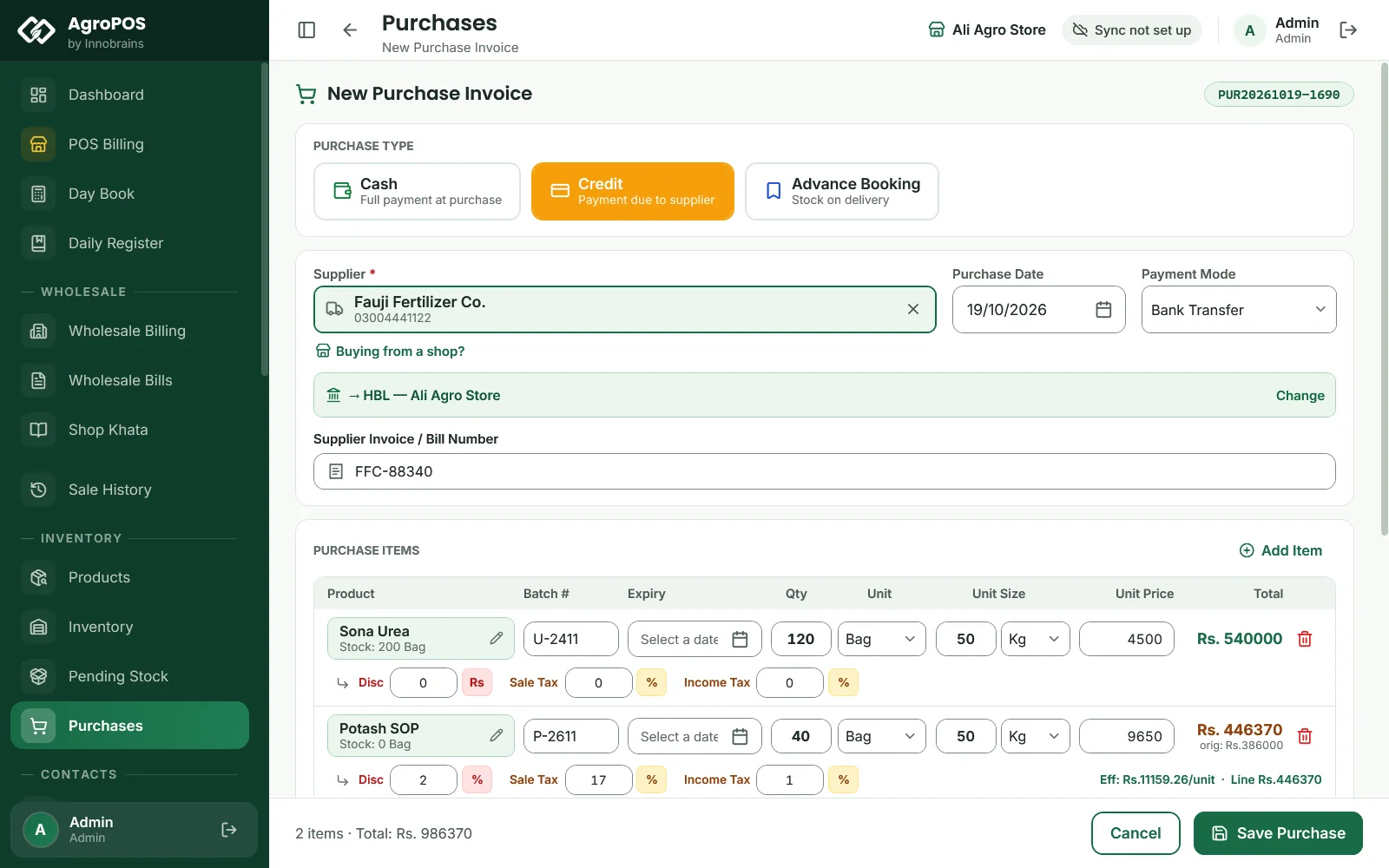
- Open Purchases and click New Purchase (Ctrl+N). AgroPOS gives the purchase its own number, such as
PUR20261019-0418. - Choose the PURCHASE TYPE: Cash (full payment now), Credit (payment due to the supplier) or Advance Booking (stock on delivery, below).
- Click Supplier (F3) and pick the supplier; each shows what you owe them.
- Check the Purchase Date and the Payment Mode, and type the supplier's own bill number in Supplier Invoice / Bill Number.
- Click Add Item (Ctrl+I) for each line. Search the product and pick it: its unit and last cost fill in. Then type the Batch #, the Expiry, the Qty, the Unit Size (such as 50 Kg or 1 Ltr) and the Unit Price.
- If the bill has a discount or taxes, fill Disc, Sale Tax and Income Tax under the line. A discount in Rs applies to the whole line; a % applies to the unit price. AgroPOS shows the effective cost per unit.
- In the INVOICE SUMMARY, check the Grand Total. On Credit, type what you paid today in Amount Paid (Rs.); the rest is the Balance Due. On Cash, the whole total is paid.
- Click Save Purchase (Ctrl+S). AgroPOS says the purchase is saved.
There is no separate "partial" type: a part-payment is a Credit purchase with an amount paid. If you hold an advance with the supplier, the summary shows how much of it this bill uses and what is left with them.
What a purchase does
- Stock. Each line makes a batch with its batch number, expiry and pack size, ready to sell at once. A line without a batch number becomes BATCH-001; the same batch number and expiry as an existing batch adds to it.
- Cost. The product's purchase price becomes this line's cost after discount and taxes. The sale price is not changed: edit the product if you want a new rate.
- Khata. The bill's total goes on the supplier's khata, and what you paid comes off it, both on the purchase date. If you paid more than the bill, the extra stays with the supplier as your advance.
- Money. A cash payment counts in the Day Book as purchases paid in cash. With posting to accounts on, a payment by Easypaisa, JazzCash or bank goes to the method's default account shown on the form; Change picks another, and Choose picks one when there is no default. A purchase paid by cheque is recorded as such; it is not entered in the Cheque Register.
Advance bookings with the supplier
Before the season, dealers often book DAP or seed with the company and pay part in advance, with the goods delivered weeks later.
- Enter the purchase as above with PURCHASE TYPE Advance Booking. The banner says: "Stock will NOT be updated until you confirm delivery. Supplier balance is recorded immediately."
- Type the advance paid, if any, in Advance Payment (Rs.), and click Save Advance Booking.
The purchase shows as Booked under the Ordered chip, and its full amount is on the supplier's khata at once. When the truck arrives:
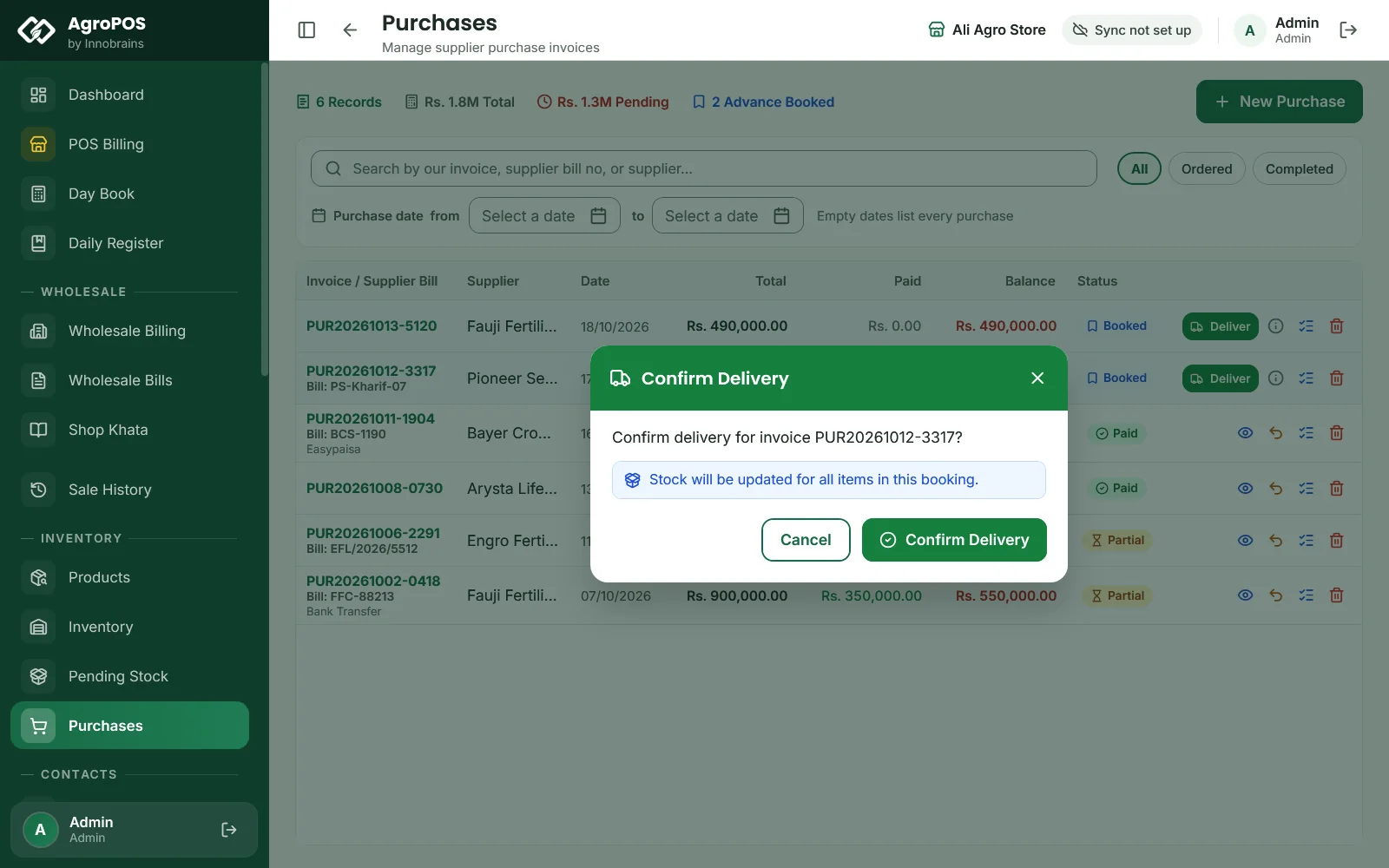
- Click Deliver (Confirm Delivery) on its row.
- Confirm. The stock comes in, "Delivery confirmed — stock updated", and the purchase moves to Completed.
Swipe to see the whole screen · tap to close
Delivery takes the batch numbers and expiry dates typed on the booking. Fill them in when you book if you know them; otherwise the stock comes in as BATCH-001 with no expiry, and you can correct it with a stock adjustment.
How to return goods to the supplier
For leaking cans, a wrong delivery or short-dated stock from a completed purchase:
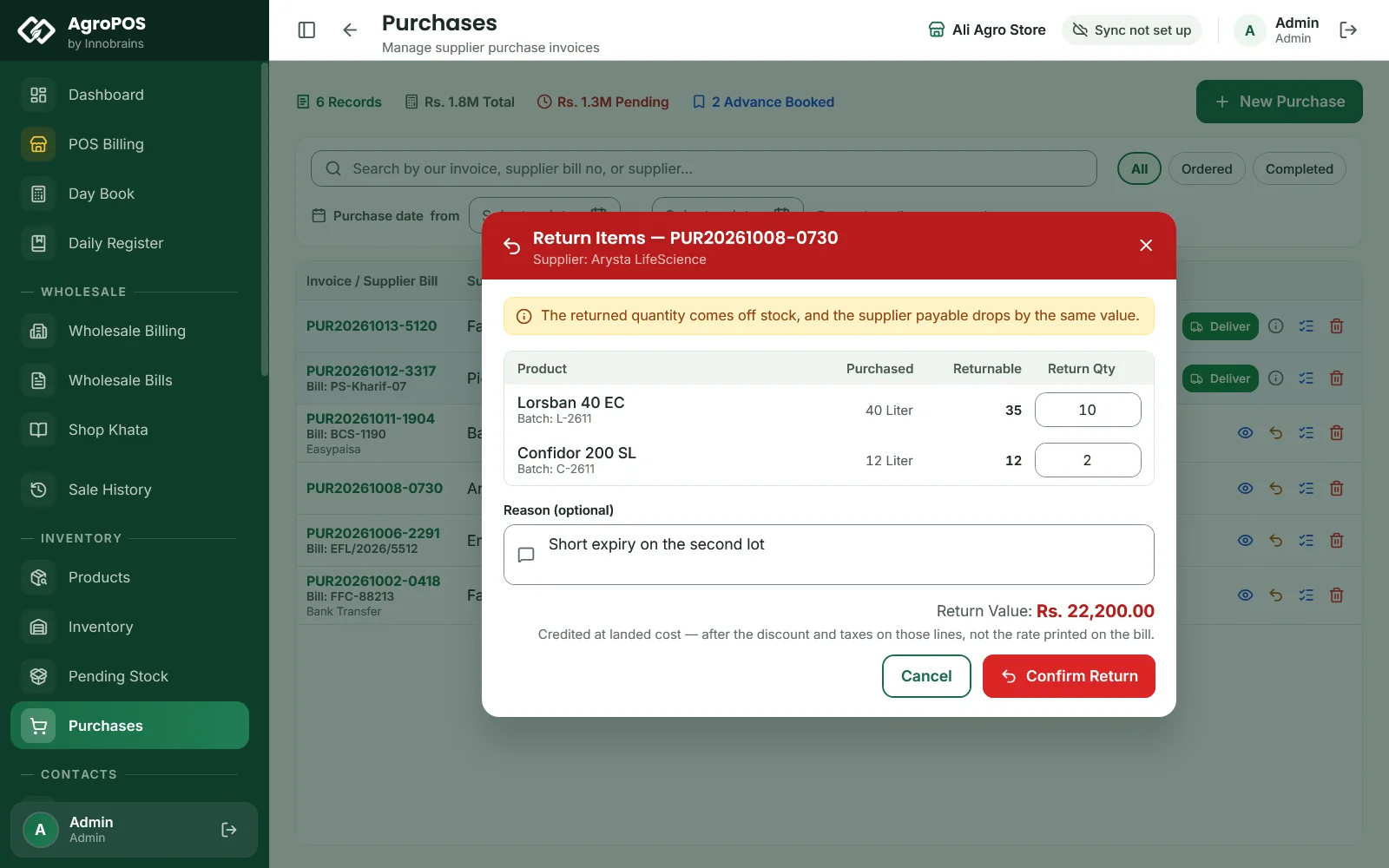
- Click Return Items on the purchase.
- Type the Return Qty for each line; a figure above what can be returned is cut down.
- Add a Reason, such as "Leaking cans", and click Confirm Return.
Swipe to see the whole screen · tap to close
The quantity comes off stock from the purchase's batch, and what you owe the supplier drops by the return value, at the landed cost after discount and taxes. Goods already sold cannot be returned. No cash is recorded: if the supplier gives money back, record it with Receive money from this supplier under Suppliers. View / cancel returns on the purchase lists its returns, each with Cancel this return.
How to find or delete a purchase
The list shows each purchase with the supplier's bill number, Total, Paid, Balance and a status: Booked, Partial or Paid. Search by our number, the supplier's bill number or the supplier, use the All, Ordered and Completed chips, or pick purchase dates. Click a row for the details.
The bin icon deletes a purchase after Delete Purchase?. For a completed purchase, its stock is taken back off. It is refused if the stock has already been sold, or if the purchase has returns: record a return instead.
Rules and tips
- Enter each bill on the day the goods arrive, with every batch number and expiry printed on it.
- Check the unit size on each line: a 50 Kg bag and a 1 Ltr bottle are different packs, and the batch-wise register prints them.
- If the same product comes at a new rate, review its sale price afterwards.
- A product whose stock was typed as Opening Stock waits in Pending Stock: complete a purchase for it from there. See Pending stock.
Common questions
How do I enter a bill I paid half of?
Choose Credit, and type what you paid today in Amount Paid. The rest stays on the supplier's khata as the balance due.
Can I enter the purchase before the goods arrive?
Yes, as an Advance Booking. The amount goes on the supplier's khata at once, and the stock comes in only when you click Deliver and confirm.
Why can I not delete a purchase?
Some of its stock has already been sold, or it has returns recorded against it. Use Return Items for what goes back, or cancel the returns first.
Does a purchase change my selling price?
No. It updates the product's purchase price only. Edit the product to change the sale price.
Related guides
Last updated 21 October 2026. Still stuck? Contact us or message us on WhatsApp.