Most agri shops now take part of their money by Easypaisa, JazzCash or bank transfer, and pay the distributor by cheque or IBFT. Wallets & Banks keeps each of these accounts with its balance and a statement you can match against the bank or the wallet app. This guide, for the owner, covers adding an account, recording money in and out, statements, and letting AgroPOS post bills and payments to the right account by itself.

Swipe to see the whole screen · tap to close
Who can see the accounts
Wallets & Banks is under FINANCE in the menu, for the Admin only as standard. A Store Manager who opens it is told "Only an Admin can see the shop's bank accounts." The owner can give the "manage bank accounts" permission to another role under Roles & Permissions.
How to add a wallet or bank account
- Open Wallets & Banks and click Add Account (Add Your First Account the first time).
- Choose Bank Account (HBL, Meezan, Allied…) or Wallet (Easypaisa, JazzCash…). This cannot be changed later.
- For a wallet, choose the Wallet (Easypaisa, JazzCash, SadaPay, NayaPay, UPaisa or Other Wallet) and fill in the Account Title and the Mobile Number. For a bank, fill in the Bank Name and Account Title, and if you like the Account Number and Branch.
- In Opening Balance, type what the account holds today, before you record anything in AgroPOS. Leave it empty for zero.
- Click Add Wallet or Add Account.
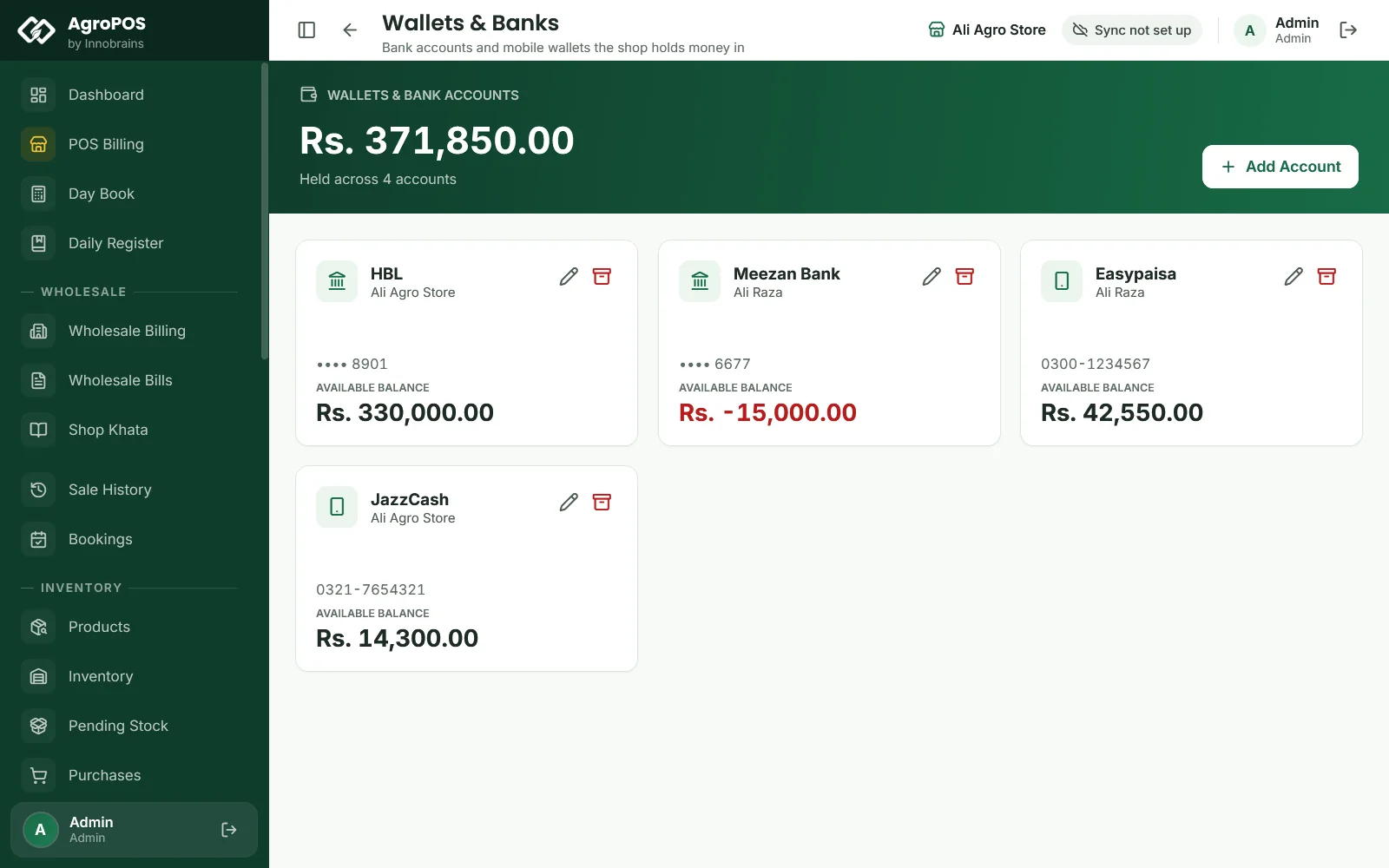
The green card at the top shows the total held across all accounts, and each card shows its AVAILABLE BALANCE. A bank number shows only its last four digits. The pencil on a card edits its details; changing the opening balance moves every balance after it.
How to record money in or out by hand
- Click an account's card to open its statement.
- Click Money In (green) or Money Out (red).
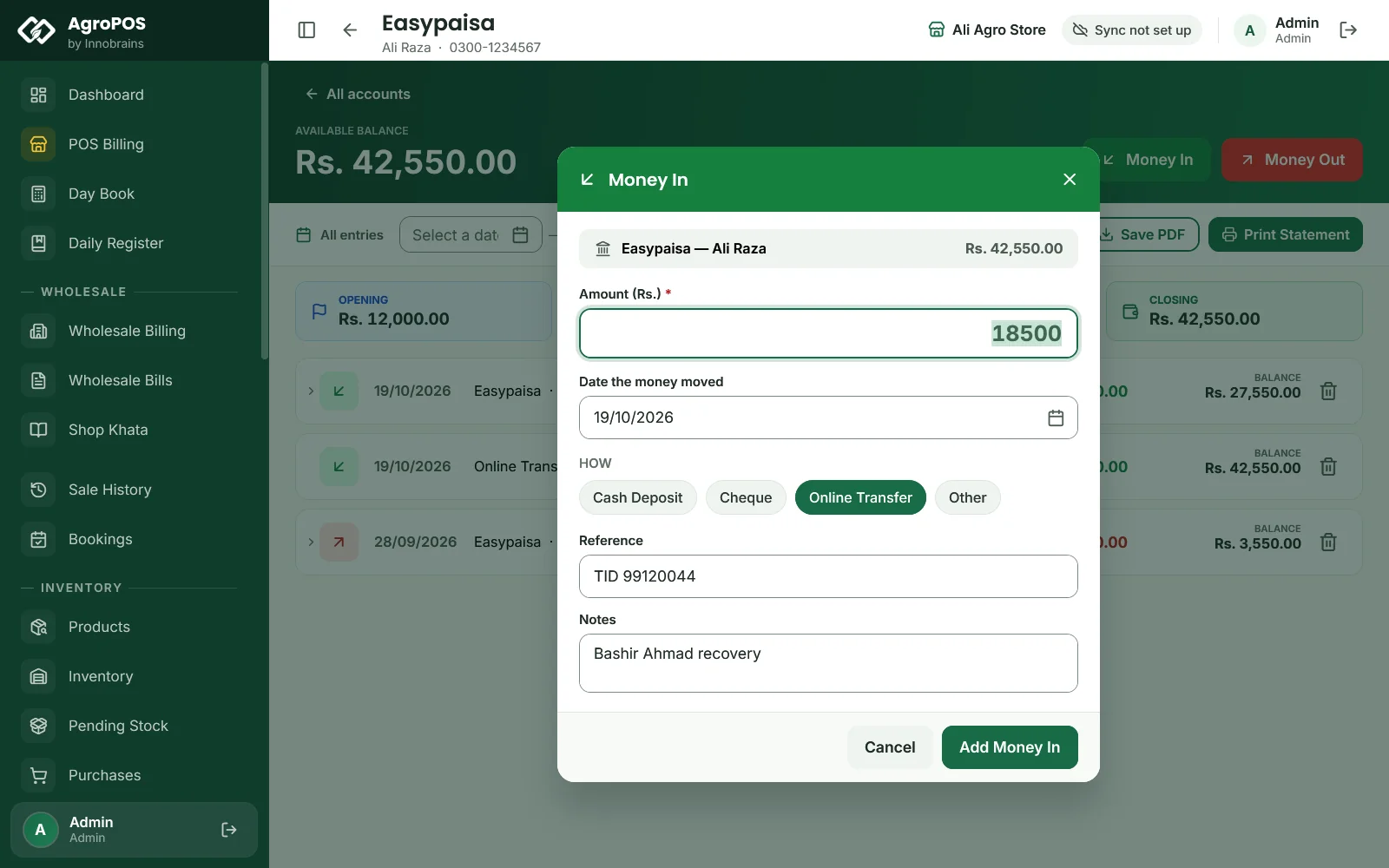
- Type the Amount (Rs.).
- Leave the date on today, or pick the day the money moved. A past date shows Back-dated entry, and the balances after that day are worked out again.
- Optional: choose HOW the money moved (Cash Deposit, Cash Withdrawal, Cheque, Online Transfer or Other), a Reference such as the cheque or slip number, and Notes.
- Click Add Money In or Add Money Out.
Swipe to see the whole screen · tap to close
There is no transfer button between two accounts. To move Rs 50,000 from HBL to Easypaisa, record a Money Out on HBL and a Money In on Easypaisa, both as Online Transfer. AgroPOS does not stop a Money Out that takes the balance below zero: the account then shows OVERDRAWN in red.
How to let AgroPOS post payments to accounts
Out of the box, nothing writes to these accounts except what you type here. To have bills and payments posted by themselves:
- Add your accounts first.
- Open Settings → Modules and, under Accounts Module, switch on Post payments to wallets and accounts. Click Save Settings.
- Under Default account for each method, choose the usual account for Easypaisa, JazzCash, Bank Transfer, Cheque and Other, or Ask every time.
From then on, a bill, recovery, expense, purchase or supplier payment made by one of those methods shows an account box, with the default already chosen and Change to pick another; the money is posted to the account shown. Cash always stays in the drawer and is never posted.
| Posted to the account | Not posted |
|---|---|
| Sales and wholesale bills paid by wallet or bank | Cash, of any kind |
| Recoveries and booking advances received that way | A cheque still waiting in the Cheque Register |
| Money received from or paid to a shop that way, on Shop Khata or Payments | Party settlements, sale-return refunds, write-offs |
| Purchases and supplier payments made that way, and money a supplier gives back | Cancelling a booking |
| Cheques cleared into an account, and Cash to Bank from the Day Book | |
| Expenses paid that way |
Cancelling a bill takes its entry out of the account and puts the balance right, and so does deleting an expense. Any other entry stays where it is: correct the account by hand if the money did not arrive.
How to read and print a statement
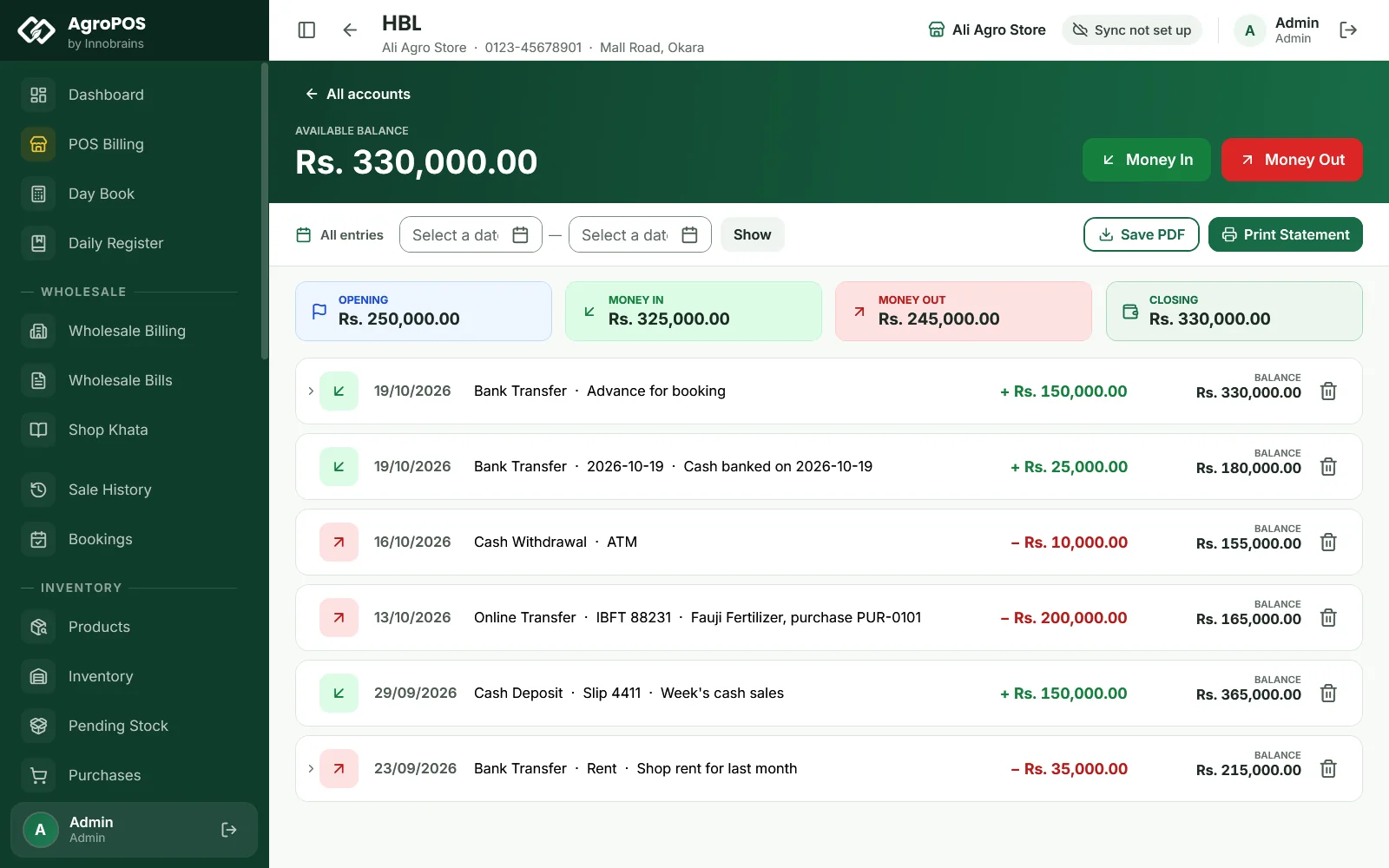
The statement shows the OPENING, MONEY IN, MONEY OUT and CLOSING for the period, then each entry with its date, details, amount and the BALANCE after it. Pick two dates and click Show for a period; the x button shows all entries again. Esc or All accounts goes back to the cards.
Swipe to see the whole screen · tap to close
- Save PDF saves the statement of the period in
Documents\AgriPOS\Statementsand says where. - Print Statement prints it on A4.
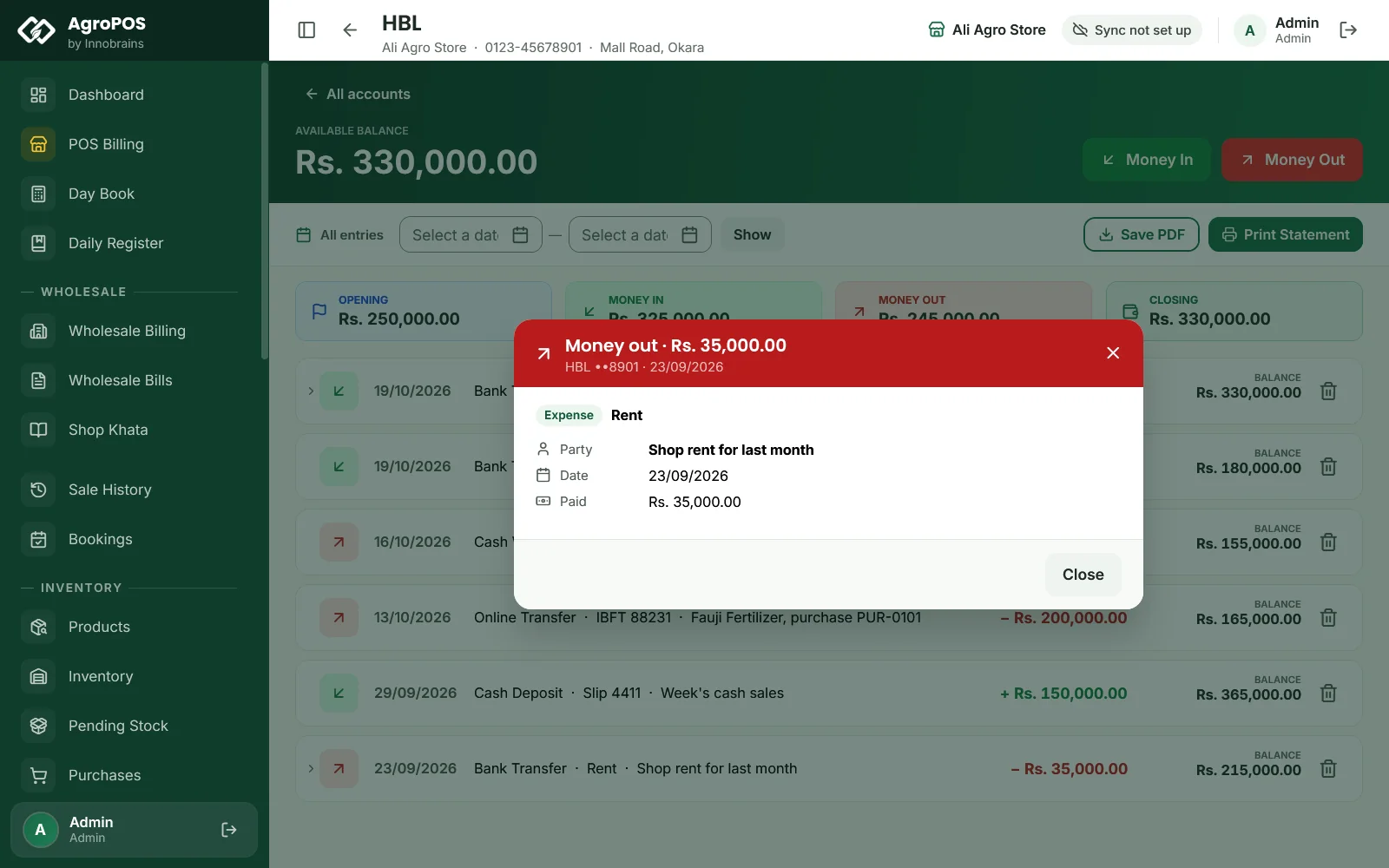
An entry that AgroPOS posted by itself shows an arrow. Click it to see what it came from: the sale, wholesale bill, recovery, loan, shop payment, purchase, supplier payment or expense, with the party, the bill total, what was paid and the items. A Cash to Bank entry shows its day, with Open this day to go to that Day Book. An entry you typed yourself says "You entered this one yourself".
Swipe to see the whole screen · tap to close
Closing an account or removing an entry
- Close account (the archive icon on a card, Admin only) hides an account you no longer use. Its entries are kept. A closed account cannot be opened again from this screen, so close only accounts you are sure about.
- Removing an entry is off as standard. An Admin can allow it under Settings → Modules → Banks — Deletion Rules with Allow removing a bank entry. A bin icon then appears on each entry, and removing one recalculates the balances after it. The bill or payment behind the entry is not touched.
Rules and tips
- Set each account's opening balance to what the bank or the app shows on the day you start, then match the closing balance against it every week.
- Choose the payment method carefully at the till: a bill marked Easypaisa is posted to the Easypaisa account even if the farmer paid cash.
- Wallets & Banks does not change the Day Book or the profit. It only tracks where the shop's non-cash money is.
- There is no Excel export of a statement; use Save PDF.
Common questions
Why does my Easypaisa account not go up when a farmer pays by Easypaisa?
Posting is off as standard. Switch on Post payments to wallets and accounts under Settings, Modules, and choose a default account for Easypaisa. Payments before that are not posted afterwards; add them with Money In if you need them.
Can my store manager see the bank balances?
Not as standard: Wallets & Banks is for the Admin. The owner can give the manage bank accounts permission to the Store Manager role under Roles & Permissions.
How do I move money from my bank to JazzCash?
Record a Money Out on the bank account and a Money In on the JazzCash wallet, both as Online Transfer. There is no single transfer button.
I cancelled a bill paid by bank transfer. What happens to the account?
Cancelling the bill takes its entry out of the account and puts the balance right. AgroPOS does not send the money back: if the farmer had really paid, return it to him yourself.
Does Wallets & Banks change my cash count?
No. Only the Day Book counts the drawer. Cash to Bank in the Day Book takes the cash out of the drawer and, with posting on, adds it to the bank account you choose.
Related guides
Last updated 21 October 2026. Still stuck? Contact us or message us on WhatsApp.