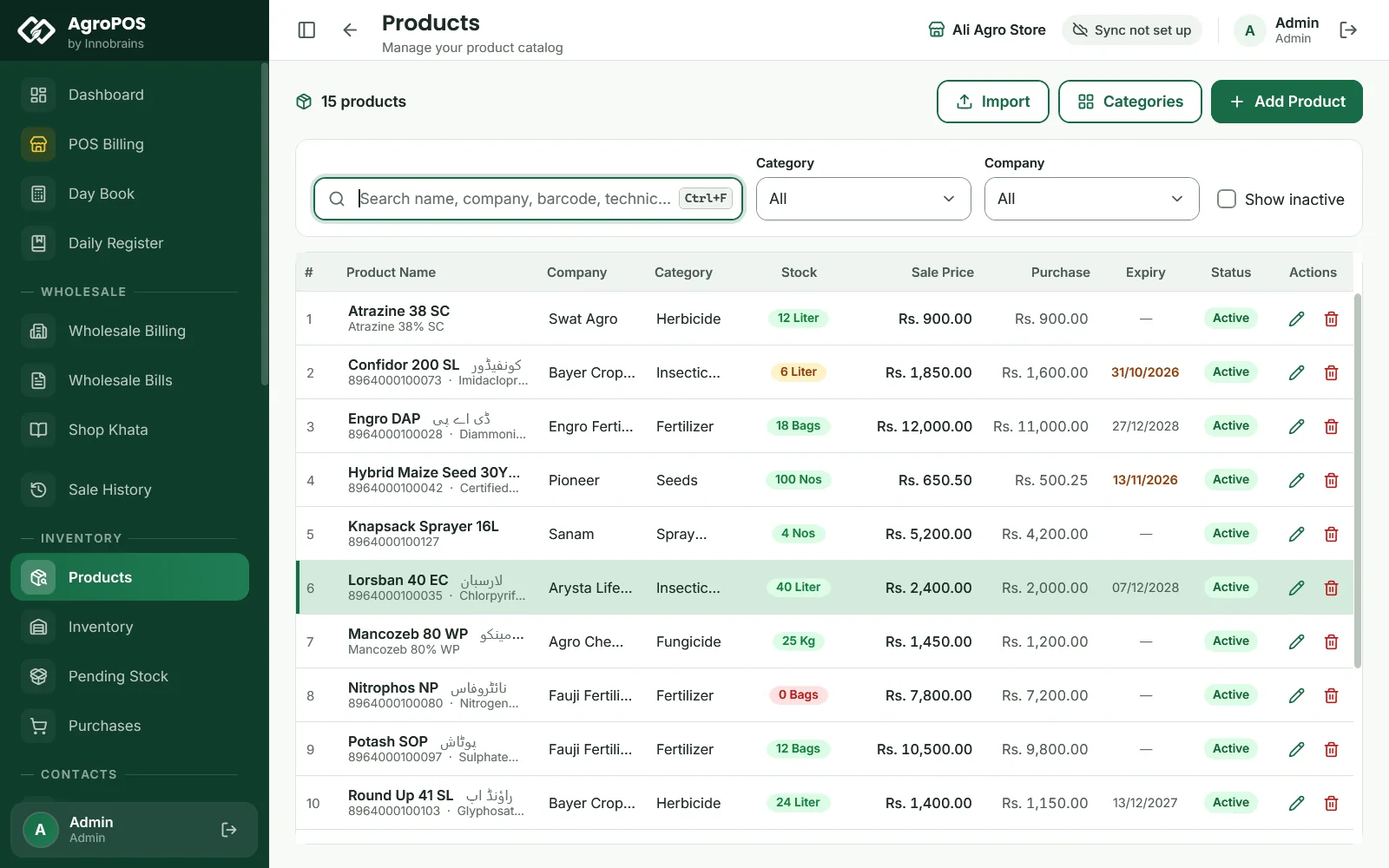
Every bottle of Lorsban and every bag of urea in AgroPOS is a product with its prices and unit, and its stock is kept in batches, each with its own batch number, expiry date and purchase price. The till sells the batch that expires first, so old stock goes out before new. This guide covers adding and editing products, units and parchoon, categories, the Inventory page, and how batches and expiry work.

Swipe to see the whole screen · tap to close
Who can manage products
Products is under INVENTORY for the Store Manager and the Admin ("Add and edit items"; deleting needs "Delete an item"). Inventory is open to every standard role, Cashier included, to look up stock. A Store Manager or Cashier sees stock values as stars unless the owner gives "See the money figures"; purchase prices still show in Inventory.
How to add a product
- Open Products and click Add Product (Ctrl+N).
- On Basic Info, fill in:
- Product Name (required), such as "Lorsban 40 EC";
- Company / Brand and Category;
- Unit Type: ML, Liter, Gram, Kg, Bottle, Can, Box, Bag, Pkt, Nos or Bundle (a new product starts on Nos);
- Barcode, if the pack has one. Two products cannot share a barcode;
- Purchase Price and Sale Price (both required), and a Credit Price if udhaar costs more (0 means the same as cash);
- Min Stock Alert, the level at which it shows as low stock (10 unless you change it).
- Optional: open Agriculture Compliance (Ctrl+Tab) for the Product Type, Formulation Type, Registration Number and Technical Name / Active Ingredient, which print on the inspection registers. See Agriculture Department inspection registers.
- Click Add Product (Ctrl+S).
Prices are typed as plain figures: "4,500" with a comma is refused with "Purchase price must be a number". With wholesale switched on, the form also has a Wholesale Price for shops.
Opening Stock on the form records a quantity but no batch, so the till cannot sell it yet: the product appears under Pending Stock until you complete a purchase for it. To bring stock in properly, enter a purchase with its batch and expiry. See Pending stock.
Units, bags and loose khaad (parchoon)
Each product sells in its own unit, shown at the till under the quantity. Pack sizes such as 50 Kg or 500 ml belong to the batch: they are entered on each purchase line as the Unit Size.
To sell khaad by the kg out of a bag:
- As the Admin, switch on Parchoon — sell khaad by the Kg under Settings → Modules, and click Save Settings.
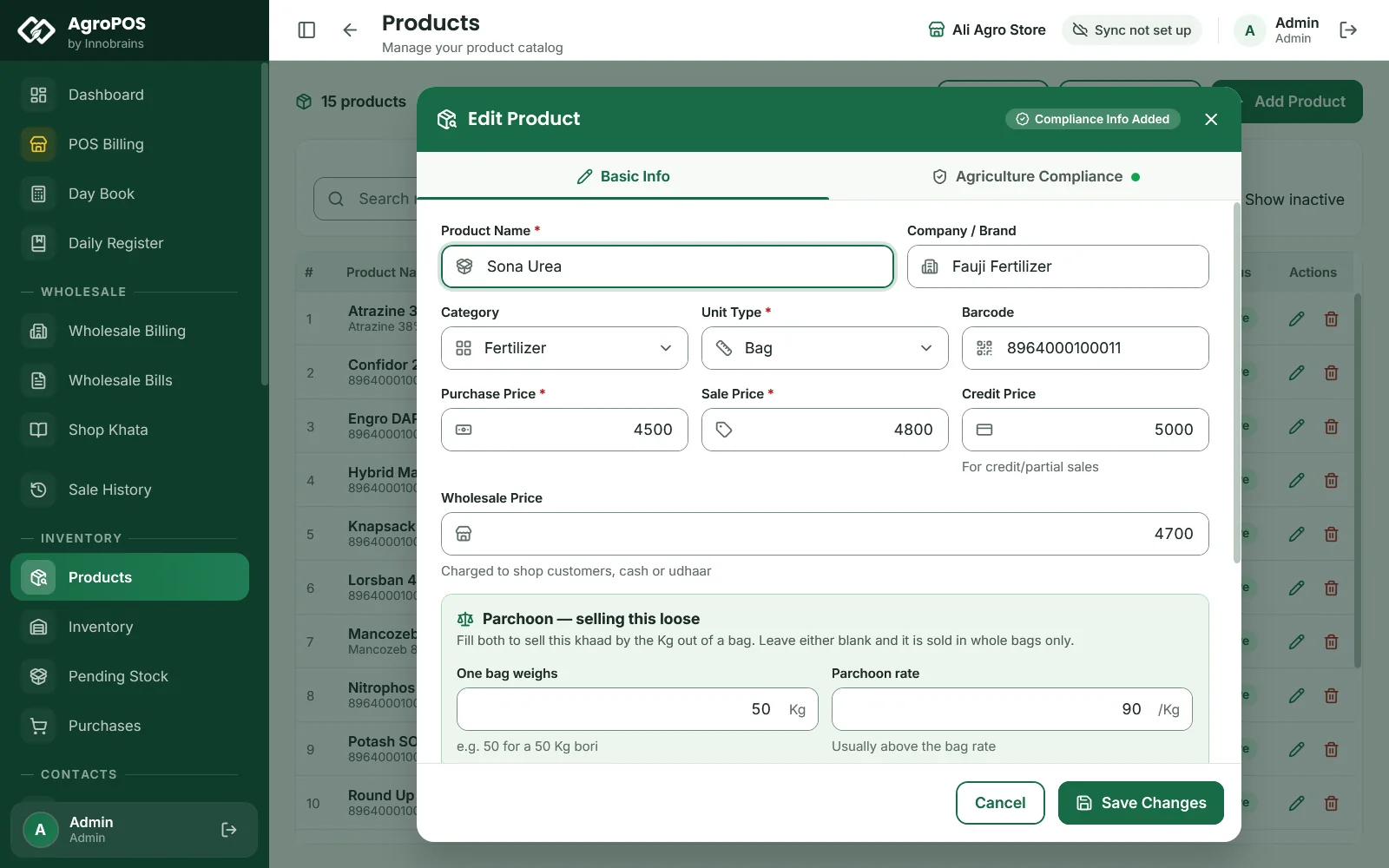
- Open the product, which must have Unit Type Bag or Kg. A Parchoon — selling this loose box appears.
- Fill in One bag weighs (such as 50 for a 50 Kg bori) and the Parchoon rate per kg, usually above the bag rate. AgroPOS tells you what the bag works out to per kg, and warns in red if your loose rate is below it.
Swipe to see the whole screen · tap to close
At the till the product then offers Full Bag (B) or Loose — by Kg (K), and stock reads like "19 Bags + 30 Kg". Without a parchoon rate, loose is not offered. A Cashier can sell a loose line at its parchoon rate; only a different price needs a user who may give discounts (Store Manager or Admin as standard).
Product details, categories and deleting
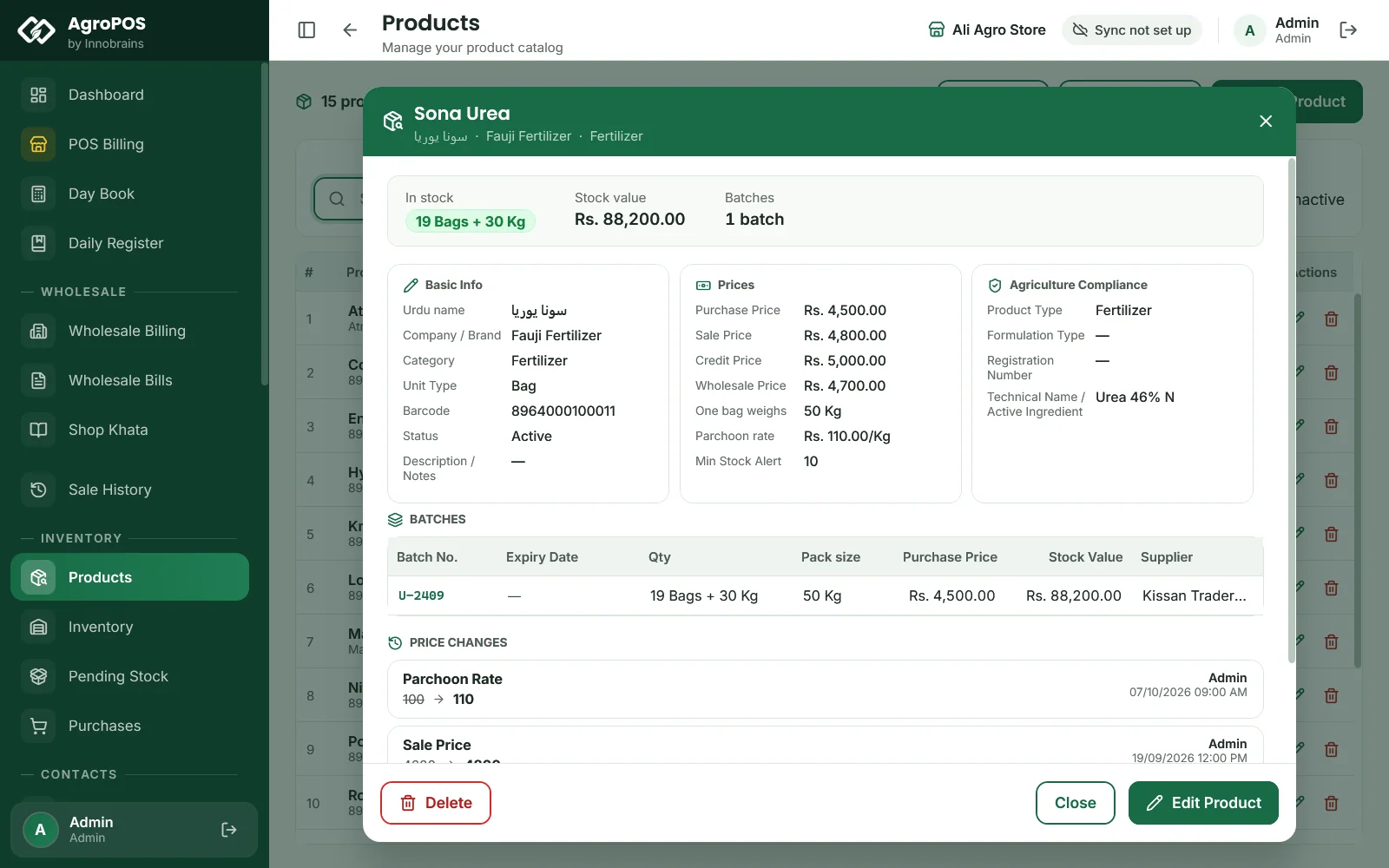
- Details. Click a product, or select it and press Enter, to see its stock, stock value, every price, its compliance details, its BATCHES (batch number, expiry, quantity, pack size, purchase price, value and supplier) and its PRICE CHANGES. Edit Product (F2) opens the form.
- Categories. Categories adds, renames and deletes the groups products are filed under. A category used by products cannot be deleted until they are moved.
- Deleting. The bin icon (Del) removes a product from the lists. It is refused while the product still has stock: "sell or adjust it down first". Switching off Active Product on the form hides a product too. To bring one back, tick Show inactive, edit it and switch Active Product on again.
Swipe to see the whole screen · tap to close
How batches and expiry work
A batch is created by each purchase line, with the Batch #, Expiry and Unit Size you type from the supplier's bill. A line with no batch number becomes BATCH-001. A later purchase with the same batch number and the same expiry adds to that batch, at the average cost; anything else makes a new batch. Each purchase also sets the product's purchase price to what this delivery cost; the sale price never changes by itself.
When you sell:
- the batch that expires first goes first (FEFO), and batches with no expiry date go last;
- expired batches are never sold: "only expired stock is left" is refused at the till;
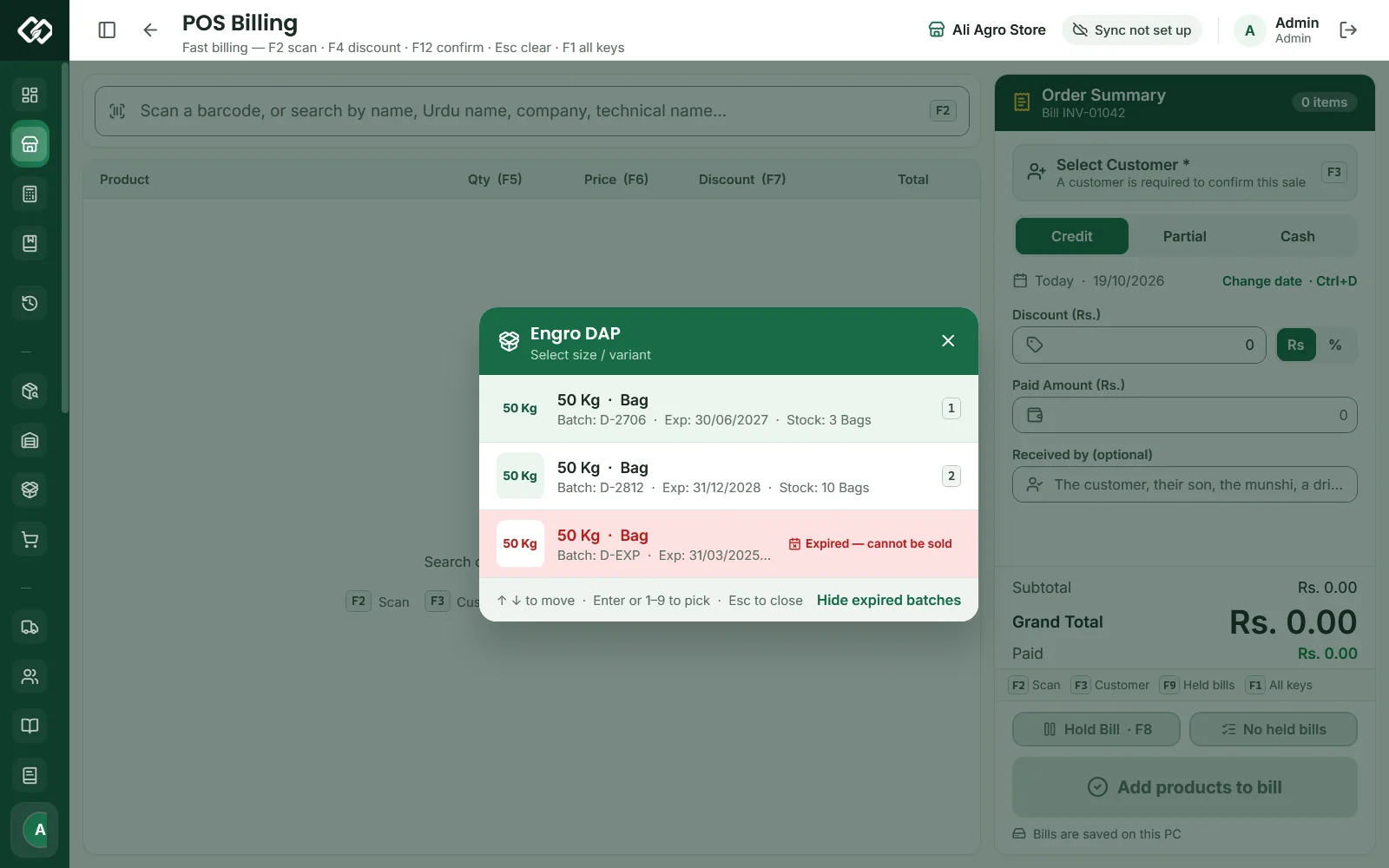
- if a product has more than one batch in stock with a pack size, the till lets you pick the batch, earliest expiry first.
Swipe to see the whole screen · tap to close
The Inventory page
Inventory shows the stock batch by batch, with the tabs All Stock (Ctrl+1), Low Stock (Ctrl+2), Expiring (within 30 days, Ctrl+3) and Expired (Ctrl+4). Search by product, batch, company, technical name or registration number. Each product opens into its batches, with the Unit, Qty, Purchase Price, Stock Value, Expiry Date and Reg. No.; the bottom line shows the Total Stock Value.
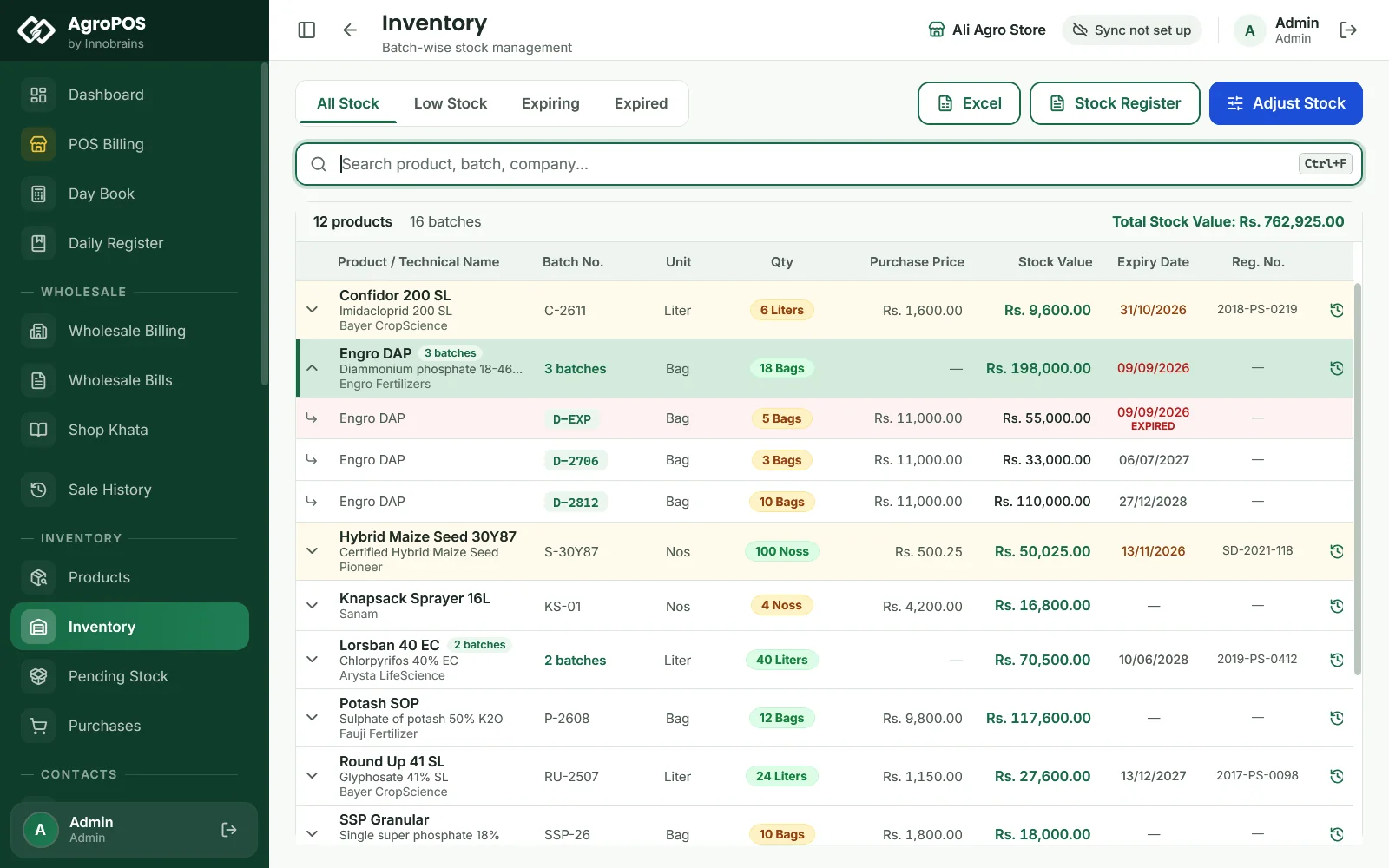
Swipe to see the whole screen · tap to close
- Excel saves a stock report of every product, and Stock Register prints it on A4 (Store Manager and Admin).
- Adjust Stock (Ctrl+N) adds or removes stock outside a purchase or sale. See Stock adjustments and counts.
- The history icon (Ctrl+H) lists every movement of a product: purchases, sales, returns and adjustments, with the balance after each.
Rules and tips
- Enter the real batch number and expiry from each bill. The batch-wise register, the expiry alerts and FEFO all depend on them.
- Give each product a sensible Min Stock Alert: 20 bags for urea in the season, 5 bottles for a slow pesticide.
- Use Credit Price if you charge more on udhaar, so the till applies it on credit and partial bills.
- A whole product list can be brought in from Excel. See Importing products and customers from Excel.
Common questions
Why can the till not sell a product that shows stock?
The stock has no batch, or only expired batches. Stock typed as Opening Stock on the form waits under Pending Stock until you complete a purchase for it. Expired batches can never be sold.
Can I type a product's Urdu name?
Not in this version. Urdu names brought over from the older AgroPOS are shown and can be searched, but the product form has no Urdu name field.
How do I sell 10 kg out of a 50 kg bag?
Switch on Parchoon under Settings, Modules, then give the product, with unit Bag or Kg, a bag weight and a parchoon rate. At the till choose Loose — by Kg and type the kilos.
Does a new purchase change my sale price?
No. A purchase updates the product's purchase price to what the delivery cost, but the sale price changes only when you edit the product.
Which batch does the till sell first?
The one that expires first. Batches with no expiry date are sold last, and expired batches are never sold.
Related guides
Last updated 21 October 2026. Still stuck? Contact us or message us on WhatsApp.