A shop starting AgroPOS often already has its products, customers and suppliers in an Excel sheet, a stock report from older software, or a register a munshi can type into Excel. Import brings them in at once, after showing you every row first. This guide covers the template, the columns AgroPOS reads, the preview, existing records and what an import does to stock and balances.

Swipe to see the whole screen · tap to close
Where to import from
There is an Import button on three pages:
| Page | Imports | Who can use it |
|---|---|---|
| Products | Products, with opening stock | Store Manager and Admin |
| Customers | Customers, with opening udhaar | Every standard role |
| Suppliers | Suppliers, with what you owe them | Store Manager and Admin |
Each opens Import … from Excel. Nothing is saved until you have seen the list and pressed Import.
How to prepare the sheet
- Click Import, then Download template, and save the file. Row 1 has the column headings, row 2 hints, and the example rows start with "EXAMPLE —".
- Type your own rows under them, then delete the example rows. Hint and example rows are skipped anyway.
- Save it as an .xlsx file. Only the first sheet is read, up to 20,000 rows.
Column order does not matter and extra columns are ignored, so an exported stock report can be edited and fed back in; its TOTAL row is skipped. The headings AgroPOS reads are:
- Products: Product Name (required), Company, Category, Product Type, Technical Name, Formulation, Registration No, Barcode, Unit, Bag Weight (Kg), Opening Quantity, Min Qty, Purchase Price, Sale Price, Credit Price, Batch Number, Expiry Date, Description.
- Customers: Name (required), Father Name, Phone, Phone 2, CNIC, Address, Village, City, Opening Balance, Credit Limit, Notes.
- Suppliers: Company Name (required), Contact Person, Phone, Phone 2, Email, Address, City, Bank Name, Bank Account, NTN, Opening Balance, Notes.
Some care with the values:
- Unit must be one of AgroPOS's units: ML, Liter, Gram, Kg, Bottle, Can, Box, Bag, Pkt, Nos or Bundle. "Litre" is read as Liter; anything else becomes Nos.
- Category must already exist in AgroPOS; an unknown category is left blank on a new product, and an updated product keeps its own. Add categories first under Products → Categories.
- Expiry Date as
2027-06-30or30/06/2027, or an Excel date. - Numbers without text: a value that is not a number becomes 0 (10 for Min Qty), and a negative one becomes 0. An opening balance can only be something owed to you (or by you to a supplier): an advance cannot be imported.
How to import
- Click Choose Excel file and pick your sheet.
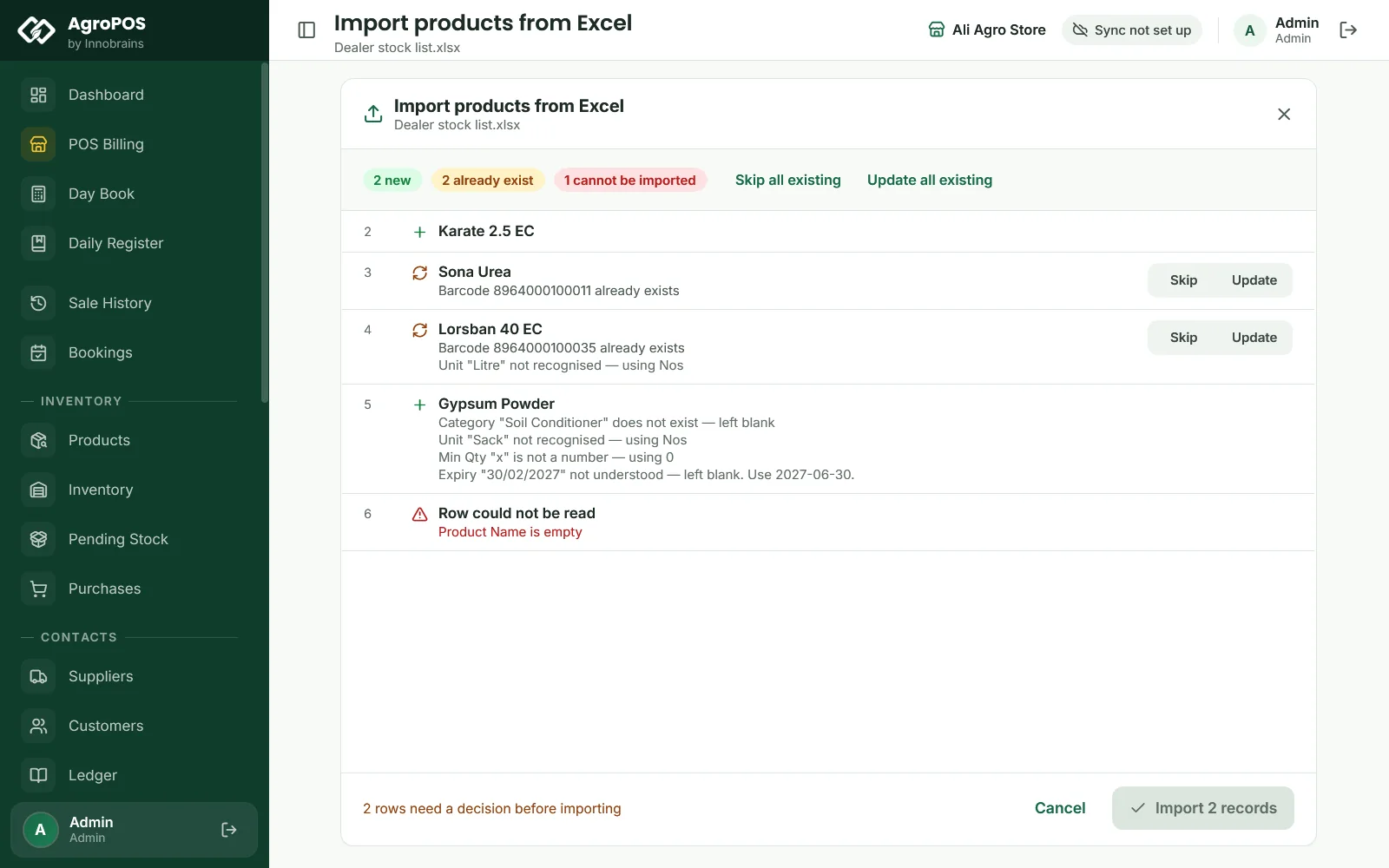
- The preview shows new rows, rows that already exist, and rows that cannot be imported, each with its Excel row number and any notes, such as "Unit "Sack" not recognised — using Nos".
- For each existing record, choose Skip or Update, or click Skip all existing or Update all existing. The import button stays off until every one is decided.
- Click Import (it shows how many records).
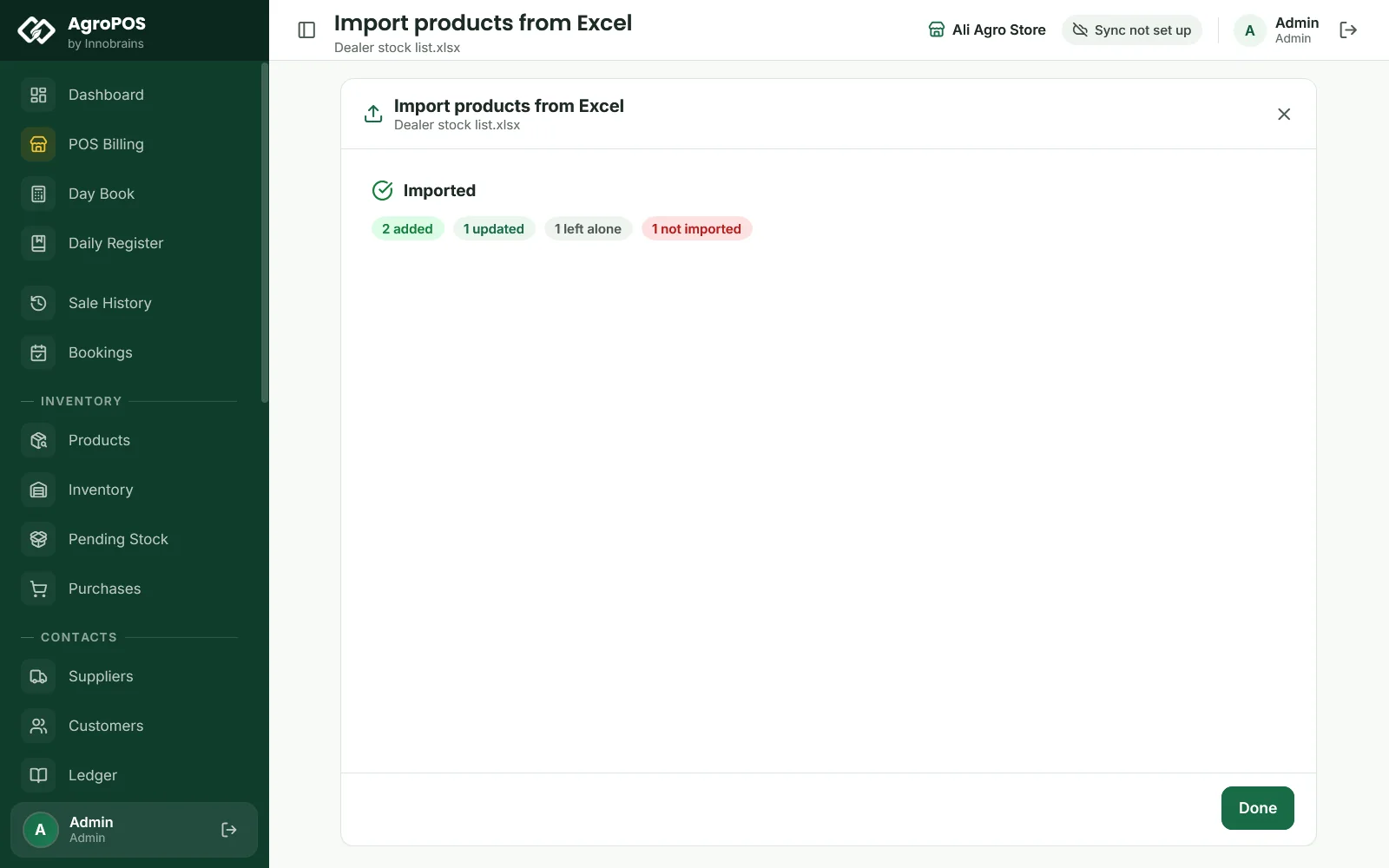
- The result shows how many were added, updated, left alone and not imported, with What did not go in. Fix those rows in your file and import it again: the rows already in show as existing.
Swipe to see the whole screen · tap to close
How existing records are recognised
- Products: by barcode first, then by the same name and company. A product that was deactivated counts as existing.
- Customers and suppliers: by the same name and phone, else by the same name.
- Two rows of the same product or the same barcode in one file are refused, so each row is a different item.
Update changes the details and prices of a product, but never its stock. For a customer or supplier it changes the details and credit limit, but never the balance. Updating a product keeps its wholesale and parchoon rates and leaves it switched on or off as it was. It keeps its category too, unless the sheet names another category that exists.
What an import does to stock and balances
- A new product with an Opening Quantity gets one batch at once, named from Batch Number or OPENING, with the expiry, the purchase price as its cost, and the bag weight as its pack size. It can be sold straight away; it never lands in Pending Stock.
- A new customer or supplier with an Opening Balance gets an "Opening balance" entry in the khata, so old bills do not need to be typed again.
- Wholesale and parchoon rates, and Urdu names, are not part of the import: set the rates on the products afterwards.
Rules and tips
- Import products before entering any purchase, and check Inventory afterwards: the stock value should match your own figure.
- Customers need a Village when added by hand, but not in an import; fill it in the sheet if you search by village.
- Rows are written one by one, so a problem in one row does not stop the rest.
- Keep the file: if something is wrong, fix the sheet and import it again with Update.
Common questions
Can I import my stock with batches and expiry dates?
Yes, one batch per product: put the Batch Number, Expiry Date and Opening Quantity on each row. Further batches come in through Purchases.
Will importing again double my stock?
No. A product already in AgroPOS is either skipped or updated, and an update never changes stock or balances.
Why did my unit become Nos?
The Unit in the sheet is not one of AgroPOS's units. Use one of ML, Liter, Gram, Kg, Bottle, Can, Box, Bag, Pkt, Nos or Bundle, spelt the same way; "Litre" is also read as Liter.
Can I import customers who paid in advance?
Not as an advance: a negative opening balance becomes 0. Add their advance afterwards by editing the customer and choosing Paid in advance.
Related guides
Last updated 21 October 2026. Still stuck? Contact us or message us on WhatsApp.