AgroPOS runs on a licence key that locks to the shop PC it is activated on. This guide, for the owner, covers activating a PC, reading your licence in Settings, changing the key after you buy, what each activation message means, when AgroPOS checks the licence online, and moving the licence to a new PC with a transfer request.

Swipe to see the whole screen · tap to close
How to activate a PC
- Connect the PC to the internet; a phone hotspot is enough.
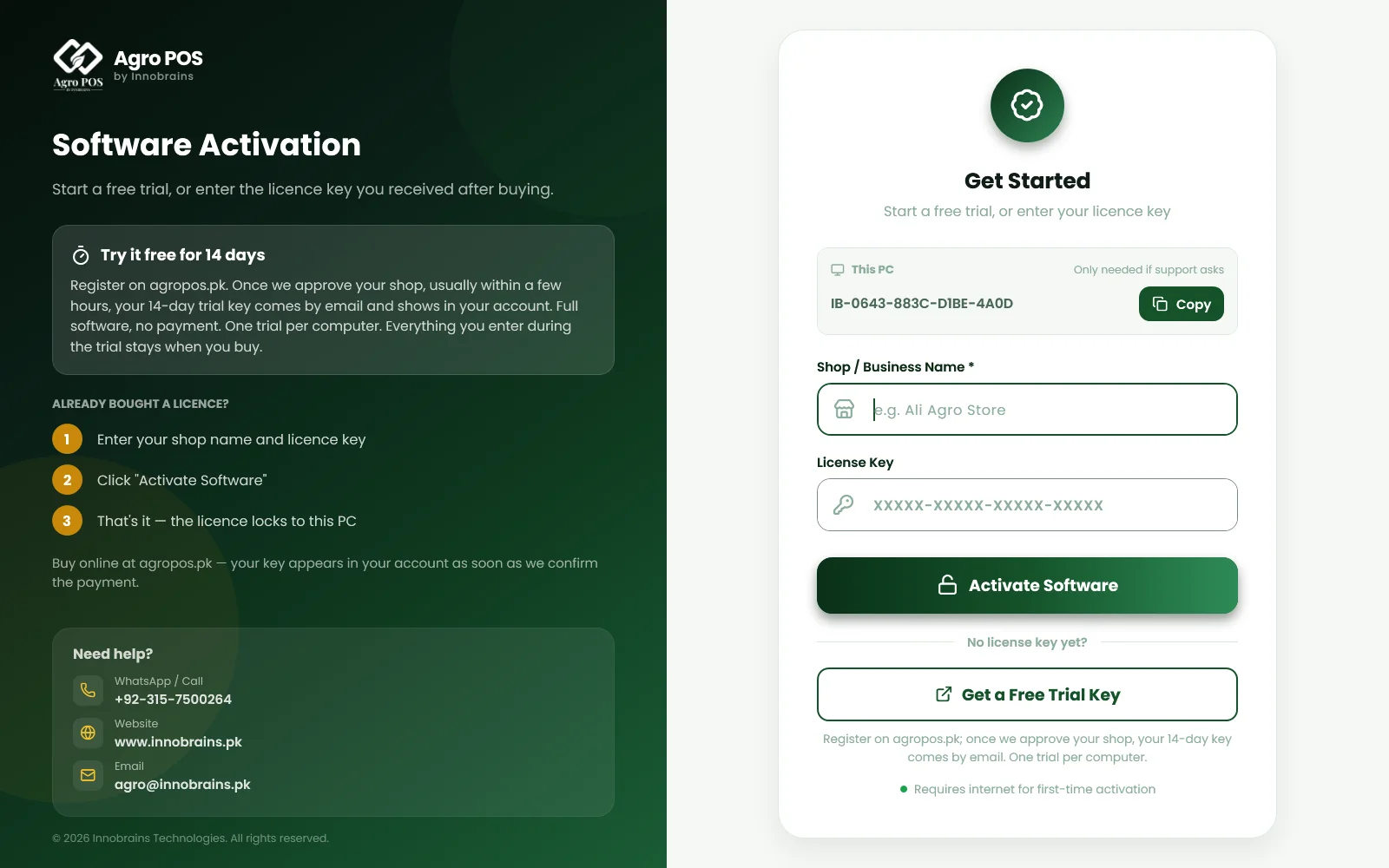
- On Software Activation, type your Shop / Business Name, such as "Ali Agro Store".
- Type or paste the 20-character License Key (
XXXXX-XXXXX-XXXXX-XXXXX). AgroPOS adds the dashes for you. - Click Activate Software. After Connecting to Server... the licence locks to this PC.
The same key works for a single-counter and a Multi-Counter licence: AgroPOS finds out which it is. In a Multi-Counter shop only the main counter is activated; tills work under its licence. No key yet? Get a Free Trial Key opens the sign-up page at agropos.pk. See Installing AgroPOS on a new PC.
Your licence in Settings
Open Settings → About → Licence ("Your key, this computer, and how to change it."). The banner shows the state:
| Banner | Meaning |
|---|---|
| Free trial — "{n} days left." or "Ends today." | A trial key, with the days left |
| Free trial ended — "Buy a licence to keep using AgroPOS." | The trial is over |
| Licensed — "Valid until {date}", with "renew soon" in the last 30 days | A licence with an end date, such as a Cloud plan |
| Licensed — lifetime — "This licence does not expire." | An Offline lifetime licence |
Below it are the Licence key, the Machine ID and the Shop, each with a copy icon for when support asks. On a till the card says "This PC is a till: it works under the main counter's licence."
How to change the licence key
When you buy after the trial, or support gives you a new key:
- Open Settings → About → Licence and click Change licence key.
- Read the note ("Your shop data is not touched. If the new key is not accepted, the one you are using now stays in place.") and click Continue.
- Type the Shop / Business Name and the new License Key, and click Activate Software. AgroPOS says "Licence key changed."
Cancel and keep my current licence closes it without a change. After a trial has ended, AgroPOS opens on Software Activation instead: type the key you bought there.
Activation messages
| Message | What to do |
|---|---|
| Invalid license key. Please check and try again. | Copy the key again from your account or email; check all 20 characters. |
| No internet connection. Please connect and try again. | Connect the PC, even with a phone hotspot. |
| Could not make a secure connection to the server. | Run Windows Update on this PC, then try again. A company firewall or proxy can also cause it. |
| This computer has already used its free trial on … | One trial per computer: enter the key you bought, or call Innobrains. |
| This trial key only works on the computer it was issued to. | Use it on its own PC, or buy a licence. |
| This license has been suspended or revoked. Contact support. | Call Innobrains support. |
| Machine Limit Reached | The key is already active on its PCs. See below. |
When AgroPOS checks the licence
- Activation needs the internet once. After that, AgroPOS checks the licence online in the background each time it starts, and keeps working if the check gets no answer.
- A lifetime licence keeps working without internet for as long as you like.
- A trial, a licence with an end date, and a Cloud licence stop on their end date, with or without internet, because the date is checked on the PC itself.
- When a licence ends, AgroPOS opens on Software Activation with the reason, such as "Your 14-day free trial has ended. Buy a licence at agropos.pk and enter its key below. Your data is safe on this PC." For an expired licence there is a Renew button. Your data stays on the PC.
The licence is kept for the Windows user who activated it, so use the same Windows user on the shop PC every day.
How to move the licence to a new PC
From the new PC:
- Install AgroPOS on the new PC, choose Main counter, and activate with your key.
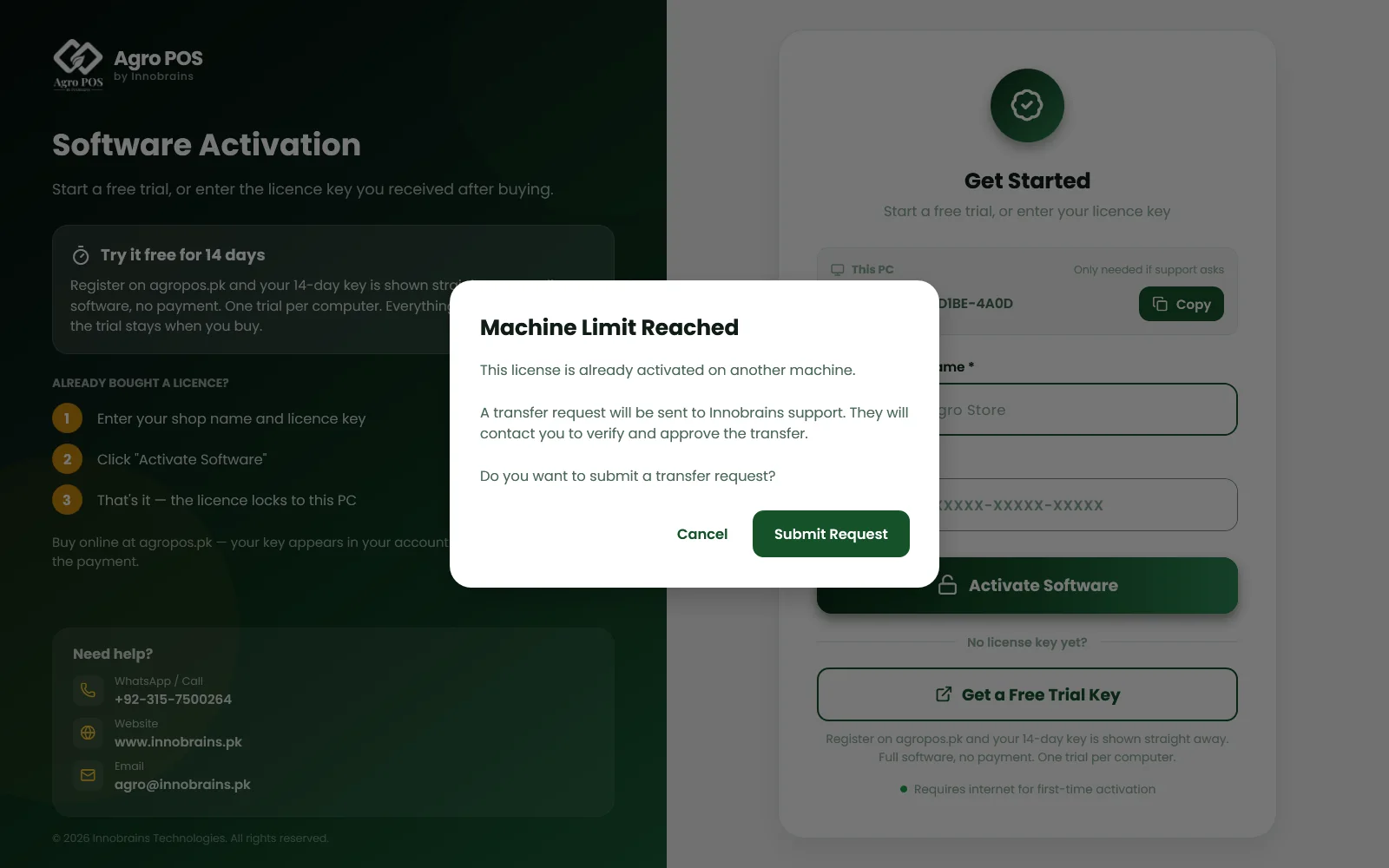
- If the key is still active on the old PC, AgroPOS shows Machine Limit Reached: "A transfer request will be sent to Innobrains support. They will contact you to verify and approve the transfer." The request is sent, and you get an email about it, as soon as this message appears; Submit Request or Cancel does not change that.
- Innobrains contacts you, checks the request and approves it. You get an email when it is approved, or if it is not.
- Click Activate Software again on the new PC.
- Uninstall AgroPOS from the old PC, or stop using it there.
Swipe to see the whole screen · tap to close
From your account: sign in at /portal/login, open the licence, and under Move to another PC choose the PC it replaces, type the New PC's machine ID (from the This PC box on the new PC's activation screen, such as IB-1A2B-3C4D-5E6F-7A8B) and the Shop name on the new PC, and click Request transfer. The form shows while the licence is valid and active on at least one PC. Transfer requests on the same page shows each request as Pending, Approved or Rejected; when one is approved, the licence's other pending requests are closed.
Your shop's data does not move with the licence: bring it across from AgroPOS Cloud or a backup. See Restoring your shop or moving to a new PC.
Rules and tips
- Keep your licence key safe: it is in your account at agropos.pk, under Your licences, and in the email you got when you bought.
- Activate the PC that will stay the shop's main counter. Tills never need a key of their own.
- Before Start completely fresh in Reset Shop Data, write the licence key down: you will activate again.
- One trial per computer: a PC that has had a trial refuses another trial key.
Common questions
Do I need internet to use AgroPOS after activation?
No. Billing and everything else work offline. AgroPOS checks the licence when it is online, and a lifetime licence keeps working without internet.
My old PC died. How do I move the licence?
Activate the new PC with the same key. Machine Limit Reached sends a transfer request to Innobrains at once; once they approve it, click Activate Software again.
Where do I find my machine ID?
In the This PC box on the activation screen, and under Settings, About, Licence with a copy icon. Support may ask for it.
Will moving the licence move my data?
No. The licence and the data are separate. Restore the data on the new PC from AgroPOS Cloud or from a backup file.
Related guides
Last updated 19 October 2026. Still stuck? Contact us or message us on WhatsApp.