A shop on the older AgroPOS Multi-Counter (version 1.x) does not have to update every PC on the same day. Once the main counter runs AgroPOS V2, the older tills can keep billing on it for a while, and each one is moved to V2 when convenient. This guide covers the order of updating, the Let older tills connect switch, how older tills show on the main counter, and moving each till to V2.

Swipe to see the whole screen · tap to close
The order: main counter first
Innobrains moves Multi-Counter shops to V2 with you, main counter first:
- The main counter is updated to V2 with the same setup file as every PC. On its first start it moves the shop's data across once, after a safety copy, and checks every total (see Updating AgroPOS). Its licence and counters come with it.
- The tills keep billing on it as older tills while Let older tills connect is on.
- Each till is then updated to V2 and paired with the main counter.
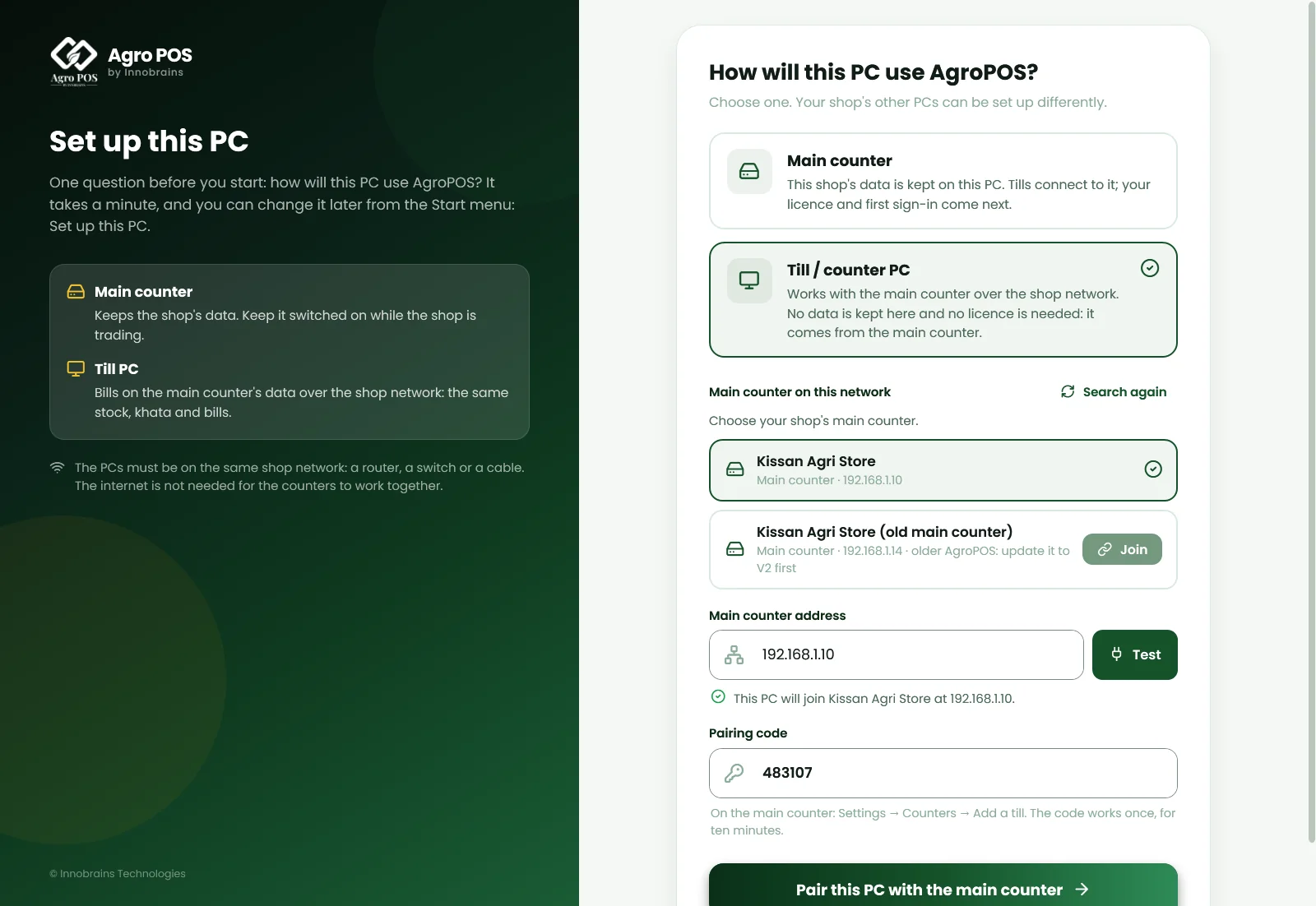
A till updated to V2 before its main counter cannot bill: when it looks for the main counter, it lists it as "older AgroPOS: update it to V2 first". Update the main counter, then pair the till.
The Let older tills connect switch
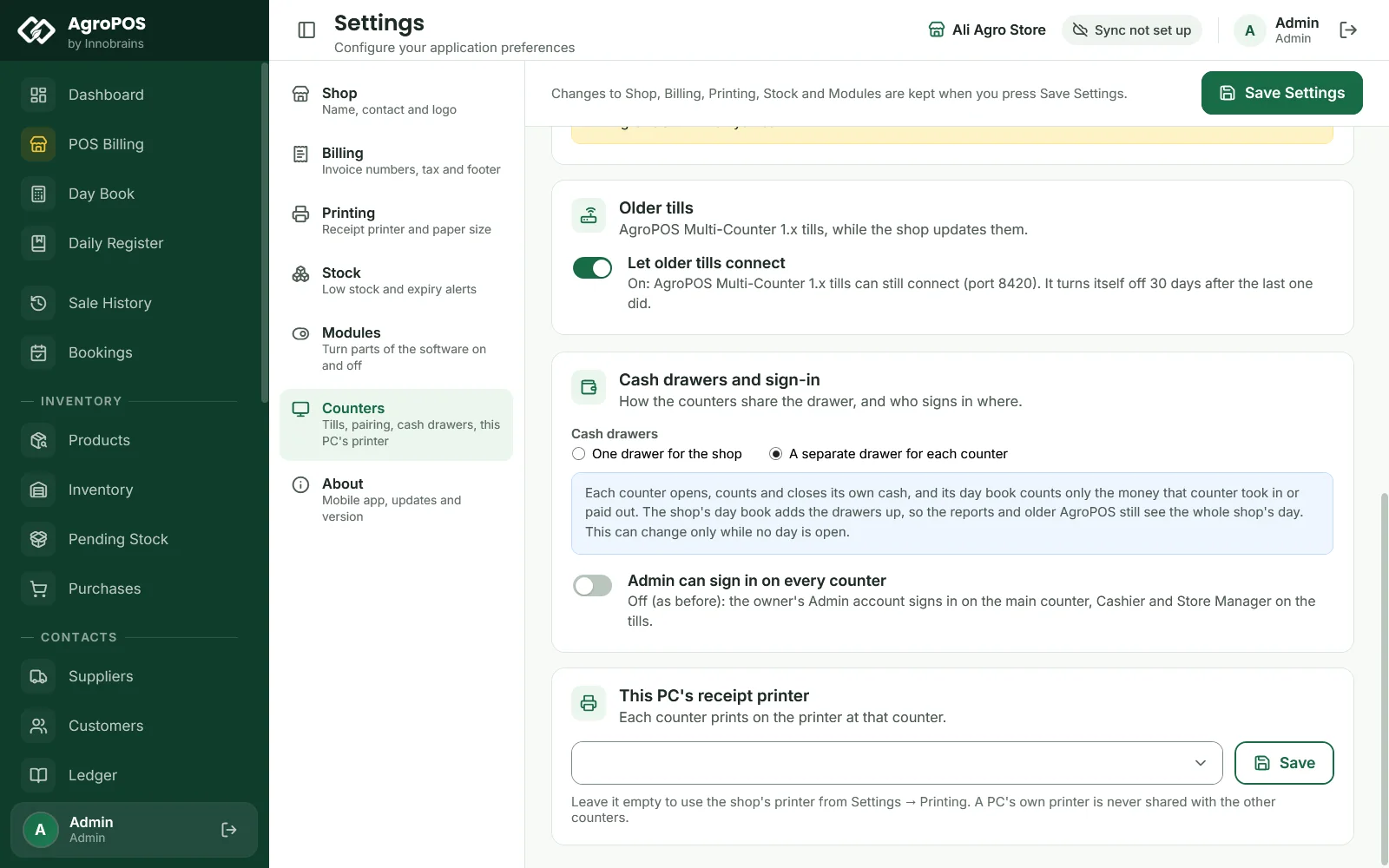
On the main counter, Settings → Counters → Older tills ("AgroPOS Multi-Counter 1.x tills, while the shop updates them.") has the switch Let older tills connect:
- On: "AgroPOS Multi-Counter 1.x tills can still connect (port 8420). It turns itself off 30 days after the last one did."
- Off: "only tills running AgroPOS V2 can connect."
It is on by default only on a main counter that was moved from the older Multi-Counter, and its tills from the older version are brought across once. A new V2 shop never needs it.
The 30 days are checked when AgroPOS starts on the main counter. The switch turns itself off once more than 30 days have passed since the later of two moments: the last time an older till connected, and the time the switch was turned on. Turning it on again starts the 30 days afresh.
How older tills show and work
On the main counter, each older till carries the badge Older AgroPOS, with "Older AgroPOS Multi-Counter: update this PC to AgroPOS V2." Above the list: "Some tills still run the older AgroPOS Multi-Counter. They keep working for now; update each of them to AgroPOS V2 when you can."
An older till bills as it always did, over the shop network, on the same stock and khata as the V2 tills. Each older till holds one of your licence's counters. If it is on a different 1.x version from the one the main counter expects, it says "This counter is running a different version of AgroPOS Multi-Counter than the main counter. Install the same version on both, then try again."
If the main counter shows "Older tills cannot connect: another program is using their network port (8420) on this PC.", restart the main counter PC; if it keeps happening, call Innobrains support.
How to move a till to V2
- On the till, close the older AgroPOS and run the V2 setup file (how to run it by hand, in Urdu).
- AgroPOS knows the PC was a till. It looks for the main counter on the shop network.
- On the main counter, open Settings → Counters and click Add a till for a six-digit code.
- On the till, type the code and click Pair this PC with the main counter.
Swipe to see the whole screen · tap to close
The till keeps its name, its cash drawer and, when it is free, its bill tag. Its old copy of the data is not used: everything stays on the main counter. If AgroPOS says "This PC was a till (another counter) of AgroPOS Multi-Counter. Its old copy of the data is out of date", choose Set up this PC from the Start menu and make it a till, or call Innobrains support.
Cash drawers after the move
A shop moved from the older Multi-Counter keeps the drawer setting it had: a separate drawer for each counter, unless it had been set to one drawer. Each counter's Day Book names its drawer. The Drawers on this day list on the main counter is for shops set up as Multi-Counter in V2. See Day Book: opening, counting and closing the day.
Rules and tips
- Update the main counter on a quiet day, after closing, with a fresh backup copied to USB.
- Move the tills one by one; the others keep billing meanwhile.
- When every till runs V2, switch Let older tills connect off, or let it turn itself off after 30 days.
- After the move, every PC must run exactly the same V2 version: update the main counter first, then each till.
Common questions
Do I have to update all my tills on the same day?
No. With Let older tills connect on, the older tills keep billing on the V2 main counter. Update each one when it suits you.
Why does my new V2 till not find the main counter?
The main counter may still run the older AgroPOS: it shows as older AgroPOS: update it to V2 first. Update the main counter, then pair the till.
What happens after 30 days?
When the main counter starts more than 30 days after the last older till connected, the switch turns itself off and only V2 tills can connect. Turn it on again if an older till still needs it.
Will a till lose its bills when it moves to V2?
No. Tills keep no data of their own: every bill is on the main counter. The till keeps its name and drawer, and usually its bill tag.
Related guides
Last updated 19 October 2026. Still stuck? Contact us or message us on WhatsApp.