AgroPOS can send your customers their bill the moment you save it, a receipt when they pay, and a reminder when their udhaar gets old, on WhatsApp, from the shop's own number. You choose which messages go, what they say and whether they carry the bill as a picture or a PDF. This guide covers switching it on, linking the shop's WhatsApp, choosing the messages, and the WhatsApp screen.

Swipe to see the whole screen · tap to close
Before you switch it on
WhatsApp messages are an optional service, and AgroPOS asks you to accept this once:
- AgroPOS links to WhatsApp the way WhatsApp Web does, from the shop PC. It is not WhatsApp's official business service, and AgroPOS is not made by or connected with WhatsApp or Meta.
- WhatsApp may limit or ban a number that sends many messages, or messages people did not expect or report as spam. Use a separate SIM for the shop, not your personal number, and send only to your own customers.
- Innobrains is not responsible if WhatsApp limits or bans a number, or for messages that are late or not delivered.
Who can do what
Settings → WhatsApp is open to whoever may change the settings; only the Admin can switch WhatsApp on or off, link or unlink the number, and save the messages. The WhatsApp screen in the menu (under System) is open to the same people.
How to switch WhatsApp on and link the shop's number
- On the main counter (or the shop's only PC), open Settings → WhatsApp.
- Read the warning, tick I understand and accept these risks, and click Turn on WhatsApp.
- AgroPOS downloads its WhatsApp part once (about 50 MB). You can keep billing; the screen moves on by itself. Without internet it says so, and downloads when the internet is back.
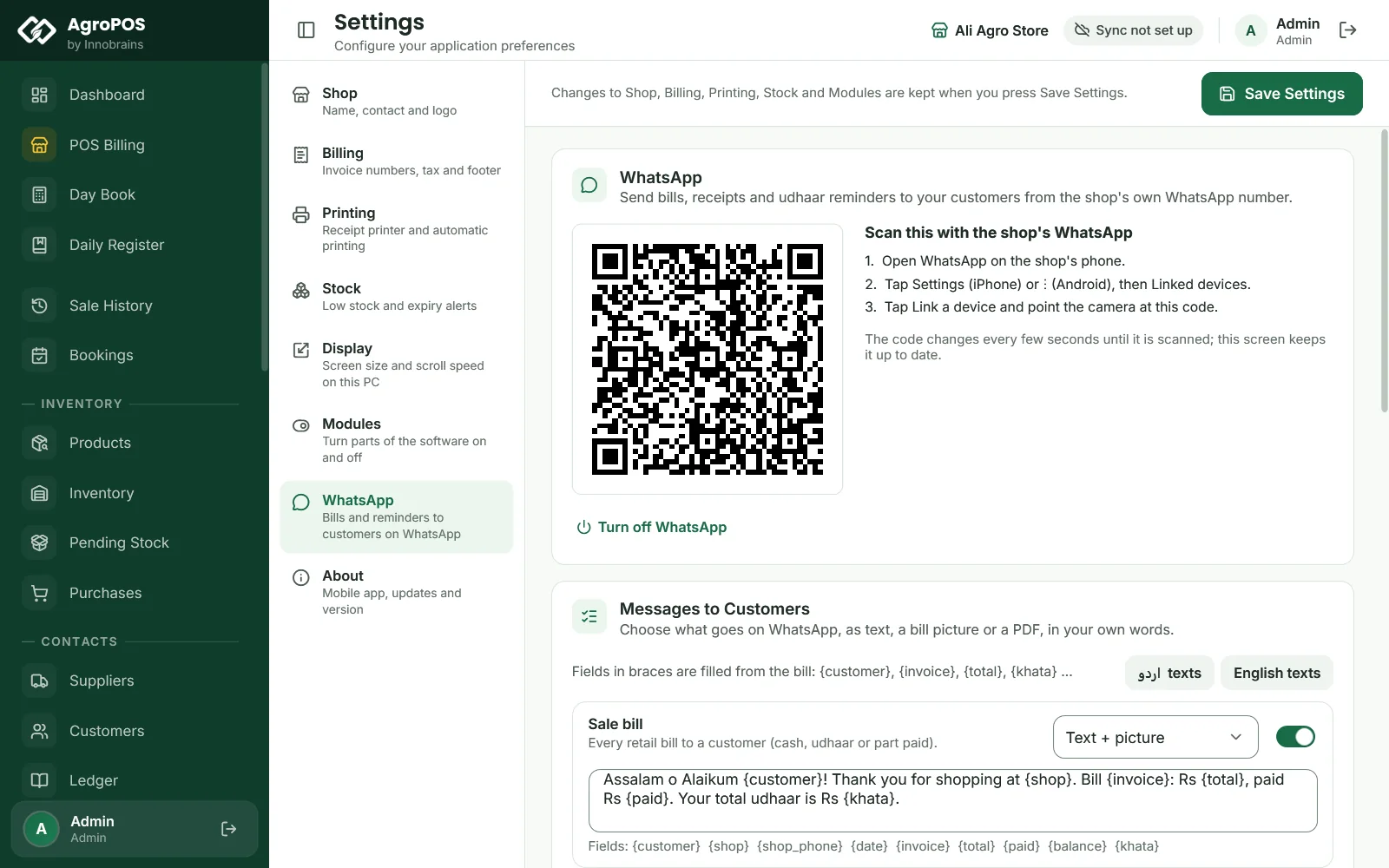
- When Link the shop's WhatsApp shows, choose one:
- Show QR code: on the shop's phone open WhatsApp → Settings (iPhone) or ⋮ (Android) → Linked devices → Link a device, and point the camera at the code on the screen.
- Link with the phone number: type the shop's WhatsApp number (such as 03001234567) and click Get code. On the phone, tap WhatsApp's notification "Enter code to link new device", or go to Linked devices → Link a device → Link with phone number instead, and type the eight letters.
- When it says Linked, send a test message to your own number.
A till shows that the shop's WhatsApp is on the main counter: bills from every till go from there.
How to choose the messages
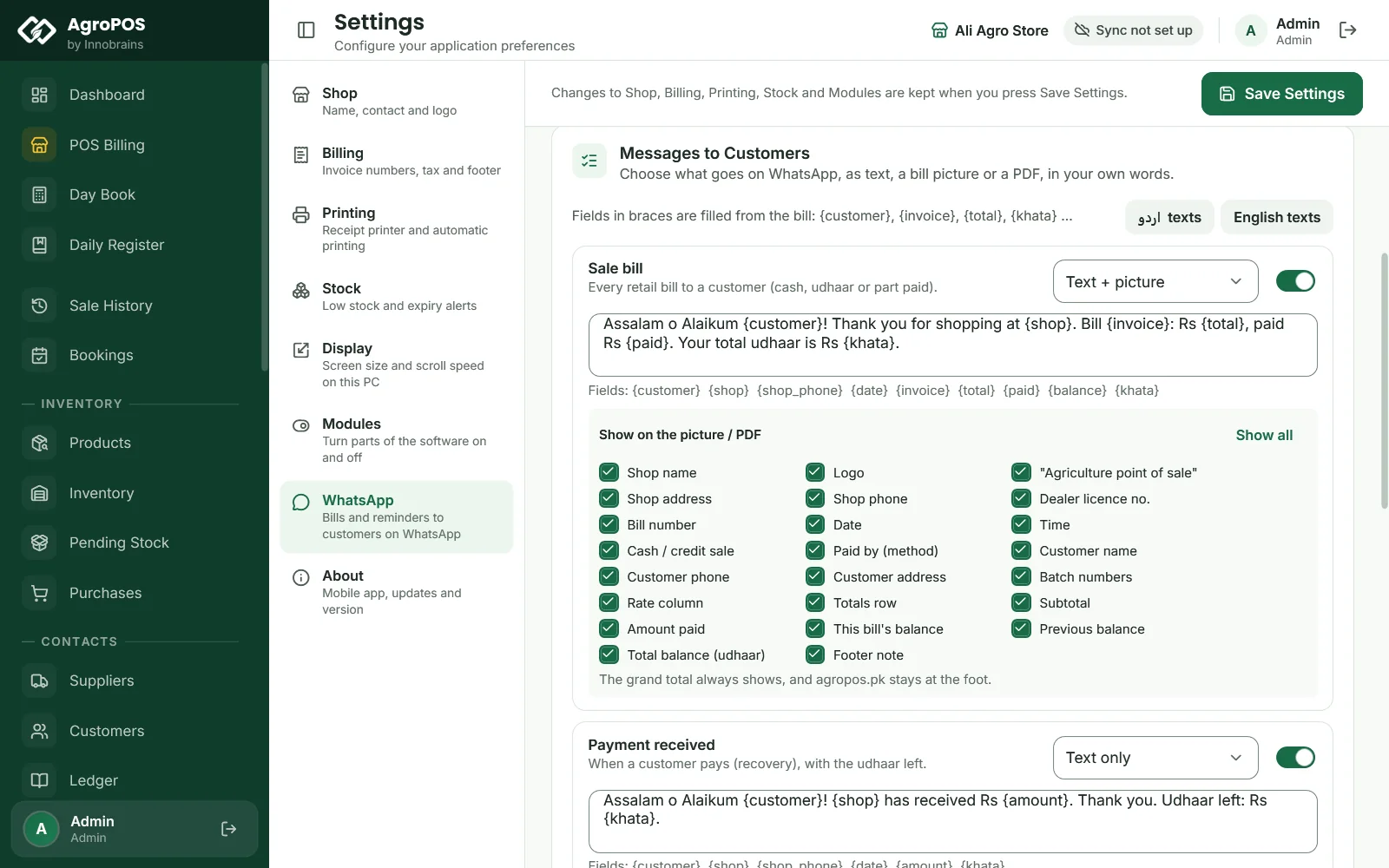
Under Messages to Customers each event has its own switch: Sale bill, Payment received, Udhaar reminder, Sale return, Wholesale bill, Wholesale payment received, Wholesale return and Booking. For a bill or a payment choose Text only, Text + picture or Text + PDF.
Swipe to see the whole screen · tap to close
Write each message in your own words. Fields in braces are filled from the bill: {customer}, {shop}, {shop_phone}, {date}, and for a bill {invoice}, {total}, {paid}, {balance} (left on this bill) and {khata} (the customer's total udhaar now); for a payment {amount}; for a reminder {days}. اردو texts puts every message in Urdu, English texts in English.
Below them:
- Pause between messages (10 to 120 seconds) and Messages a day: slower and fewer are safer for a new number.
- Quiet from and Quiet until: messages made in the quiet hours wait until the morning.
- Udhaar reminder: when the udhaar has been unpaid for so many days, and is at least so much, a reminder goes once a day from 10 AM, and again every so many days until the customer pays.
Click Save WhatsApp messages.
What the customer receives
The bill picture and PDF look like AgroPOS's A4 invoice, laid out for a phone: the shop's letterhead (logo, name, address, phone, dealer licence), the bill's number, date and time, cash or credit sale, the customer, the items with their quantities in their own units (bags, litres, kilos) and rates, the totals, the grand total, what was paid and what is left, and the previous and total balance. A payment shows the amount received and the balance left or the advance.
Under each bill or payment set to a picture or PDF, Show on the picture / PDF lists every field: untick any you do not want the customer to see, even the shop's name, the rates, the batch numbers or the balances. Show all ticks them all again. The grand total always shows, and agropos.pk stays at the foot.
The WhatsApp screen
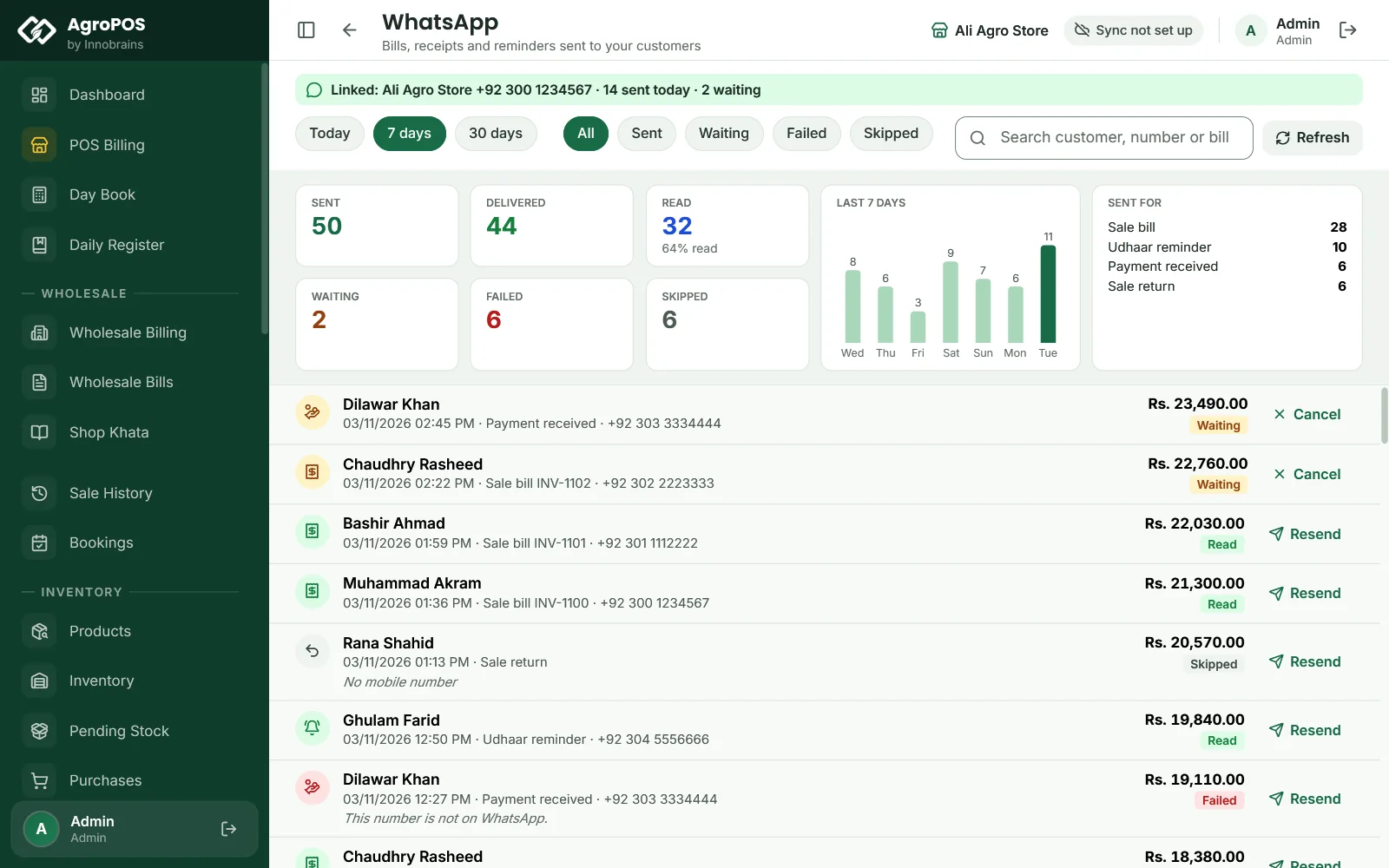
WhatsApp in the menu shows today, 7 days or 30 days: messages sent, delivered, read (and how many of those sent were read), waiting, failed and skipped, the last seven days, and which events sent them. Every message is listed with its customer, number, bill and state; search by customer, number or bill.
Swipe to see the whole screen · tap to close
- Waiting: AgroPOS has not sent it yet (no internet, WhatsApp not linked, the quiet hours, the daily limit, or the pause). It goes by itself; Cancel stops it.
- Failed: WhatsApp refused it, usually because the number is not on WhatsApp. Resend sends it again, to the customer's number as it is now.
- Skipped: the customer has no mobile number, or replied STOP.
Offline, and with AgroPOS closed
A bill never waits for WhatsApp: its message is kept and sent by AgroPOS's background service as soon as the internet is there, even after AgroPOS is closed, as long as the PC is on. A customer who replies STOP gets no more messages; START lets them through again.
Unlink or switch off
Unlink removes the shop's WhatsApp from AgroPOS and from the phone's Linked devices. Turn off WhatsApp stops all messages and keeps the number linked, so turning it on again needs no new scan. If WhatsApp is unlinked from the phone, Settings → WhatsApp says so and offers to link it again.
Rules and tips
- Use a separate SIM for the shop's WhatsApp, and send only to your own customers. Keep the pause at 20 seconds or more and the daily limit low for a new number.
- Put each customer's mobile number in Phone on the customer (or shop) when you add them: a bill to a customer with no mobile number is skipped, and a walk-in without a number gets no message.
- Keep the shop's phone charged and on the internet now and then: WhatsApp unlinks a linked device after its phone has been away for a long time.
- Send the first messages to your own number, and read them as a customer would, before you switch every event on.
Common questions
Does the customer need any app?
No. The message arrives in the customer's normal WhatsApp, from the shop's number they already know. The picture and the PDF open on any phone.
What happens when the internet is off?
The bill is saved as always. Its message waits and goes by itself when the internet is back, even if AgroPOS has been closed by then, as long as the PC is on.
Can my tills send messages too?
Yes. In a Multi-Counter shop the shop's WhatsApp is linked on the main counter, and every till's bills go from there.
A customer asked us to stop. What do I do?
Nothing. When a customer replies STOP, AgroPOS stops sending to that number by itself. If they reply START, messages go again.
Will WhatsApp ban my number?
It may, if a number sends many messages, or messages people did not expect or report as spam. A separate SIM, a slow pause, a low daily limit and messages only to your own customers keep the risk low. This is an optional service, and Innobrains is not responsible if WhatsApp limits or bans a number.
Related guides
Last updated 3 November 2026. Still stuck? Contact us or message us on WhatsApp.