AgroPOS sells from batches, each with its batch number, expiry and cost. A quantity typed in Opening Stock when a product is added has no batch behind it, so the till cannot sell it yet. Pending Stock lists these products and turns each one into a proper purchase with one click. This guide explains why stock lands there, how to complete it, and how to avoid it when you start.

Swipe to see the whole screen · tap to close
Who can use Pending Stock
Pending Stock is under INVENTORY for the Store Manager and the Admin, the same people who record purchases ("Record a purchase"). A Cashier does not see it.
Why a product lands in Pending Stock
A product is listed when it is active, shows a quantity, and no batch holds that stock. In practice that is a product added on Products → Add Product with a figure in Opening Stock.
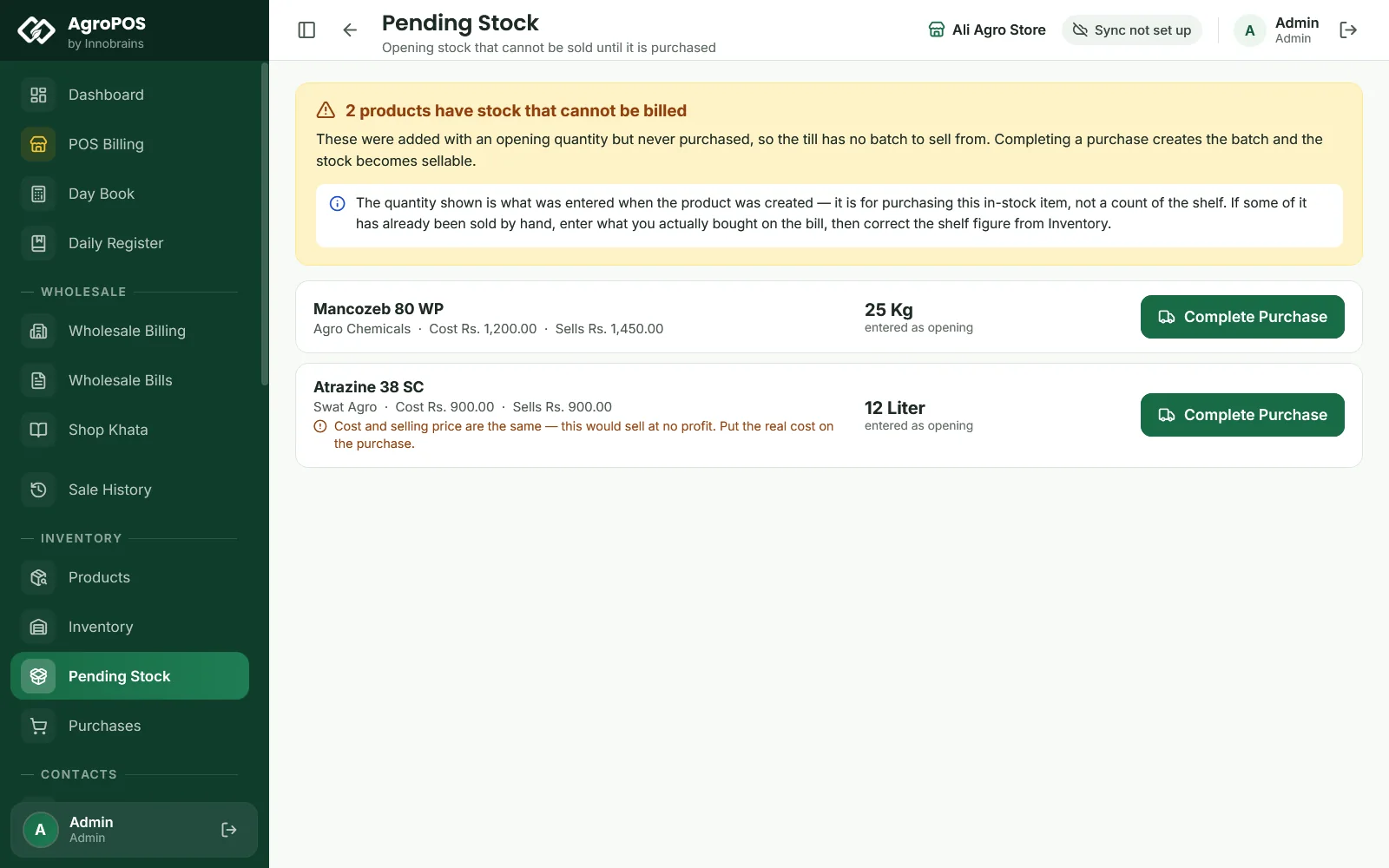
At the till, such a product is refused as out of stock, even though Products shows a quantity. The amber heading on Pending Stock says how many products have stock that cannot be billed: "These were added with an opening quantity but never purchased, so the till has no batch to sell from."
Each card shows the product, its company, its cost and selling price, and the quantity "entered as opening". If the cost and the selling price are the same, AgroPOS warns that it would sell at no profit: put the real cost on the purchase.
How to complete a purchase for pending stock
- Open Pending Stock.
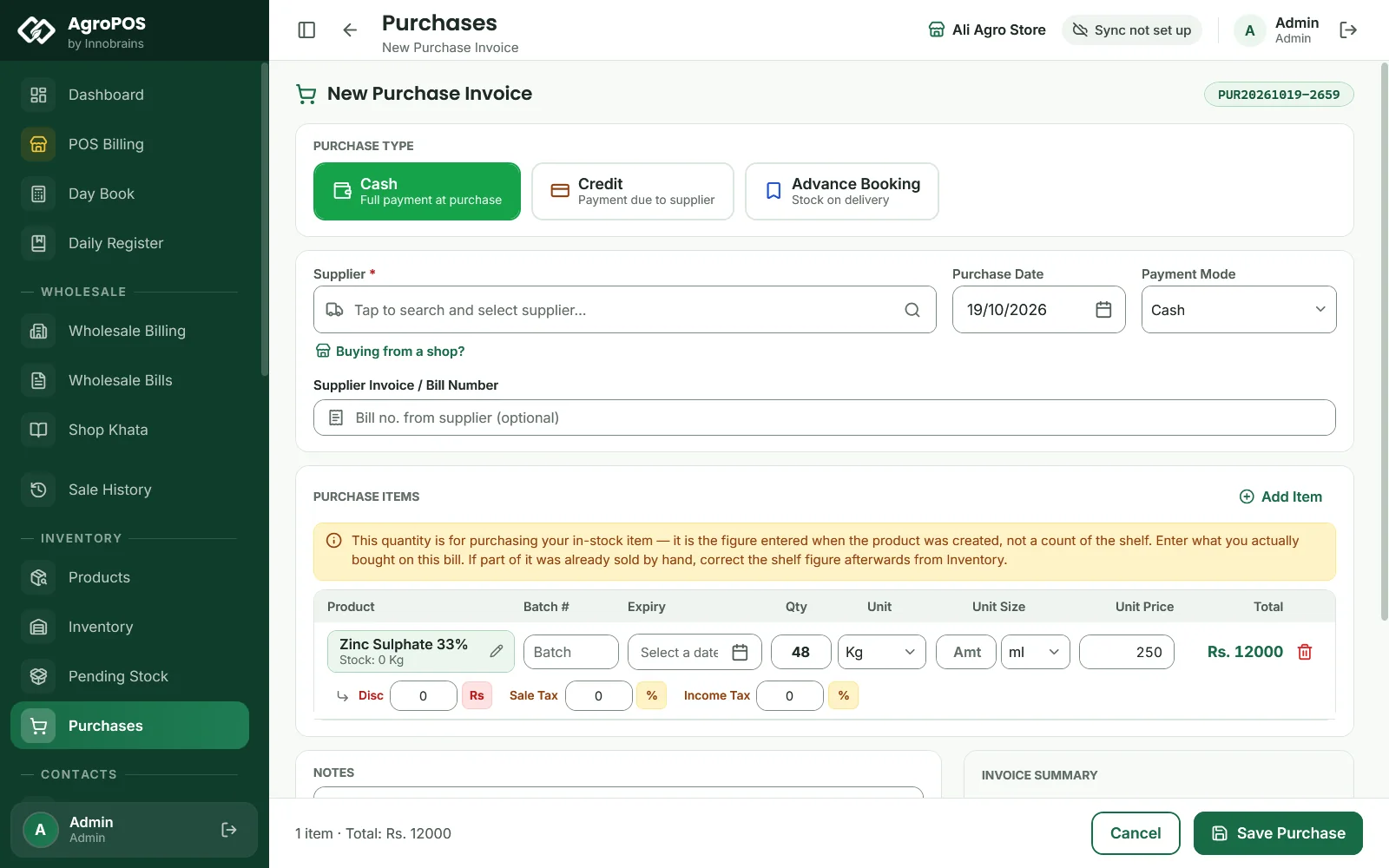
- Click Complete Purchase on the product. New Purchase opens with the product on the first line, at its purchase price, in its unit, with the opening quantity as Qty.
- Choose the Supplier (F3) and the PURCHASE TYPE: Cash or Credit, as the stock was really bought.
- Type the Batch # and Expiry from the pack, and the Unit Size, such as 25 Kg.
- Check the Qty: type what you actually bought on that bill, not what is on the shelf now.
- Click Save Purchase.
Swipe to see the whole screen · tap to close
The batch is created and the till can sell the stock at once. The product's stock is then worked out from its batches, so the purchase replaces the opening figure; it is not added to it. If part of the opening stock was already sold by hand, correct the shelf figure afterwards with Adjust Stock in Inventory.
Opening stock you have no bill for
Old stock bought before AgroPOS often has no supplier bill to enter. A purchase would add to a supplier's khata, or take cash out of today's drawer. Use a stock adjustment instead:
- Open Inventory → Adjust Stock and pick the product.
- Choose Add, type the quantity on the shelf, its Batch #, Expiry, pack size and Cost / unit, and a reason such as "Opening stock".
- Click Apply.
A batch is made and the till can sell it. The product's stock is worked out again from its batches, so the opening figure is replaced, and no supplier, khata or cash is touched. See Stock adjustments and counts.
How to avoid pending stock when you start
- Enter opening stock as purchases. Add the product with Opening Stock empty, then enter the stock under Purchases with its batches and expiry dates.
- Or import it from Excel. An imported product's Opening Quantity becomes a real batch at once, under batch number OPENING unless your sheet gives one, and is never pending. See Importing products and customers from Excel.
Rules and tips
- Check Pending Stock after adding products by hand, and clear it before your first bill.
- The quantity on a card is the figure typed when the product was created. It is a starting point for the purchase, not a count of the shelf.
- A product disappears from Pending Stock as soon as a batch holds its stock.
- When nothing is pending, the page says "Nothing pending": every product with stock can be billed.
Common questions
Why does the till say a product is out of stock when Products shows a quantity?
The quantity was typed as Opening Stock and has no batch, so the till has nothing to sell from. Open Pending Stock and click Complete Purchase on that product.
Does completing the purchase double my stock?
No. After the purchase, the product's stock is worked out from its batches, so the opening figure is replaced by what you entered on the purchase.
I imported my products from Excel. Will they be pending?
No. The Opening Quantity column of an import creates a sellable batch straight away.
Can a cashier complete pending stock?
No. Pending Stock is for the Store Manager and the Admin, who can record purchases.
Related guides
Last updated 19 October 2026. Still stuck? Contact us or message us on WhatsApp.