Who this is for
Most PCs move to the new AgroPOS by themselves. Some older copies of AgroPOS cannot install it on their own. Use this page if:
- your old AgroPOS did not update itself to the new AgroPOS, or
- it tried, and showed an error, or nothing happened, or
- Innobrains support sent you this link.
You install the new AgroPOS over the old one, on the same PC. Nothing has to be uninstalled first.
Before you start
-
Make a backup in the old AgroPOS
Open the old AgroPOS, go to its Backup screen and make a backup. If you can, copy it to a USB stick as well.
-
Close the old AgroPOS
On this PC, and on every counter if your shop has more than one.
The new AgroPOS uses the data that is already on this PC: your bills, stock, customers, udhaar, users and licence. Before it changes anything it makes its own safety copy, and your old data is not changed. The backup above is an extra copy, in case support needs it.
Download the new AgroPOS
Download it on the PC where AgroPOS runs. It is saved in your Downloads folder.
The new AgroPOS 2.0.15
For Windows 10 or 11. One file for a one-counter shop and for every PC of a Multi-Counter shop.
The file is called InnoBrainsAgroPOS_Setup_v2.0.15.exe.
Run it as administrator
-
Open the Downloads folder
Find the setup file you just downloaded.
-
Right-click it, then click Run as administrator
Do not just double-click it: some old AgroPOS PCs need the administrator rights to finish.
-
Windows asks “Do you want to allow this app to make changes to your device?”
Click Yes. If Windows asks for a password instead, see No administrator password?
The setup file
In Downloads. Right-click it.
Run as administrator
In the menu that opens.
Yes
When Windows asks to allow changes.
What you will see
-
The installer
AgroPOS Setup opens. Keep what it suggests and click through to the end; it keeps the folder AgroPOS is already in. If the old AgroPOS is still open, the installer closes it. Leave Start AgroPOS ticked on the last page and click Finish.
-
Preparing your data
The new AgroPOS opens on Moving your data to the new AgroPOS. It ticks off its steps, among them Making a safety copy of your data and Preparing your data for the new AgroPOS. It usually takes a minute or two, longer for a big shop. Do not turn off the PC: if AgroPOS is closed, it carries on the next time it opens.
-
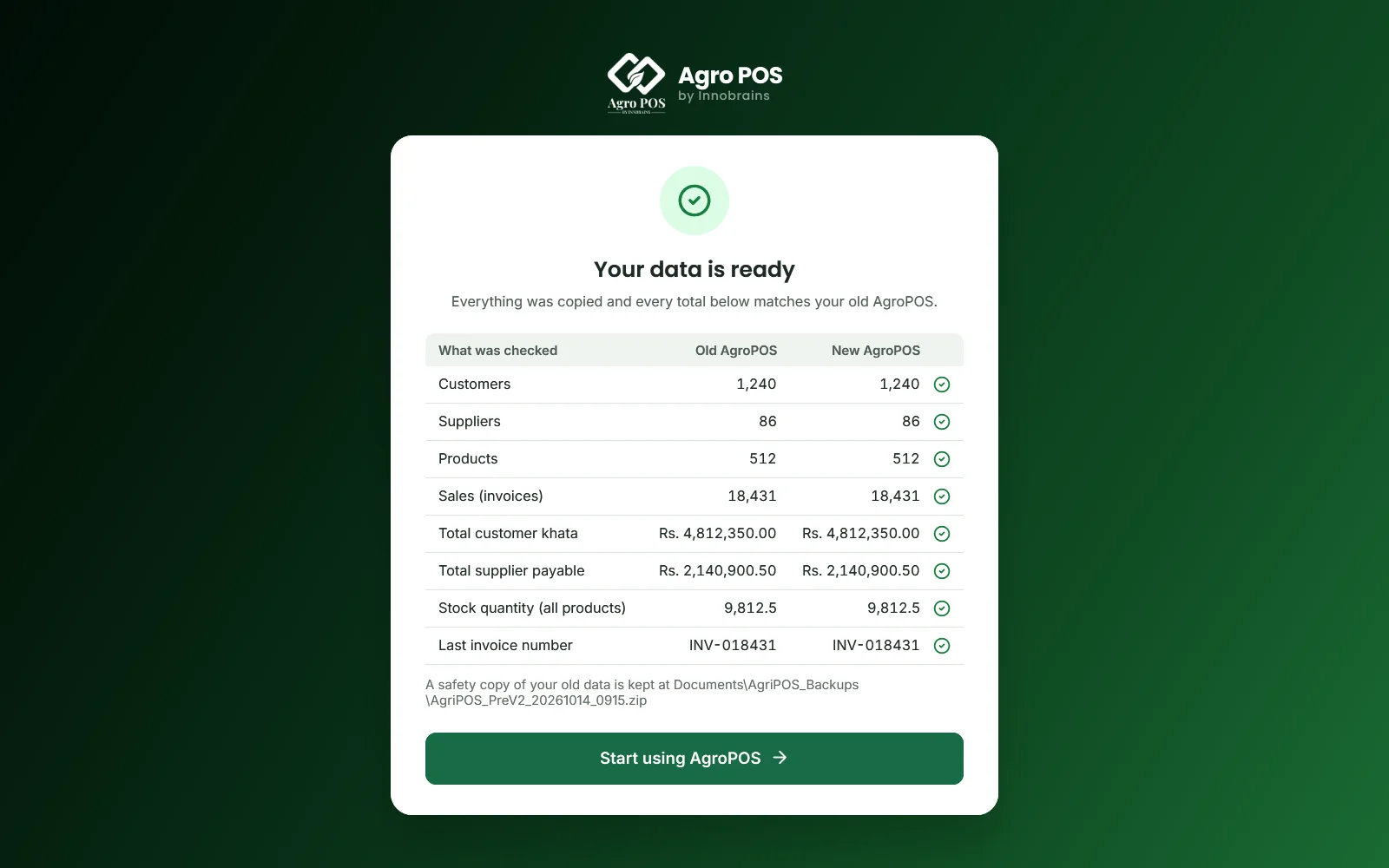
Your data is ready
Your old and new totals are shown side by side. Click Start using AgroPOS.
-
Sign in
With the same username and password as before. Your licence came across, so there is nothing to activate.

Swipe to see the whole screen · tap to close
Some totals do not match: send us the report with Send report to Innobrains (WhatsApp) before you carry on. One thing to do before AgroPOS can continue: nothing was changed; do what it says and click Retry. AgroPOS could not finish the upgrade: send us a photo (see below); its Go back to the previous AgroPOS box says how to keep billing on the old AgroPOS meanwhile.
If Windows says “Windows protected your PC”
A blue box may appear when the setup starts. The setup is not signed with a publisher certificate yet, so Windows does not know it.
-
Click More info
The small link under the message.
-
Click Run anyway
The button appears at the bottom. The setup then starts as above.
Do this only for the setup you downloaded here, or from the link Innobrains sent you.
No administrator password?
If Windows asks for an administrator's name and password instead of a simple Yes, the Windows account you use on this PC is not an administrator. That is common on shop PCs, and it is why the old AgroPOS could not update itself.
Ask whoever has the administrator password of this PC (the owner, or whoever set the PC up) to type it in. They need to do it only once, for the installation. After that, AgroPOS works in your own account as before, and later updates install themselves.
Multi-Counter shops
Every PC of the shop uses the same setup file. Do them in this order:
-
The main counter first
The PC that keeps the shop's data. Close AgroPOS on every counter, then install on the main counter as above and wait for Your data is ready. Make one test bill.
-
Then each till, one by one
Run the same setup on each till. A till keeps no data of its own, so it has nothing to move. If it asks, pair it with the main counter: on the main counter open Settings → Counters → Add a till and type the Pairing code it shows on the till.
Until a till is done it keeps working with the main counter as before.
If it does not work
Stop, and send us a WhatsApp message. Your data is safe: if the new AgroPOS did not install completely, the AgroPOS icon still opens the old AgroPOS.
What to send
A photo of the message on the screen, your shop name, and the logs folder (below).
Sending the logs folder
-
Press the Windows key and R together
A small Run box opens.
-
Paste the folder's address and press Enter
One counter:
%LOCALAPPDATA%\InnoBrains Technologies\AgroPOS\logs
Multi-Counter:%LOCALAPPDATA%\InnoBrains Technologies\AgroPOS Multi-Counter\logs -
Send it to us zipped
Go up one folder, right-click logs, choose Send to → Compressed (zipped) folder, and send the zip file on WhatsApp.