Most owners try AgroPOS with made-up bills before the shop starts on it for real. Reset Shop Data clears that practice data, so the first real day starts clean. It can clear just the bills and khata, everything you entered, or the whole shop as if AgroPOS had just been installed. Because it cannot be undone, it needs a code from Innobrains on the phone, and a backup is always saved first.

Swipe to see the whole screen · tap to close
Who can reset
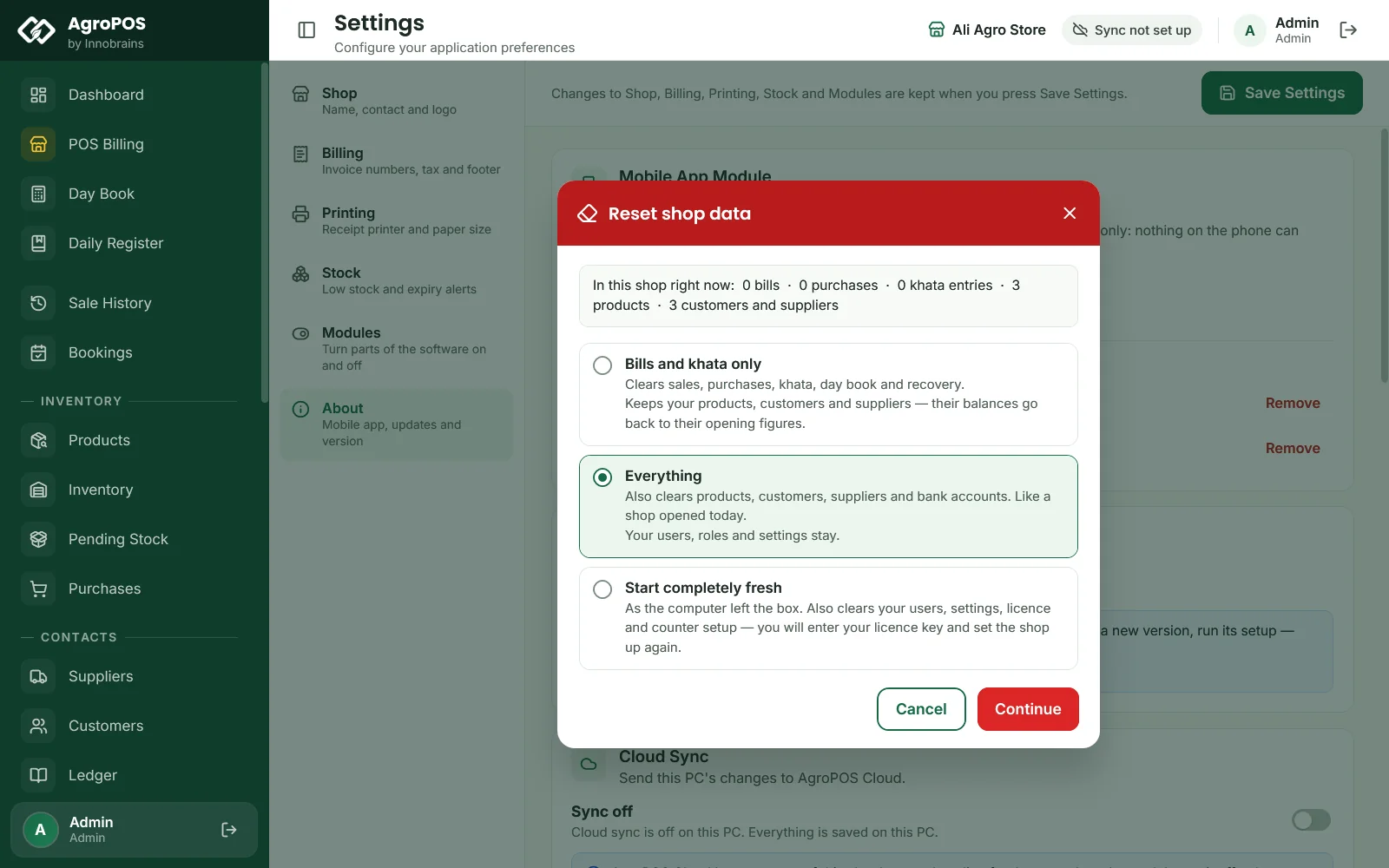
Reset Shop Data is on Settings → About, for the Admin ("Change settings"). In a Multi-Counter shop it is done on the main counter, where the data is kept. A shop with no data yet is told "There is nothing to clear — this shop has no data yet."
The three choices
| Choice | What is cleared | What stays |
|---|---|---|
| Bills and khata only (the standard choice) | Sales and returns, wholesale bills, held bills, purchases and returns, khata entries, the day book, expenses, recovery dates, cheques, bank entries, supplier payments and notes, party settlements, bookings, batches and stock movements | Products, customers, suppliers, shops and bank accounts, with their balances back to their opening figures and an "Opening balance" entry on each khata that has one; stock goes to 0; users, roles, settings and the licence |
| Everything | All of the above, plus products, categories, customers, suppliers, shops and bank accounts. The standard categories come back. | Users, roles, settings and the licence: "Like a shop opened today." |
| Start completely fresh | Everything, plus users, roles, settings, the licence on this PC and the counter setup | Nothing: AgroPOS starts as a new install, asking for the licence key and the setup again |
Change History is kept by every choice. Bills and khata only starts the invoice numbers again from 1, on the main counter and on every till. After Everything they carry on from where they were, and Start completely fresh starts them again with the new setup.
How to reset
- Make a backup and copy it to USB, in case you need anything later.
- Open Settings → About and click Reset shop data.
- Check In this shop right now (the bills, purchases, khata entries, products and parties), choose how much to clear, and click Continue.
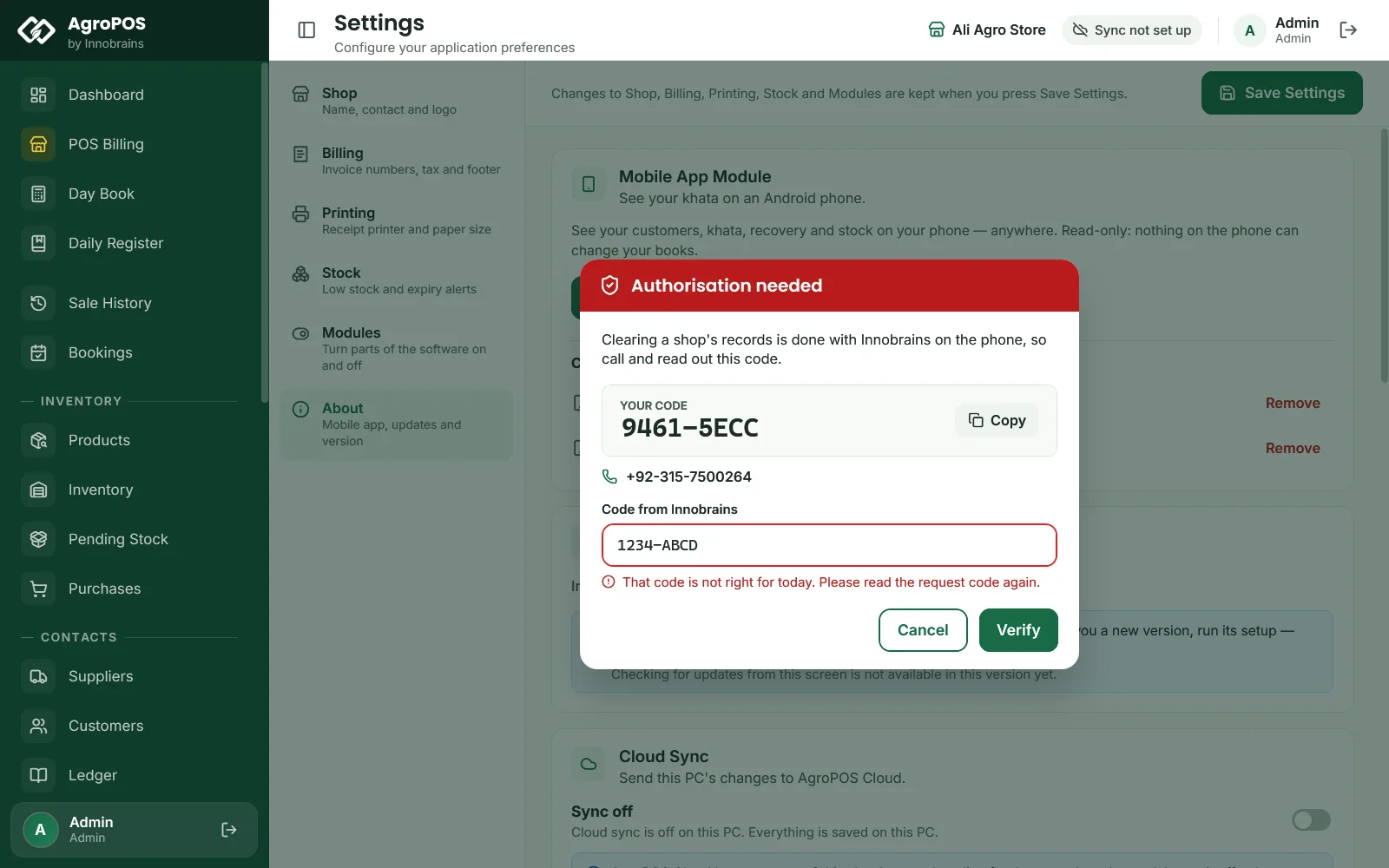
- Authorisation needed: call Innobrains support and read out YOUR CODE. Type the Code from Innobrains they give you and click Verify. The code is for this PC and today only.
- This cannot be undone: read the warning. For Start completely fresh, write down the licence key shown under WRITE THIS DOWN FIRST; you will need it to activate again.
- Type the shop name to confirm and click Clear it.
- Shop data cleared shows how many records were cleared and where the backup was saved. Click OK, then close and reopen AgroPOS.
Swipe to see the whole screen · tap to close
If the backup cannot be saved, nothing is cleared: "Could not save a backup, so nothing was cleared." A wrong code from Innobrains is refused: "That code is not right for today. Please read the request code again."
After the reset
- Bills and khata only: your products and customers are still there, with balances back to their opening figures, and each khata starts with its "Opening balance" entry. The next bill is number 1 of your series. Bring the real stock in through Purchases.
- Everything: enter or import your real products, customers and suppliers.
- Start completely fresh: AgroPOS opens as a new install. Activate with your licence key, and sign in as
admin/admin123, choosing a new password. A trial key cannot be used twice on the same computer: call Innobrains if your trial has not finished.
There is no undo. The only way back is to restore the backup saved before the reset, from Backup & Restore. See Local backup and restore.
Rules and tips
- Reset once, before the first real bill. After that, correct mistakes with returns, cancelled bills and adjustments instead.
- Choose the smallest reset that does the job: Bills and khata only keeps the products and customers you have already entered.
- On AgroPOS Cloud, talk to Innobrains before resetting a shop whose data is already in the cloud.
Common questions
Will a reset delete my products and customers?
Not with Bills and khata only, the standard choice. It clears bills, khata and stock, and sets balances back to their opening figures. Everything also clears products and customers.
Why does it need a code from Innobrains?
Clearing a shop's records cannot be undone, so it is done with Innobrains on the phone. Read them the code on screen and type the code they give you. The code works only for this PC and only today.
Is my licence affected?
Only by Start completely fresh, which removes the licence from this PC: write down the licence key first and activate again afterwards. The other two choices keep it.
Can I undo a reset?
No. Restore the backup AgroPOS saved just before the reset. Its path is shown at the end of the reset.
Related guides
Last updated 21 October 2026. Still stuck? Contact us or message us on WhatsApp.