AgroPOS is billing and stock software for Windows, made by Innobrains Technologies for pesticide, fertilizer (khaad) and seed dealers in Pakistan: counter billing with batch and expiry, udhaar khata and recovery, purchases, the day book, the Agriculture Department registers and reports. This guide takes a new shop owner from the sign-up form on agropos.pk to the first printed bill. The steps are the same for the Offline and the Cloud edition, and most owners finish them in an afternoon, plus the time it takes to enter their products.
How to create your AgroPOS account
- On agropos.pk, click Sign up at the top of the page, or Start Free Trial under a plan on the pricing page. Both open the sign-up page at /portal/register; from a plan, that plan is already chosen.
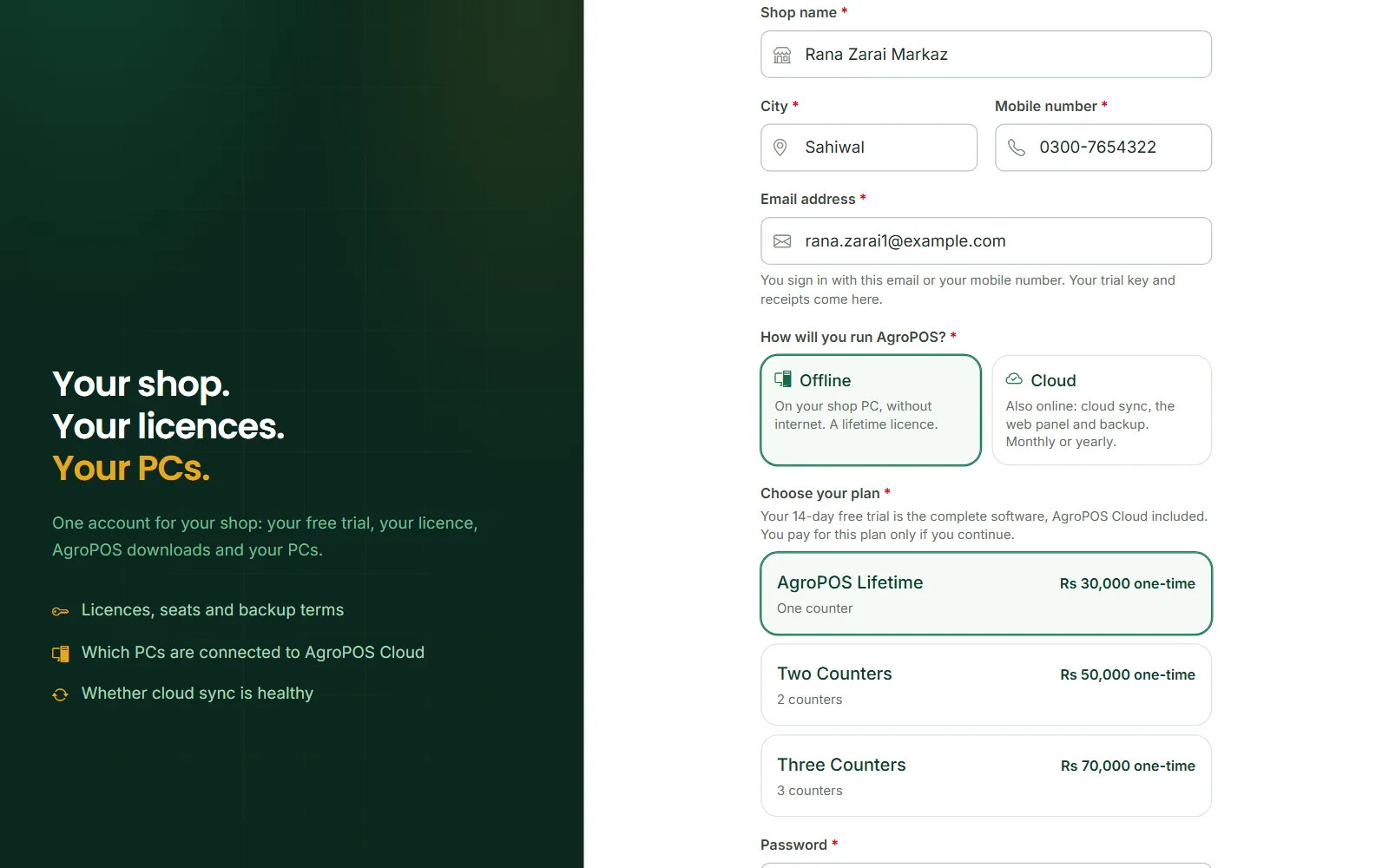
- Fill in Full name, Shop name, City, Mobile number (a Pakistani mobile, such as 0300-1234567) and Email address. You sign in with either the email or the mobile number, and your trial key comes to the email.
- Under How will you run AgroPOS?, choose Offline (a lifetime licence, on your shop PC) or Cloud (paid monthly or yearly, with cloud sync, the web panel and backup). Not sure? Read Offline or Cloud.
- Under Choose your plan, pick one counter or Multi-Counter (on Cloud, Basic includes 3 PCs). On Cloud, also choose Monthly or Yearly under After the free trial, pay.
- Choose a Password of at least 8 characters, with letters and numbers, and type it again in Confirm password.
- Click Start free trial.
Swipe to see the whole screen · tap to close
The plan only records what you intend to buy: the trial is the same whichever you choose, and you pay only if you continue. An email or mobile number that already has an account is refused with This email is already registered. Sign in, or reset your password if you have forgotten it.
How approval works
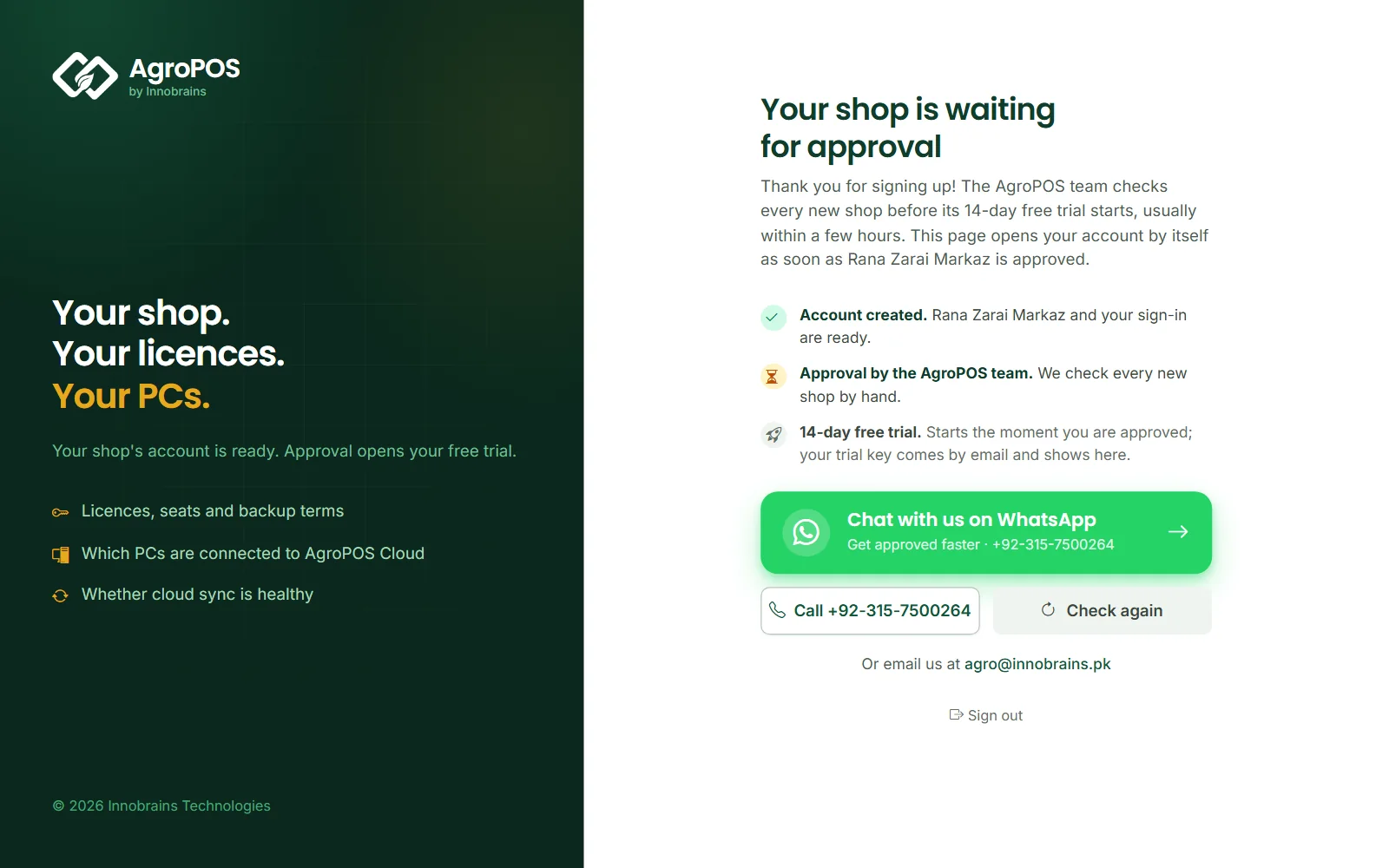
The AgroPOS team checks every new shop by hand before its trial starts. You are signed in straight after sign-up, and your account shows Your shop is waiting for approval.
Swipe to see the whole screen · tap to close
- To be approved faster, tap the green Chat with us on WhatsApp button. The message already names your shop and city, so you only press send. There is also a Call button and the support email.
- You can close the page. It checks every minute and opens your account by itself once you are approved, and Check again checks at once. Or sign in later at /portal/login.
- If your shop could not be approved, the page says We could not approve your shop yet with the reason. Message or call us and we will sort it out with you.
What the free trial includes
- 14 days of the complete software, with no payment and no card, starting the moment you are approved. Your account's Overview shows the days left and the end date.
- AgroPOS Cloud is open during the trial, whichever edition you chose: cloud sync and the web panel. When the trial ends you can buy either edition.
- Your trial key comes in the approval email and is shown on the Overview under Your licences and on the Downloads page. It has 20 characters:
XXXXX-XXXXX-XXXXX-XXXXX. - One PC, one trial. The key works on the first PC that activates with it, and a PC that has had a trial refuses another trial key, even from a new account.
- Everything you enter stays when you buy.
When the trial ends, AgroPOS opens on the activation screen with Your 14-day free trial has ended. Buy a licence at agropos.pk and enter its key below. Your data is safe on this PC. To buy, click Buy in your account, pay by a method the checkout shows, and upload a screenshot of the payment. Your licence key appears in your account, and comes by email, once the payment is confirmed. Type it on the activation screen, or, before the trial ends, under Settings → About → Licence → Change licence key.
How to download AgroPOS
- Sign in at /portal/login.
- Click Download software on the Overview, or open Downloads in the menu.
- Under Windows installer (Windows 10 / 11, 64-bit), click Download installer. The file is named like
InnoBrainsAgroPOS_Setup_v2.0.0.exe.
The same file installs a single-counter shop and every PC of a Multi-Counter shop. The Overview also shows a Getting started panel with what remains: install, enter your trial key, and buy your plan before the trial ends.
Your first-day checklist
| Step | Where | What to do |
|---|---|---|
| 1. Install | The setup file | On the PC that will bill. See Installing AgroPOS on a new PC. |
| 2. Set up this PC | First screen | Choose Main counter. Tills come later: Multi-Counter setup. |
| 3. Activate | Software Activation | Shop name and trial key, then Activate Software. Needs internet once. |
| 4. Your own password | First sign-in | Sign in as admin / admin123, then choose a new password. |
| 5. Shop details | Settings → Shop | Printed on every bill. |
| 6. Receipt printer | Settings → Printing | Pick the printer under Thermal Printer. |
| 7. Products and stock | Products, Purchases | Add what you sell, then bring the stock in. |
| 8. Customers and udhaar | Customers | Each khata customer with their opening balance. |
| 9. First bill | POS Billing | See Making your first bill. |
| 10. Backup | Backup & Restore | Your first backup; on Cloud, switch on Cloud Sync. |
Steps 1 to 4 are explained in Installing AgroPOS on a new PC. The rest are below.
Shop details and the printer
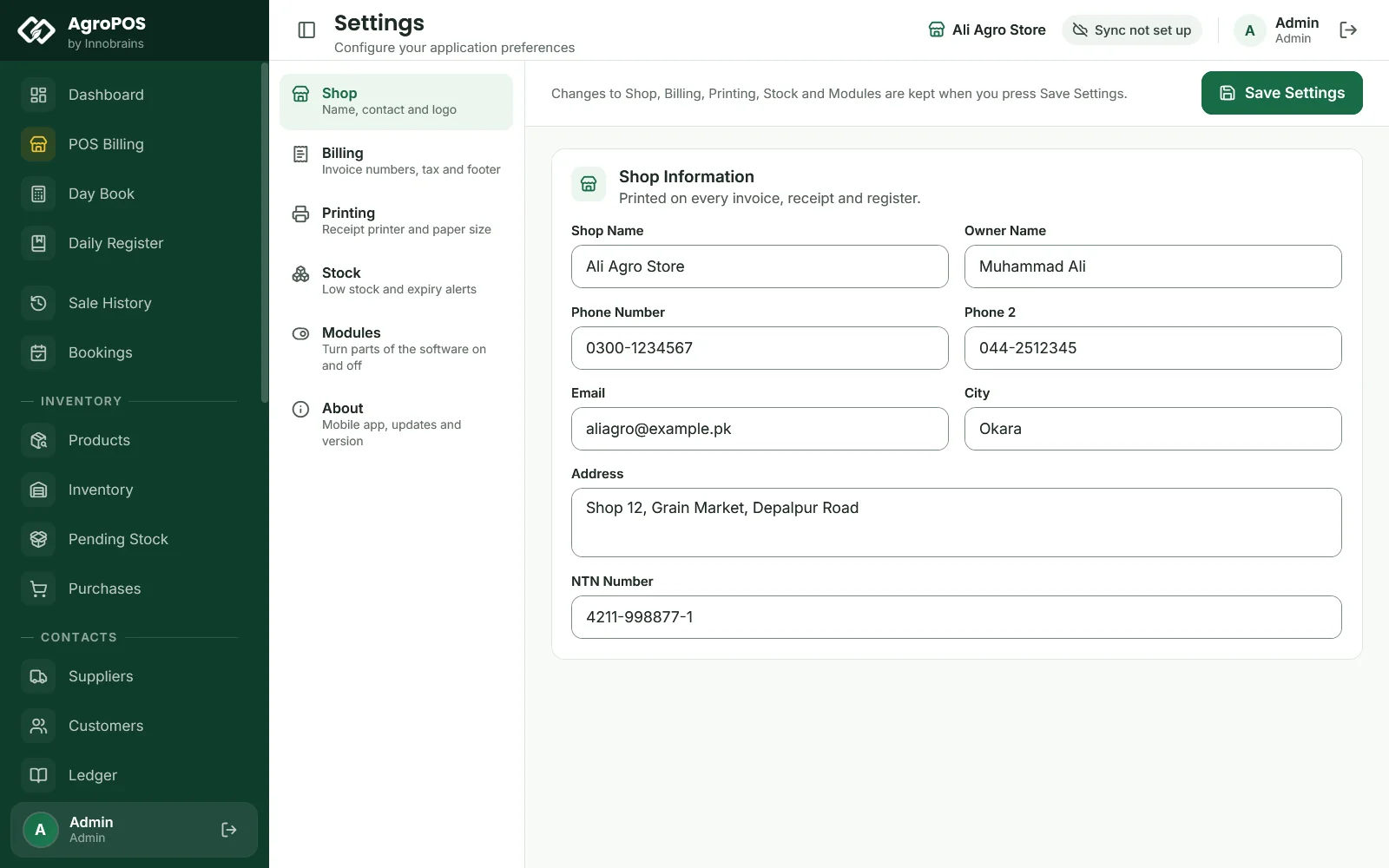
Open Settings → Shop. The Shop Name is already filled in from activation; add the Owner Name, Phone Number, Address, City and NTN Number, then click Save Settings. Under Billing, set the Invoice Prefix and the Starting / Next Invoice Number: if your last handwritten bill was 1,240, start at 1241.

Swipe to see the whole screen · tap to close
Install the printer's Windows driver first, then choose it under Settings → Printing → Thermal Printer and click Save Settings. Print every receipt automatically prints the slip as soon as a sale is confirmed.
Products and opening stock
Open Products → Add Product and fill in Product Name, Unit Type, Purchase Price and Sale Price, plus a Credit Price if udhaar costs more. A list in Excel comes in with Import, starting from Download template.
The counter sells from batches, so stock comes in through Purchases → New Purchase, with each batch and expiry date. A quantity typed in Opening Stock on the product has no batch yet: open Pending Stock and click Complete Purchase so the till can sell it.
Customers with opening udhaar
Open Customers → Add Customer. Fill in the Customer Name, Phone and Village, and put what they already owe in Opening Balance with He owes me selected (or Paid in advance). A Credit Limit stops a bill that would take them past it. Customers can be imported from Excel too.
Your first bill and backup
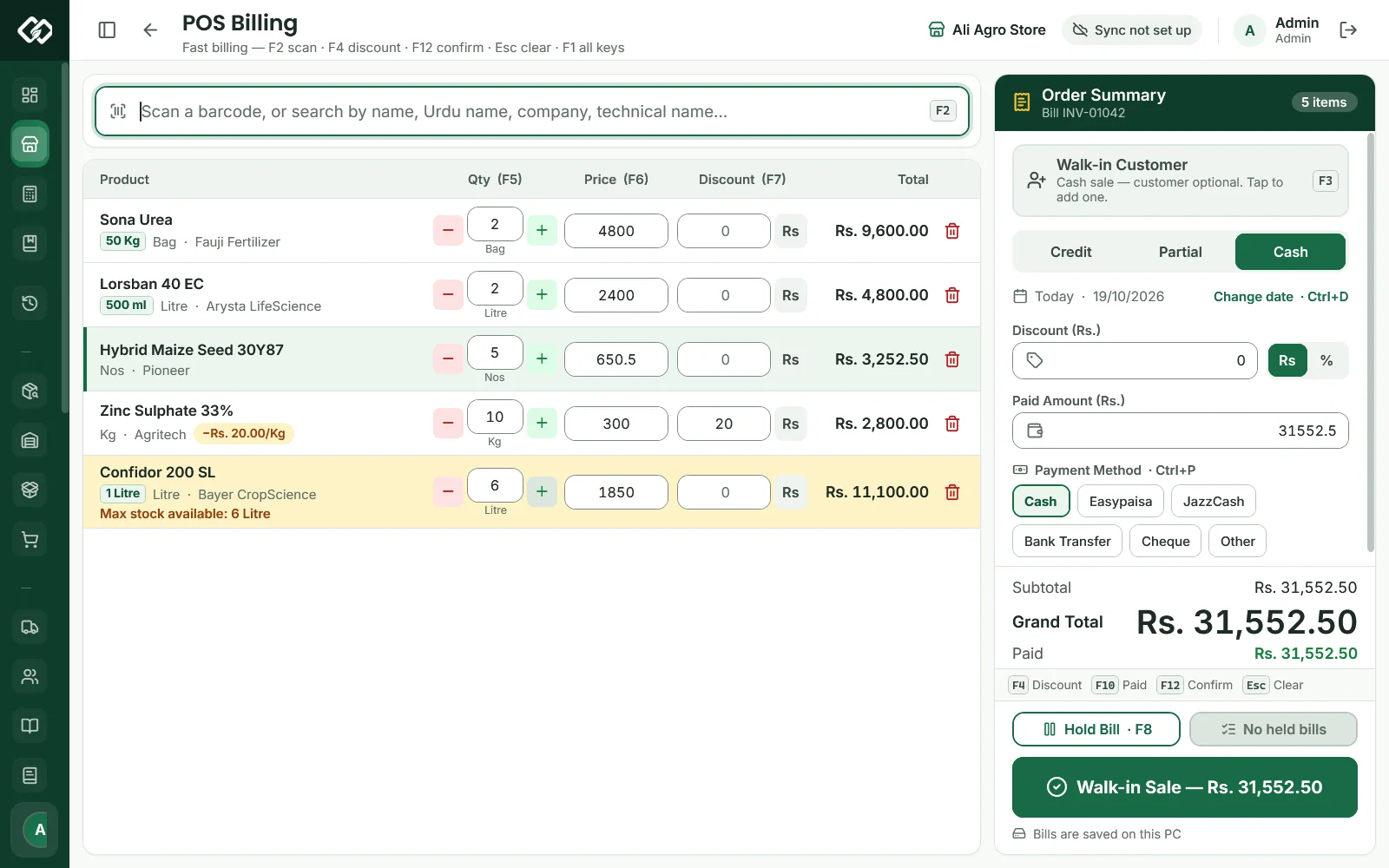
Open POS Billing, scan a barcode or type a name, and press F12 to confirm. Try a real bill, such as two bags of urea for a walk-in customer. Making your first bill covers cash, udhaar and partial sales.
Swipe to see the whole screen · tap to close
Then open Backup & Restore and click Create Backup Now. The backup is saved in Documents → AgriPOS_Backups; copy it to a USB drive now and then. On a Cloud plan, and during the trial, also switch on Cloud Sync under Settings → About, so your shop goes up to AgroPOS Cloud and the web panel fills in.
Rules and tips
- Your agropos.pk account and the AgroPOS app have separate sign-ins. The account (email or mobile) is for keys, downloads, buying and the web panel; the app's users, starting with
admin, sign in on the PC. - Give each person at the counter their own user under Users, so the sale history shows who sold what.
- Practised with made-up bills? Settings → About → Reset Shop Data, with a code from Innobrains on the phone, clears bills, khata and stock, keeps your licence, users and settings, and saves a backup first. See Resetting shop data.
- Billing works without internet. Keep the PC, printer and router on a UPS for load-shedding.
Common questions
Do I need to pay anything to start the trial?
No. The trial is 14 days of the complete software with no payment and no card. You pay only when you buy a plan from your account at agropos.pk.
How long does approval take?
The AgroPOS team checks each new shop by hand. Tap Chat with us on WhatsApp on the waiting page to be approved faster: the message already names your shop. The page opens your account by itself once you are approved.
I chose the wrong edition at sign-up. Does it matter?
No. The trial is the same for both editions and includes AgroPOS Cloud. The choice only records what you plan to buy, and when the trial ends you can buy either edition and keep your data.
Can I get a second trial on the same computer?
No. Each computer gets one trial, whichever account the key comes from, and reinstalling AgroPOS does not change that. If you genuinely need the trial opened again, contact the AgroPOS team.
What happens to my data when the trial ends?
It stays on your PC. AgroPOS opens on the activation screen until you enter the licence key you buy, then carries on with the same products, customers, bills and khata.
Related guides
- Installing AgroPOS on a new PC
- Offline or Cloud: choosing your edition
- Making your first bill
- Multi-Counter setup
- Setup guide: the whole software, step by step
- Pricing
Last updated 19 October 2026. Still stuck? Contact us or message us on WhatsApp.