POS Billing is the till where you sell to farmers and walk-in customers. This guide, for the owner and the counter staff, walks through a complete bill from the keyboard: product, batch, quantity and price, cash, udhaar and partial bills, payment, held bills and the receipt, then the Sale History and the Day Book.

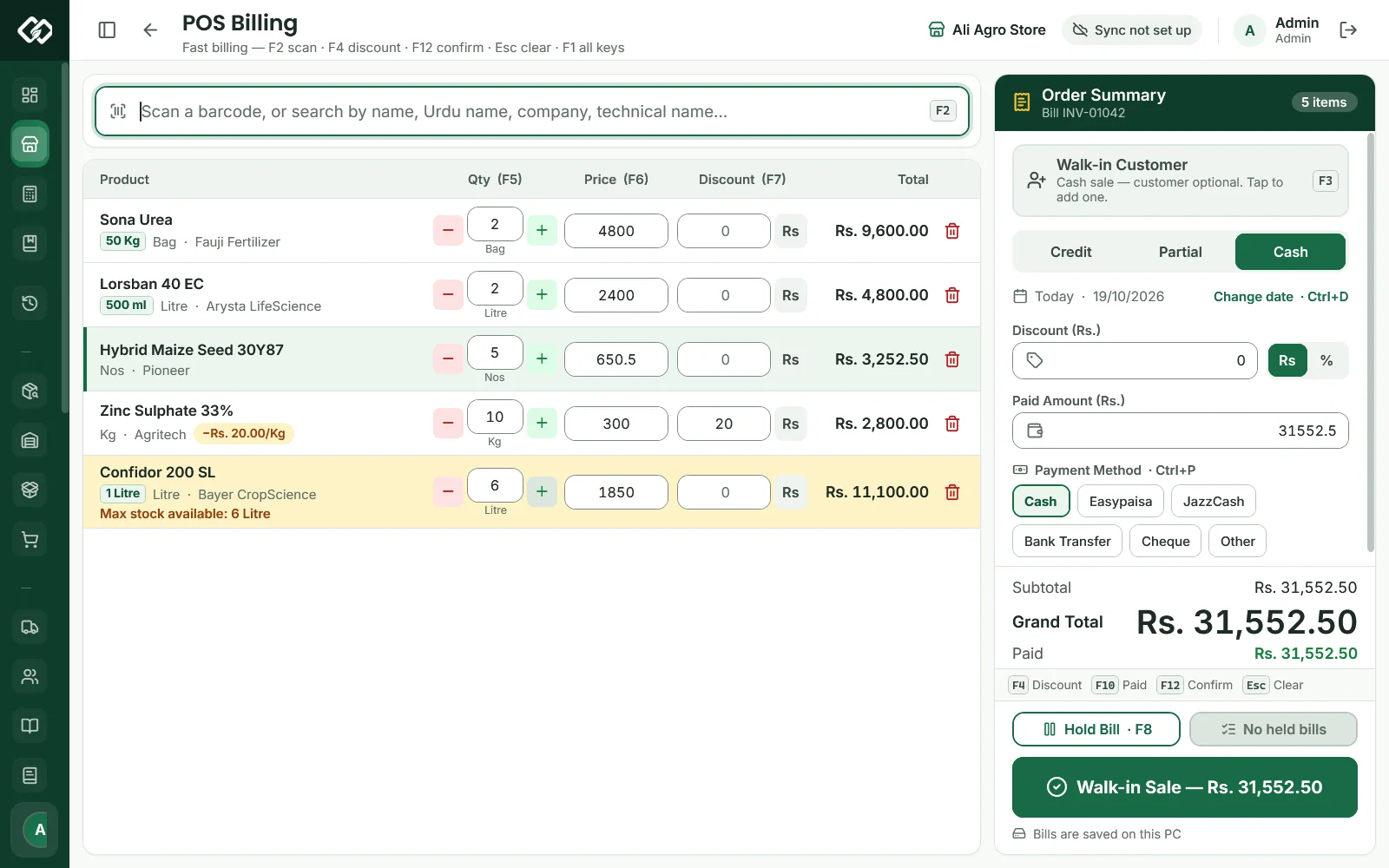
Swipe to see the whole screen · tap to close
How to make a cash bill for a walk-in customer
- Open POS Billing from the menu. The cursor is already in the search box (F2 brings it back).
- Scan the barcode, or type part of the name, for example
sona, and press Enter on the highlighted result. - Change the quantity in Qty (F5) if needed, or press + and −.
- Press Cash (Ctrl+3). Every new bill starts on Credit, so do not skip this. The customer box now reads Walk-in Customer and Paid Amount (Rs.) fills with the total, and keeps up with it if you add or change lines afterwards, until you type an amount yourself.
- Press F12, or click Walk-in Sale — Rs. ….
- Sale Completed! opens with the slip. Press Enter for New Sale.
Finding the product and its batch
The search covers the name, the Urdu name, the company, the category, the technical name and the barcode, so imida finds every Imidacloprid product. Up / Down move through the results. A scanned barcode goes straight onto the bill; an unknown one shows "Product not found". A product with no sellable stock is refused with the reason, such as "only expired stock is left".
AgroPOS sells the batch that expires first. When a product has more than one batch in stock with a pack size, for example Engro DAP from two deliveries, a list opens with each batch's number, expiry and stock, earliest expiry first. Press Enter or 1–9 to pick one. Expired batches are hidden behind Show expired batches and cannot be sold.
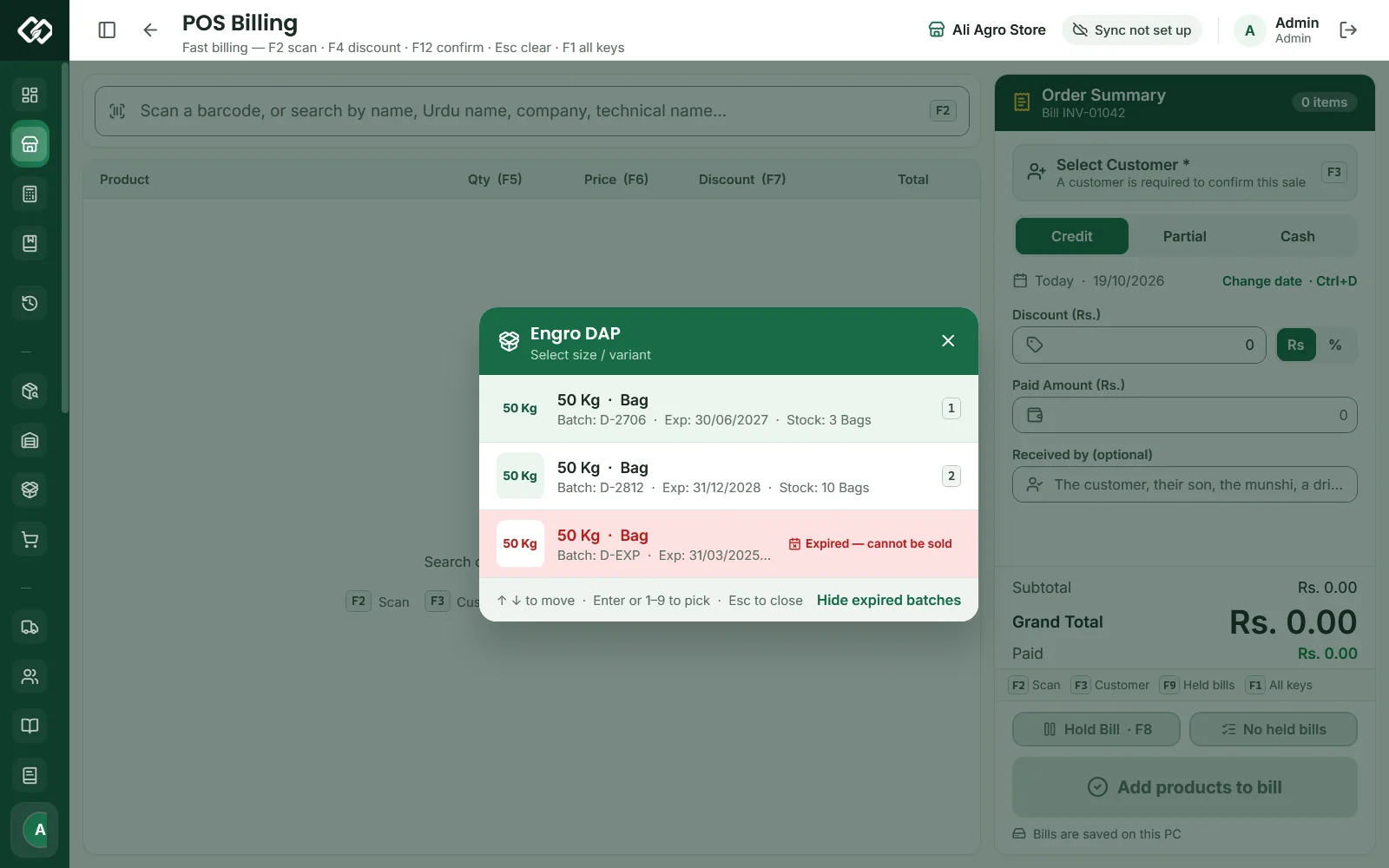
Swipe to see the whole screen · tap to close
If the quantity is more than that batch holds, the rest comes from the batch that expires next. A line can never go above the unexpired stock: it turns yellow with "Max stock available", and typing more shows "Only … in stock".
Bags, kilos and loose khaad
Each line sells in the product's own unit, shown under the quantity (Bag, Kg, Liter or Nos), with the pack size beside the name, such as 50 Kg or 500 ml.
To sell khaad by the Kg, switch on Parchoon — sell khaad by the Kg under Settings → Modules and give the product (unit Bag or Kg) a bag weight and a parchoon rate; see Products, batches and expiry. After the batch, the till then asks Full Bag (B) or Loose — by Kg (K). For loose, type the kilos, or press Alt+5, Alt+1 or Alt+2 for 5, 10 or 25 Kg, and press Enter. The line is priced at the parchoon rate per Kg.
Prices and discounts
- A Cash bill uses the sale price. A Credit or Partial bill uses the product's credit price when one is set, marked Credit Price. Changing the bill type prices the lines again and sets the bill discount back to 0, so choose the type first.
- F6 changes a line's price, F7 its discount and F4 the discount on the whole bill. Press % in a discount box to switch between Rs and %; a bill discount in % stays that % of the bill as you add lines. A line discount in Rs is per unit: Rs 20 on Zinc Sulphate is Rs 20 off each Kg.
- Only roles that may give discounts (Store Manager and Admin as standard) can change prices or discounts. A changed price from anyone else is refused at F12: "Prices were changed. Only a Store Manager or Admin can give a discount." A loose line at its parchoon rate, and a booked product at its booked rate during a booking lifting, are not changed prices.
Udhaar and partial bills
- Press Credit (Ctrl+1) for full udhaar, or Partial (Ctrl+2) when the customer pays part now.
- Press F3 and search the customer by name, phone, village or father's name. Ctrl+N adds a new one: type the name and click Save & Select Customer.
- The customer box shows their Balance and Limit. A bill that would pass the credit limit is flagged at once and refused at F12, for example "Bashir Ahmad ka credit limit (Rs. 100000) would be exceeded by Rs. 7000. Take a payment or reduce the order."
- On a partial bill, type what they pay now in Paid Amount (F10). The rest goes on their khata.
- Optional: Received by (Ctrl+R) for who took the goods, such as the son or the munshi, and Payment date (Ctrl+E) for the day they promise to pay, which then appears under Recovery Dates.
- Press F12 (Sale Confirm — Rs. …).
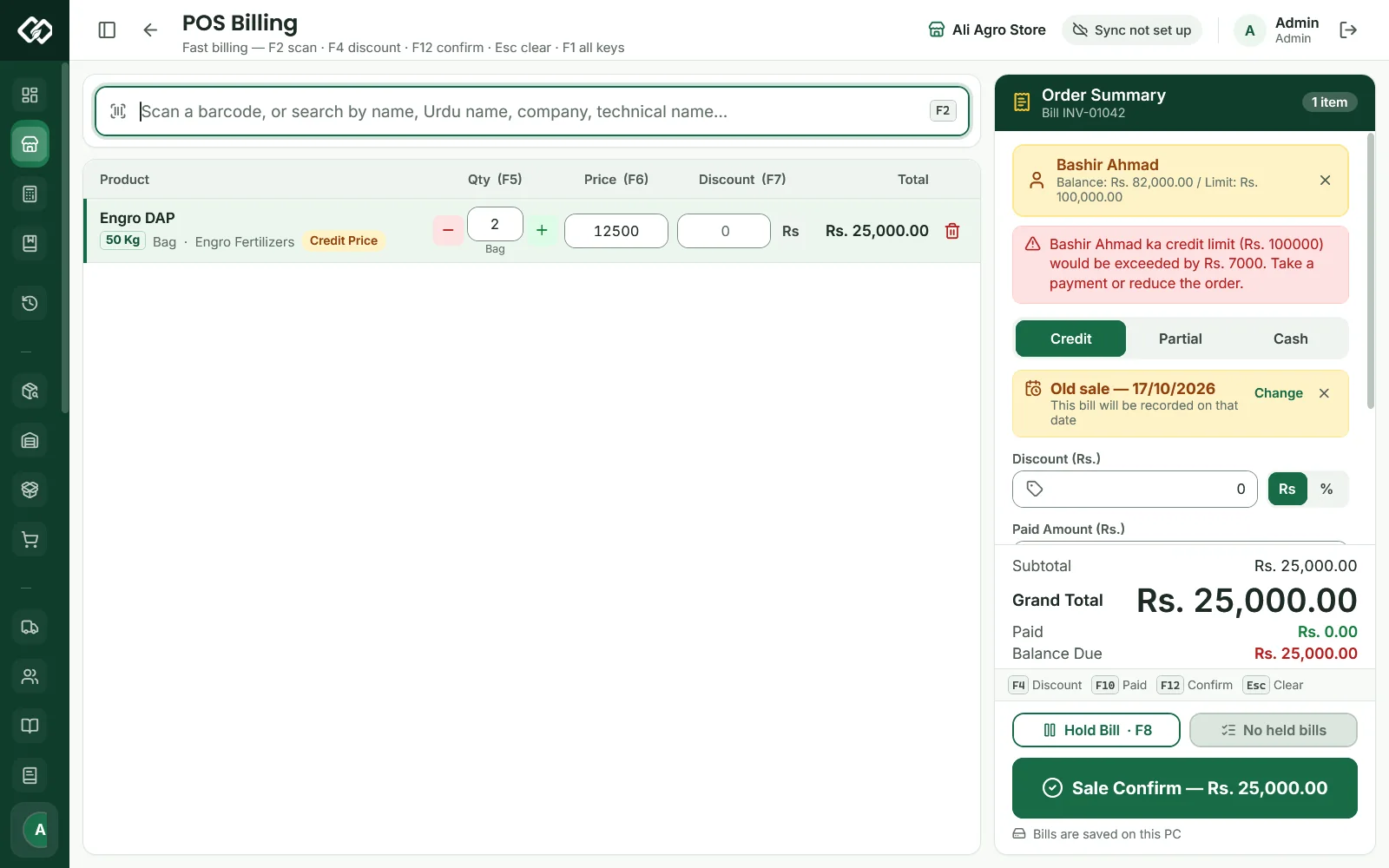
Swipe to see the whole screen · tap to close
If a named customer pays more than the bill, AgroPOS asks More than the bill: keep the extra as advance on their khata (Enter), where it comes off their next bill by itself, or change the amount.
Taking payment
Paid Amount is the money the shop keeps on this bill, not the note the customer hands over. On a walk-in bill an amount above the total is refused, so count the change yourself. Once something is paid, Payment Method appears: Cash, Easypaisa, JazzCash, Bank Transfer, Cheque and Other (Ctrl+P, then the arrow keys or 1–6). One bill takes one method.
Easypaisa, JazzCash, bank and cheque money is not counted in the cash drawer at day close. Cheque shows only with the Cheques module on and needs a named customer: AgroPOS asks the cheque number, bank and date, and the khata moves when you mark the cheque cleared in the Cheque Register.
Old bills, held bills and the receipt
Change date (Ctrl+D) records a bill on an earlier day, up to five years back, for example sales from before you started with AgroPOS. The till shows Old sale with the date, and the bill's khata entries carry that date too; the next bill is dated today again.
Hold Bill (F8) puts a bill aside under a name while you serve someone else. No invoice number is used and no stock is reserved. With the till empty, F9 opens Held bills: Enter brings one back, Delete discards it.
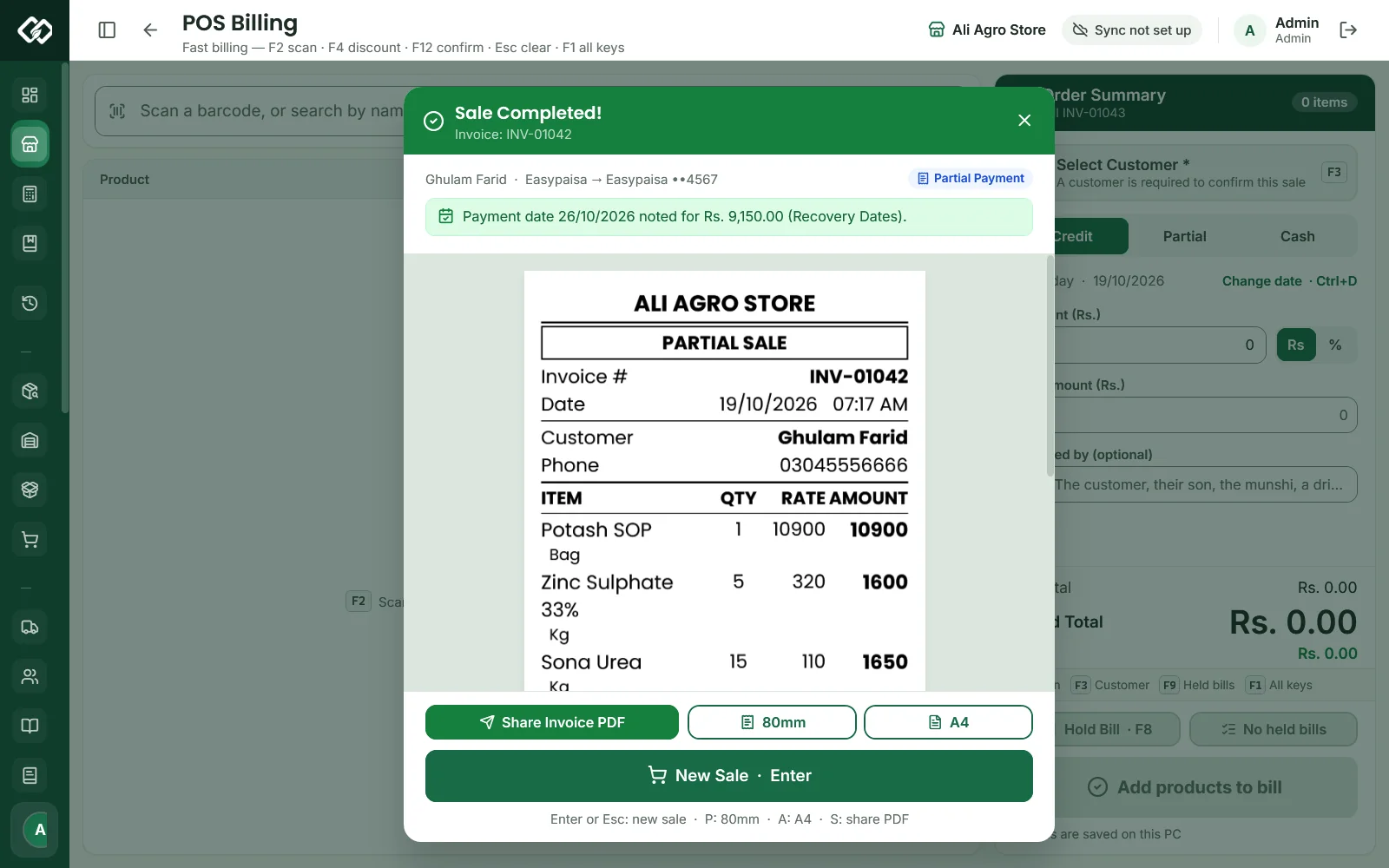
Swipe to see the whole screen · tap to close
After F12, the slip prints by itself when Settings → Printing has a Thermal Printer chosen and Print every receipt automatically switched on. Otherwise press 80mm (P). A4 (A) prints a full-page invoice and Share Invoice PDF (S) saves it to send on WhatsApp.
Keyboard shortcuts
| Key | What it does |
|---|---|
| F1 / F2 / F3 | All keys / search a product / choose the customer |
| F4 | Discount on the whole bill |
| F5 / F6 / F7 | Quantity / price / discount of the selected line |
| F8 / F9 | Hold this bill / held bills |
| F10 | Paid amount (Enter there confirms the sale) |
| F12 | Confirm the sale |
| Ctrl+1 / 2 / 3 | Credit / Partial / Cash |
| Ctrl+P | Payment method |
| Ctrl+D / Ctrl+E | Sale date (old sale) / payment date |
| Ctrl+R / Ctrl+N | Received by / add a new customer |
| Ctrl+B | Lift from booking, when the customer has one |
| Ctrl+Delete | Remove the selected line (Undo for 8 seconds) |
| Esc | Close the list, then clear the search, then clear the bill (can be undone) |
Checking the bill at the end of the day
Sale History opens on today's bills: customer (or Walk-in), total, paid and balance. Open a bill to see its items, reprint it or take a return.
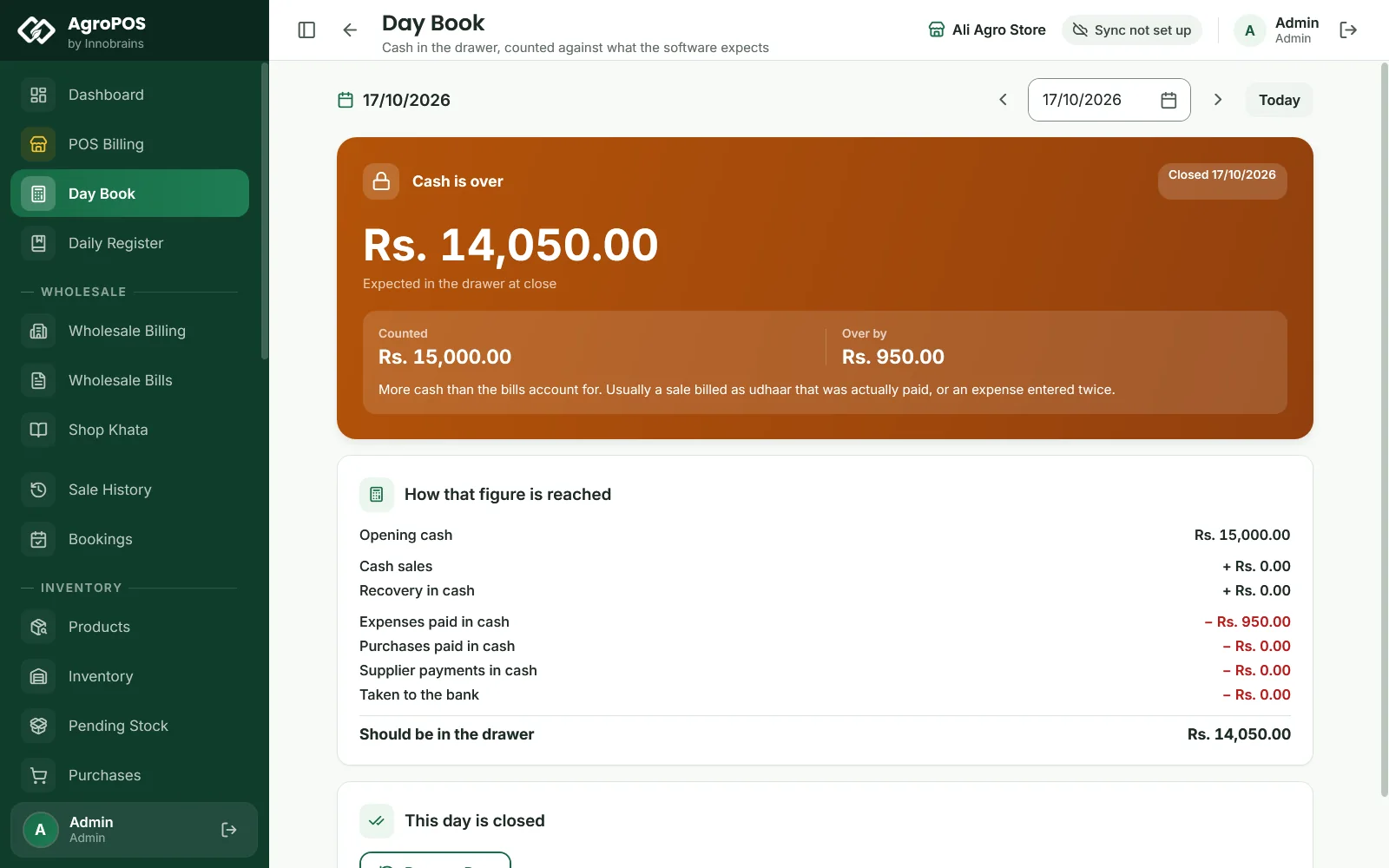
The Day Book (Store Manager and Admin) starts each day with the cash counted at the last close; Set Opening Cash corrects it. The day then shows what Should be in the drawer: opening cash plus cash sales and cash recovery, minus cash expenses, purchases, supplier payments and cash lent to customers, minus cash taken to the bank. Count and Close Day asks for your count and shows whether the drawer is short, over or right. See Day Book: opening, counting and closing the day.
Swipe to see the whole screen · tap to close
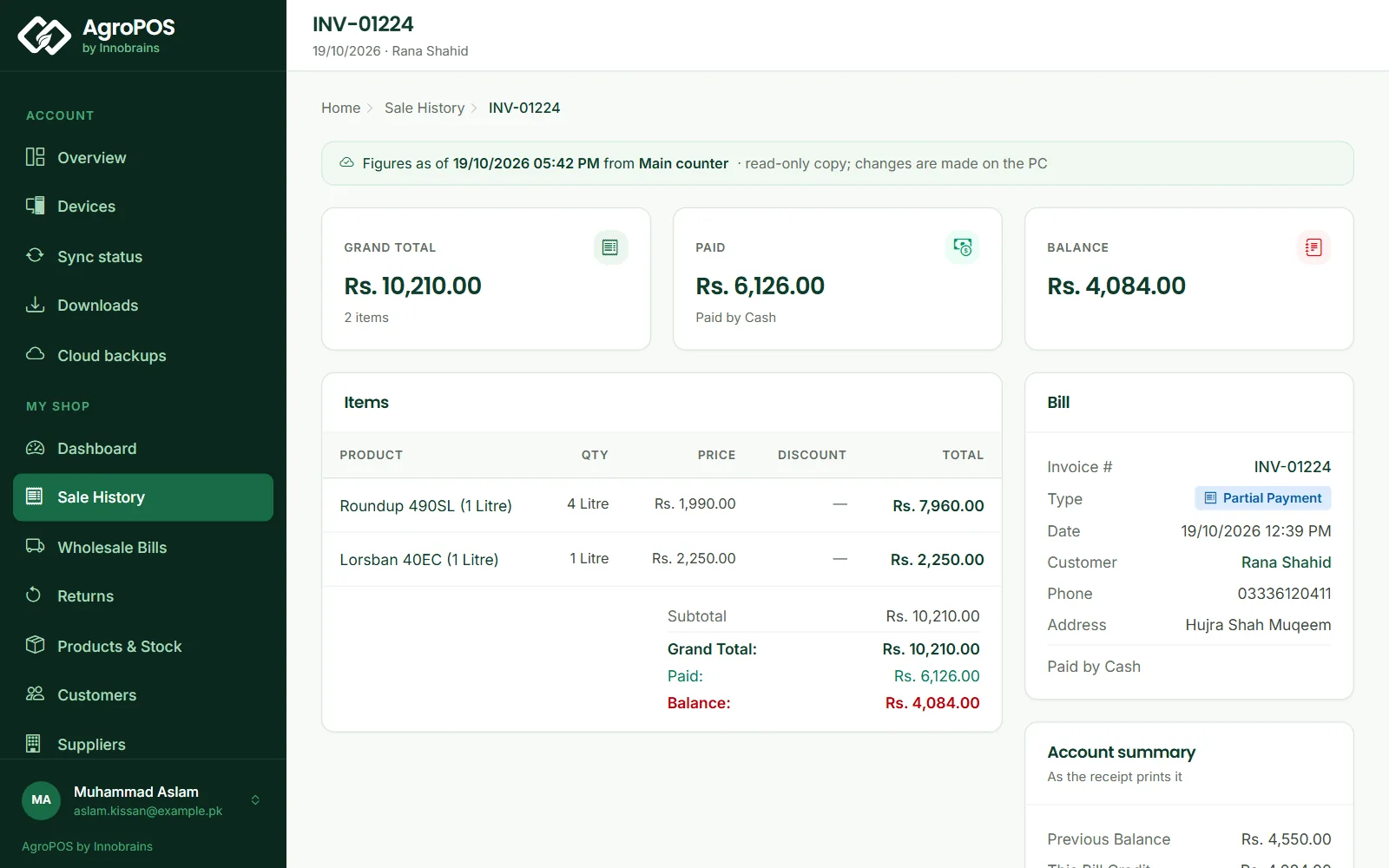
With AgroPOS Cloud, the bill also reaches the web panel at agropos.pk once the PC has sent it. Its Sale History lists the bill, and opening it shows the lines, the payment and the customer's account, read-only: changes are always made in AgroPOS on the PC. See Offline or Cloud.
Swipe to see the whole screen · tap to close
Rules and tips
- Everything is checked again at F12: stock, credit limit, prices and the paid amount. A refused bill says why and puts the cursor where the problem is.
- A credit or partial bill always needs a customer; only a cash bill can be walk-in.
- Bills are saved on this PC, so billing carries on without internet.
- Enter old sales before you count your shelf stock: an old sale takes stock off like a new one.
Common questions
Why does every new bill start on Credit?
AgroPOS opens each new bill on Credit, as the older AgroPOS did, because most agri dealers sell on udhaar. For a walk-in customer paying cash, press Cash or Ctrl+3 before confirming.
Can a customer pay part in cash and part by JazzCash?
One bill takes one payment method. Make the bill Partial with the cash amount, so the rest goes on the customer's khata, then record the JazzCash payment at once under Recovery. A walk-in customer must pay the whole bill by one method.
Why can my cashier not change the price?
Changing a price or giving a discount needs a role that may give discounts, which Store Manager and Admin have as standard. The owner sets what each role may do under Roles & Permissions.
Can I sell a few kilos from a bag of urea?
Yes. Switch on Parchoon — sell khaad by the Kg under Settings → Modules and set a parchoon rate on the product. The till then asks Full Bag or Loose — by Kg after you choose the batch.
Related guides
- Getting started with AgroPOS
- Setting up Multi-Counter
- Udhaar khata software: customers, credit limits and recovery
- Batch and expiry tracking
- Setup guide
Last updated 21 October 2026. Still stuck? Contact us or message us on WhatsApp.