AgroPOS Cloud is paid monthly or yearly. Before the due date AgroPOS reminds you, after it you get 7 days of grace, and then what happens depends on your licence: a Cloud licence locks at the licence screen until you renew, while a lifetime licence with Cloud added simply goes back to the Offline edition. This guide covers the reminders, the grace days, renewing in your account, and opening AgroPOS again after a lock.

Swipe to see the whole screen · tap to close
The timeline
| When | Cloud licence (Cloud only) | Lifetime licence with Cloud added |
|---|---|---|
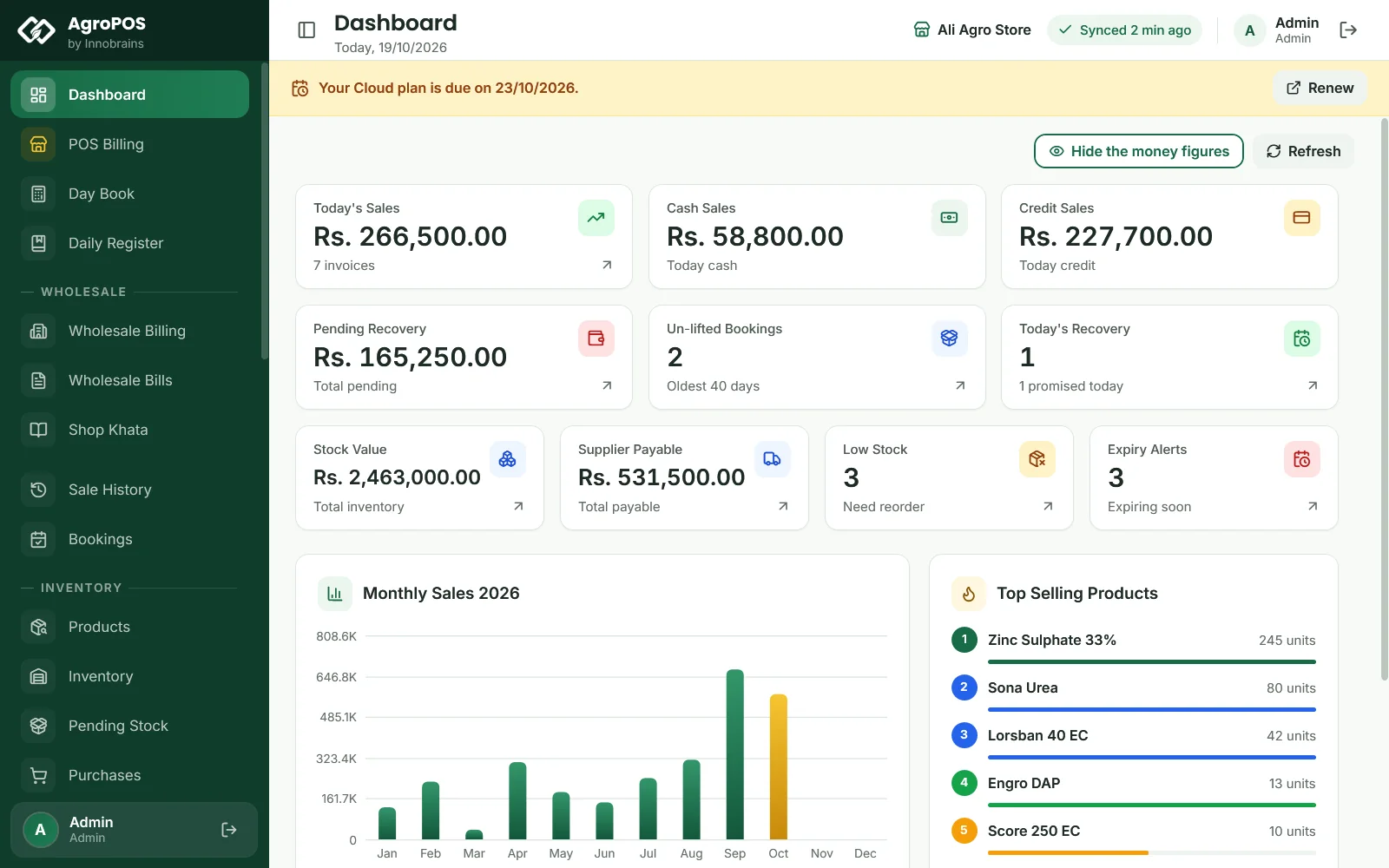
| 7 days before the due date | Banner: "Your Cloud plan is due on {date}." with Renew | The same banner |
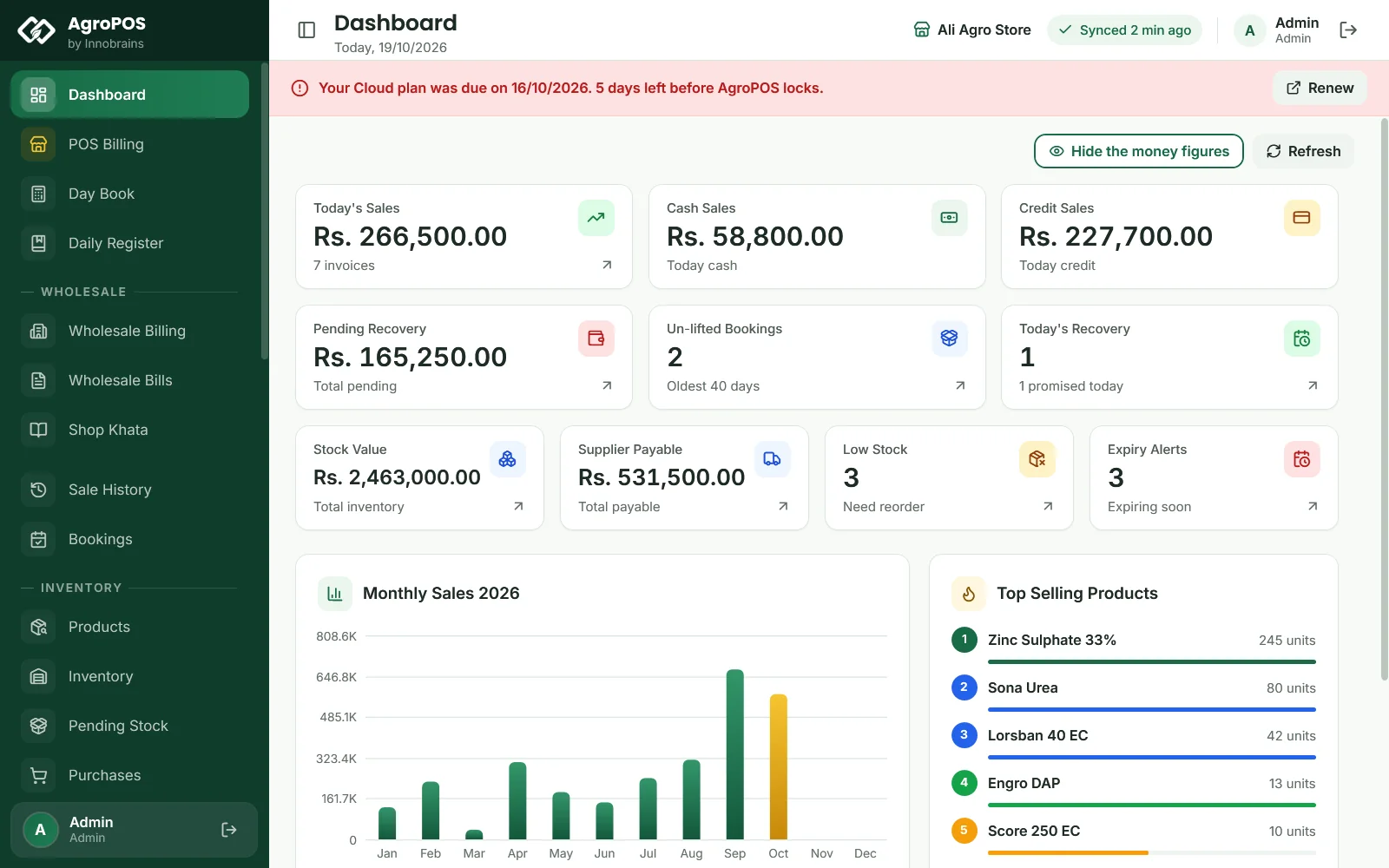
| The 7 days of grace | Red banner: "Your Cloud plan was due on {date}. {n} days left before AgroPOS locks." Everything still works. | Red banner: "… days left before cloud sync and the web panel stop." Everything still works. |
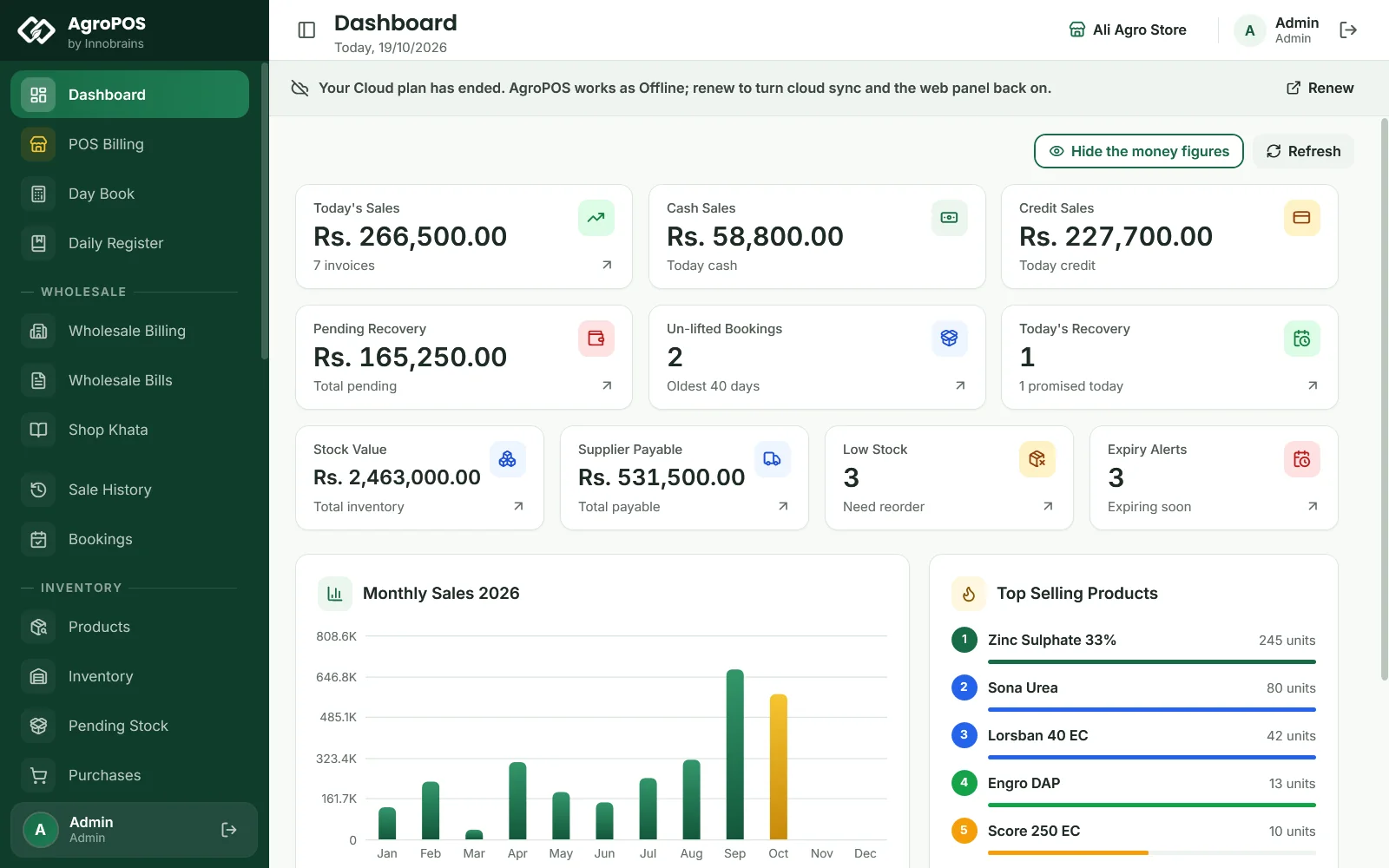
| After the grace | AgroPOS opens on the licence screen: "Your licence has expired." Your data is safe on the PC and in the cloud. | AgroPOS keeps working as Offline: "Your Cloud plan has ended. AgroPOS works as Offline; renew to turn cloud sync and the web panel back on." Cloud sync, the web panel and the cloud backup stop. |
Swipe to see the whole screen · tap to close
AgroPOS reads your plan from AgroPOS Cloud when it starts and every few hours while online, and counts the days on the PC itself, so the banners and the lock come on time even without internet. In a Multi-Counter shop, the tills show the main counter's banners. During the free trial there is no Cloud banner: the trial ends at the licence screen.
Reminder emails
Reminders go to your account's email each morning: when the plan is due, during the grace days with the days left, when AgroPOS locks, or when a lifetime licence is back on Offline. Each has a Renew button that opens your account.
How to renew
- Click Renew on the banner in AgroPOS, or sign in at agropos.pk/portal and click Renew on the Cloud plan card of the Overview.
- Check Confirm your order: the plan, the price, and from which day the new month or year counts. Click Place order. Nothing is charged at this step.
- Send the payment by JazzCash, Easypaisa or bank, to the details shown, and put your order number in the payment's note or reference.
- Upload the screenshot: choose How did you pay?, type the Sender's name and the Transaction ID (TID) if you have it, attach the screenshot or receipt (JPG, PNG, WEBP or PDF, up to 5 MB), and click Submit for verification.
- The order shows Under review. Innobrains checks the payment ("We will verify it within 24 hours."), and you get an email when the order is approved with the new paid-until date.
Renewing before the due date adds the month or year after the current paid-until date. Renewing after it, during the grace or after a lapse, counts from the day the payment is approved.
After the payment is approved
- Lifetime licence with Cloud: cloud sync starts again by itself, the PC sends what waited, and the web panel opens again.
- Cloud licence renewed during the grace days: after the approval, open AgroPOS with the internet on, so it reads the new date before the grace days run out.
- Cloud licence that locked: AgroPOS does not open again by itself. On the licence screen, type your Shop / Business Name and License Key again, connect to the internet, and click Activate Software. Your data is all there.
Swipe to see the whole screen · tap to close
Nothing is deleted at any point: the data stays on the PC and in the cloud. While a plan has lapsed, the web panel shows Renew to continue instead of the shop, from the morning after the lapse.
Rules and tips
- Renew in the 7 days before the due date, so the shop never sees the grace banner.
- Keep the licence key where you can find it: after a lock you type it again. It is in your account under Your licences.
- Upload the payment screenshot on the order page; a payment without its screenshot cannot be matched to your order.
- Moving from Cloud to Offline, or adding PCs (an Extra PC), is done through your account or with Innobrains. See Offline or Cloud.
Common questions
Will AgroPOS stop in the middle of the day when my plan ends?
The lock takes effect when AgroPOS starts after the grace days have ended. Renew during the grace days to avoid it.
I paid. Why is AgroPOS still locked?
Two steps are needed: Innobrains approves the payment, then you type the shop name and licence key on the licence screen and click Activate Software with the internet on.
What happens to my data if I do not renew?
Nothing is deleted. A Cloud licence stops at the licence screen and a lifetime licence goes back to Offline; your data stays on the PC and in the cloud.
Does a lifetime licence lock when Cloud ends?
No. It goes back to the Offline edition and keeps working. Only cloud sync, the web panel and the cloud backup stop until you renew.
Related guides
Last updated 19 October 2026. Still stuck? Contact us or message us on WhatsApp.