This guide is for the owner, or whoever sets up the shop computer, installing AgroPOS on a PC that has never had AgroPOS on it. It covers what the computer needs, running the setup file, the Set up this PC screen, activating with your licence or trial key, and the first sign-in. Replacing a PC that already runs your shop? Read the section on moving from an old PC first. Extra billing PCs of a Multi-Counter shop have their own guide.
What your computer needs
- Windows 10 (version 1809 or newer) or Windows 11, 64-bit. On 32-bit Windows the setup stops with "AgroPOS requires 64-bit Windows." Windows 8 and older are not supported.
- A Windows user with administrator rights to run the setup, and the internet once, to activate.
- Optional: an 80 mm thermal or A4 printer, a barcode scanner, and a UPS so load-shedding does not switch the PC off mid-bill.
Choose the computer that will bill customers and stays on while the shop is open: the licence locks to that machine.
How to download the setup file
Sign in at /portal/login with your email or mobile number, open Downloads, and under Windows installer click Download installer. The file is named like InnoBrainsAgroPOS_Setup_v2.0.0.exe, where the number is the version. The same file installs every PC, single-counter or Multi-Counter, main counter or till. If the page also shows a Multi-Counter installer, that one is the older AgroPOS Multi-Counter: use the Windows installer. No account yet? Sign up first, as in Getting started with AgroPOS.
How to install AgroPOS
- Double-click the setup file. Windows may show a blue box, "Windows protected your PC", because the file is newly published: click More info, then Run anyway.
- When Windows asks whether the app may make changes to your device, choose Yes.
- Keep the suggested folder (
C:\Program Files\InnoBrains Agro POS) and click Next. Leave Create a desktop shortcut ticked, click Next, then click Install. - On the last page, leave Start AgroPOS ticked and click Finish.
The setup adds an AgroPOS folder to the Start menu with three shortcuts: AgroPOS, Set up this PC and Uninstall AgroPOS.
How to set up this PC: main counter or till
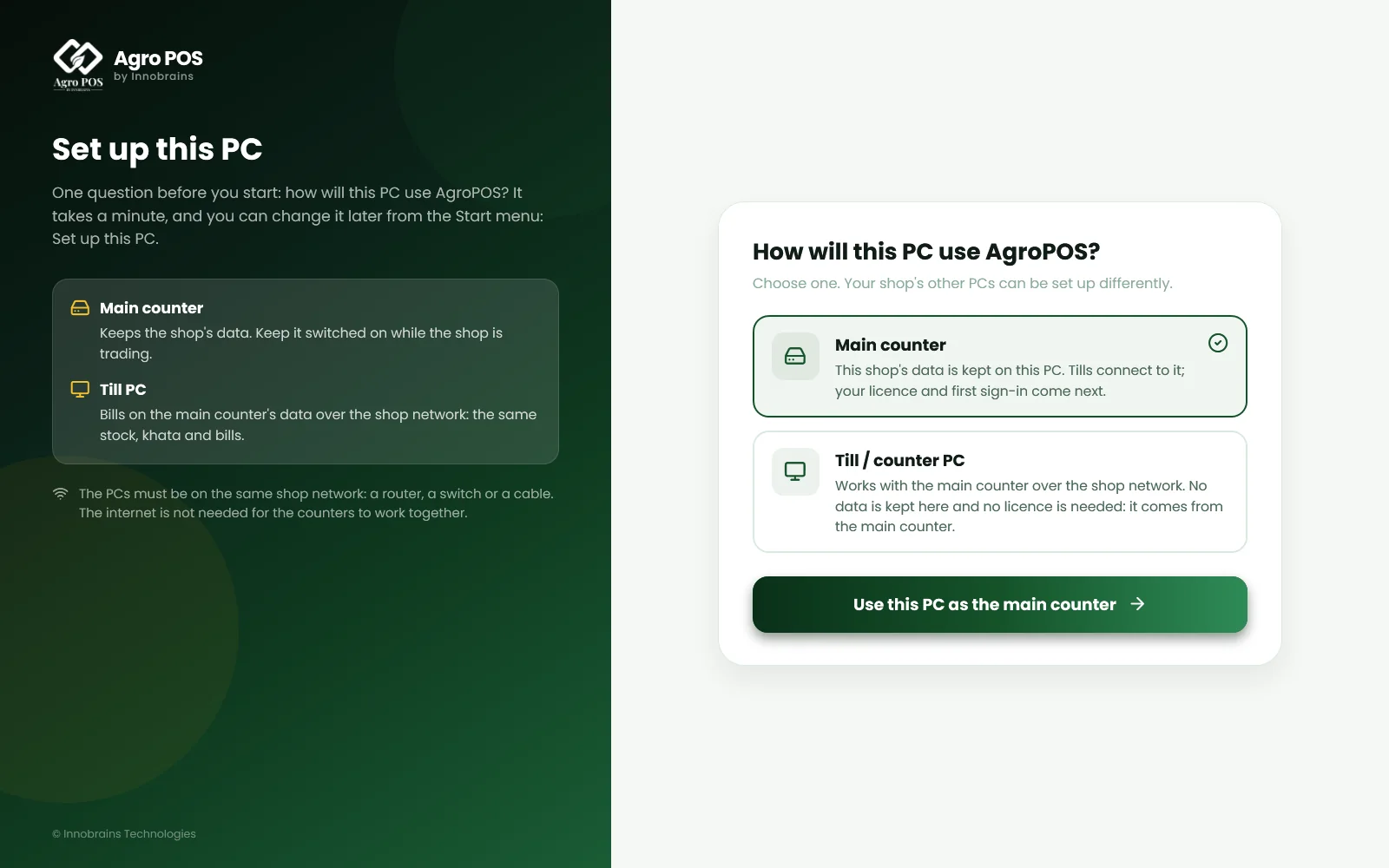
The first time AgroPOS opens on a new PC, it shows Set up this PC and asks How will this PC use AgroPOS?
- Choose Main counter: right for a shop with one computer, and for the computer that keeps a Multi-Counter shop's data.
- Click Use this PC as the main counter.

Swipe to see the whole screen · tap to close
| Choice | Choose it when | What comes next |
|---|---|---|
| Main counter | The shop's only PC, or the one that will keep the shop's data | Software Activation, then the first sign-in. Keep it on while the shop trades. |
| Till / counter PC | An extra billing PC of a Multi-Counter shop, once the main counter works | It finds the main counter on the shop network and pairs with a 6-digit code. No data and no licence of its own: see Multi-Counter setup. |
To change it later, open Set up this PC from the Start menu. With a single-counter licence the till choice is greyed out: Needs a Multi-Counter licence: this PC's licence is for one counter.
How to activate AgroPOS
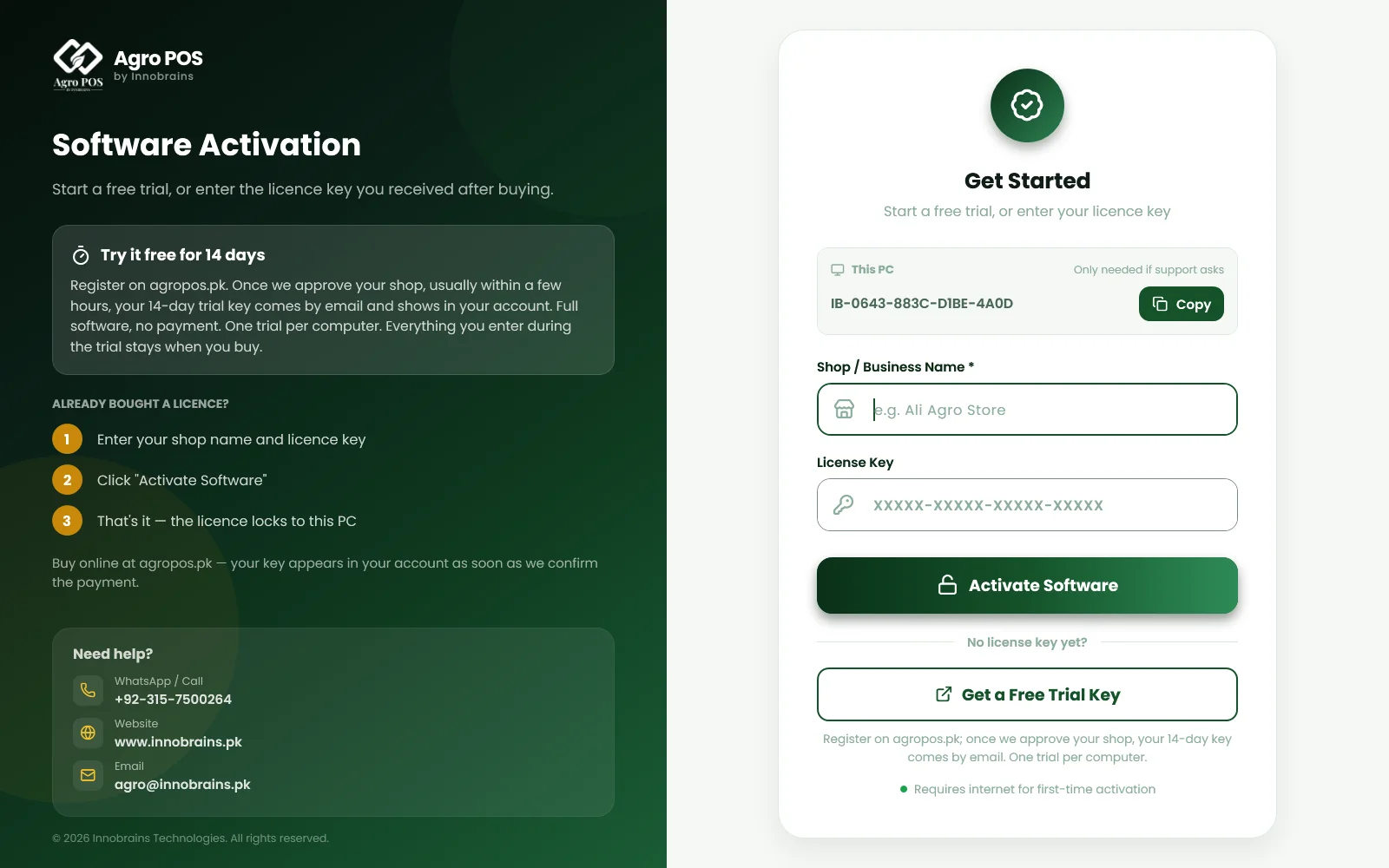
The main counter opens on Software Activation. You need a key: the trial key from your approval email, or the licence key you bought. Both are also on your account's Overview under Your licences and on the Downloads page.
- Connect the PC to the internet. A phone hotspot is enough.
- In Shop / Business Name, type your shop's name as customers should see it, for example "Ali Agro Store". It is copied into Settings and printed on every bill.
- In License Key, type or paste the 20-character key (
XXXXX-XXXXX-XXXXX-XXXXX). - Click Activate Software. After Connecting to Server... the licence locks to this PC.
Swipe to see the whole screen · tap to close
No key yet? Get a Free Trial Key opens the sign-up page at agropos.pk. After you sign up, the AgroPOS team approves your shop (message them on WhatsApp from the waiting page to be faster), and the trial key then comes by email and shows in your account. The This PC box shows the PC's Machine ID, which you need only if support asks for it.
If activation does not go through, the screen says why:
| Message | What to do |
|---|---|
| Invalid license key. Please check and try again. | Copy the key again from your email or account; check all 20 characters. |
| No internet connection. Please connect and try again. | Connect the PC, even with a phone hotspot, and try again. |
| Could not make a secure connection to the server. | Run Windows Update on this PC, then try again. A company firewall or proxy can cause it too. |
| This computer has already used its free trial on … | One trial per computer: enter the key you bought, or contact Innobrains. |
| This trial key only works on the computer it was issued to. | Use the trial on its own PC, or buy a licence. |
| This license has been suspended or revoked. Contact support. | Call Innobrains support. |
| Machine Limit Reached | The key is already active on another computer. AgroPOS sends Innobrains a transfer request, and emails you, as soon as this appears: Innobrains verifies it and moves the licence. Submit Request or Cancel does not change that. |
How to sign in the first time
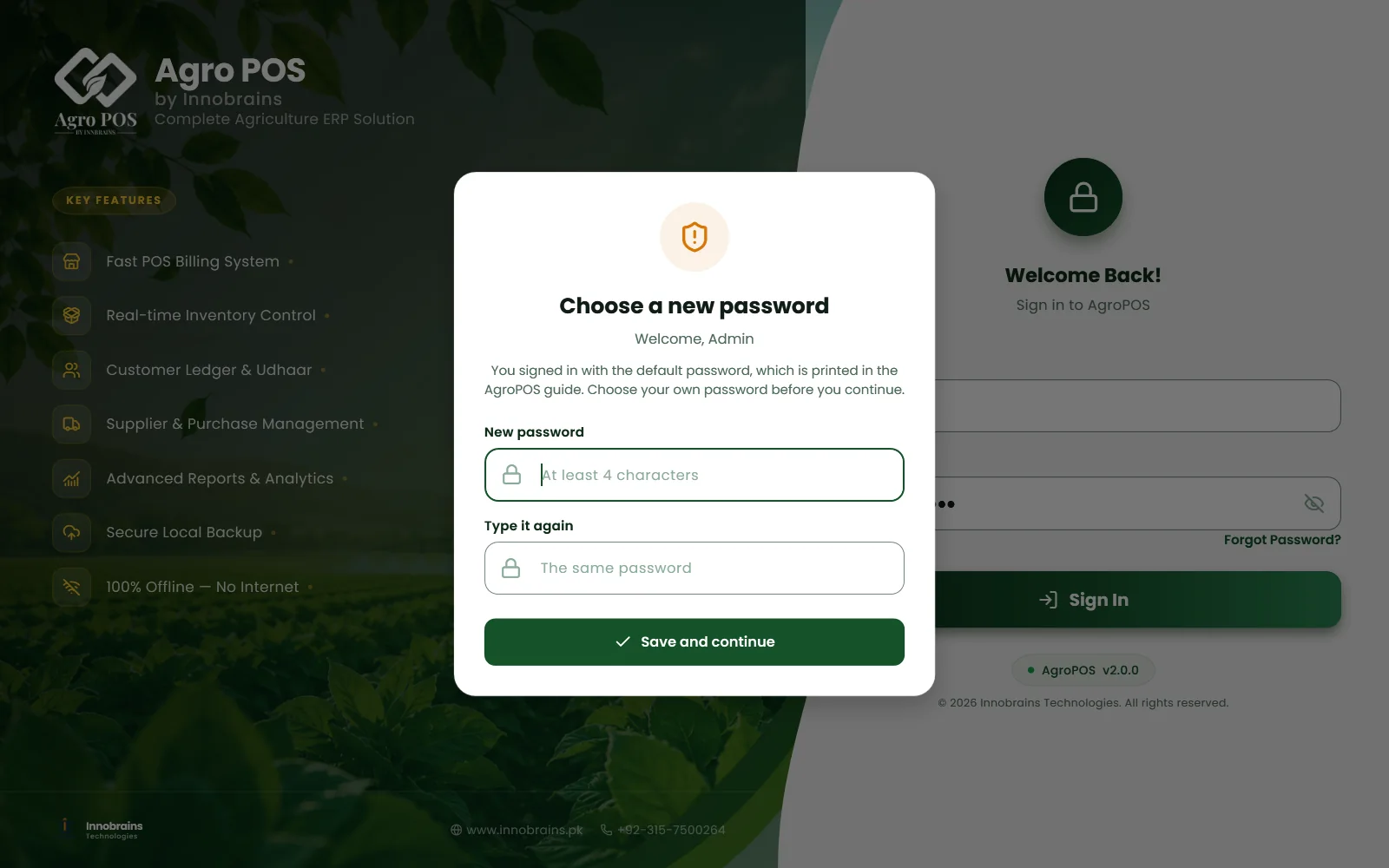
After activation AgroPOS shows the sign-in screen, with Username already filled in as admin.
- Type the password
admin123and click Sign In. - AgroPOS asks you to Choose a new password. Type it in New password and again in Type it again. It needs at least 4 characters and cannot be
admin123. - Click Save and continue. AgroPOS opens on the Dashboard.
Swipe to see the whole screen · tap to close
You cannot skip this step: while admin123 is in use, Forgot Password? shows it to anyone. Locked out later? Forgot Password? → Emergency Reset via Support shows a reset code for that day; read it to Innobrains support and type the unlock code they give you.
How to enter your shop details
Open Settings → Shop. The Shop Information card prints on every invoice, receipt and register. Shop Name is already filled in from activation; add the Owner Name, Phone Number, Phone 2, Email, City, Address and NTN Number as you want them on the bill, and click Save Settings. The invoice numbers (Billing), the receipt printer (Printing) and the rest of the first day are in Getting started with AgroPOS.
If you are moving from an old PC
If your shop already runs on another PC, do not start a new, empty shop. Your products, customers, khata and bills come with you: an Offline shop from a backup file or its cloud backup, a Cloud shop from AgroPOS Cloud (below). Both are explained in Restoring a backup or moving to a new PC. Activate the new PC with the same key; if the key has no PC free because the old one still uses it, AgroPOS shows Machine Limit Reached and a transfer request goes to Innobrains, who move the licence. See Licence, activation and moving to a new PC.
A PC that already has the old AgroPOS is not a new PC: the same setup file updates it, moves its data across on the first start, and you sign in as before.
If "Your shop is in AgroPOS Cloud" appears
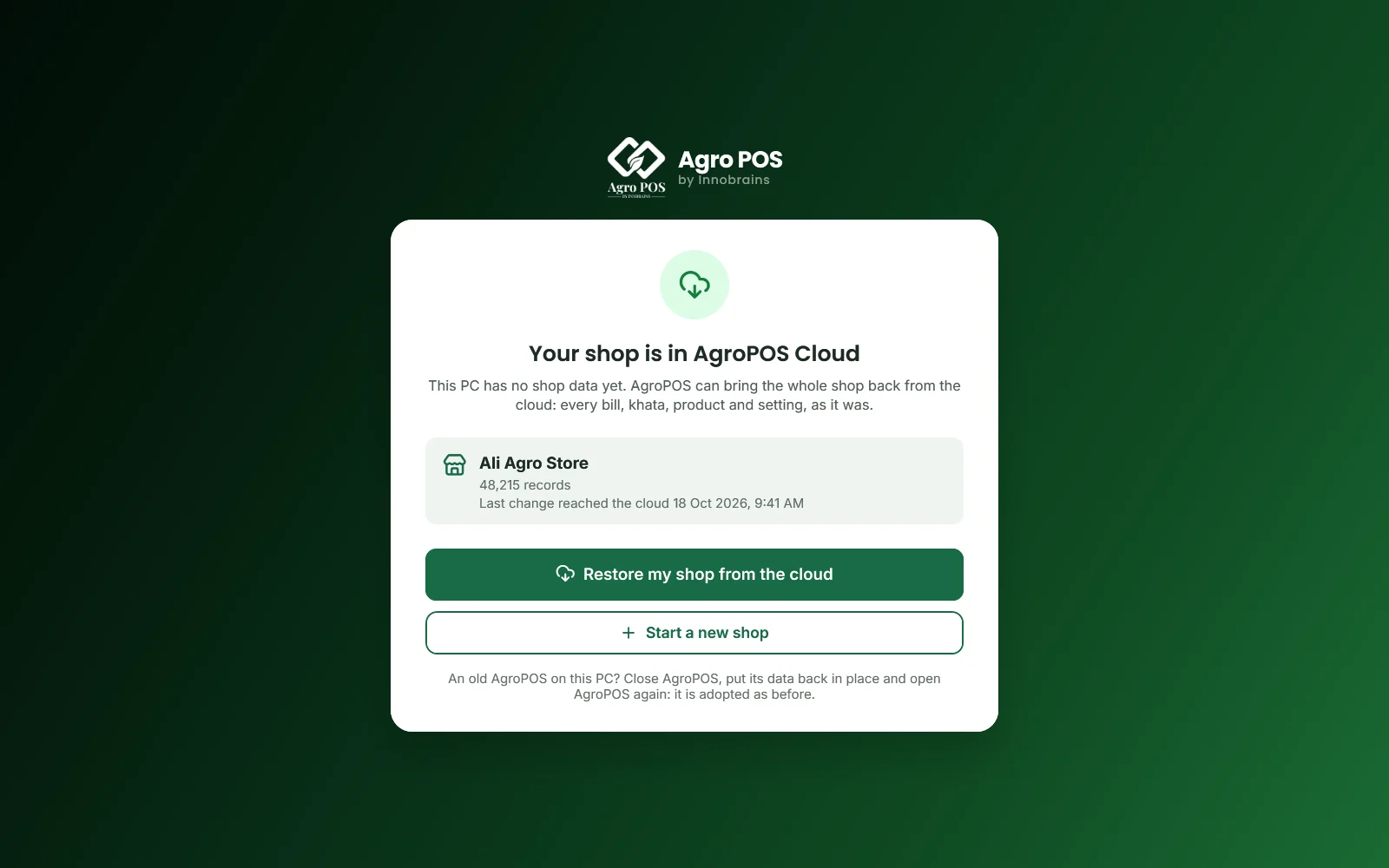
On a new PC of a shop that uses AgroPOS Cloud, AgroPOS checks the cloud after activation and, when the shop's data is there, offers to bring it back before you sign in.
Swipe to see the whole screen · tap to close
- Check the shop name, the number of records and when the last change reached the cloud.
- Click Restore my shop from the cloud. AgroPOS downloads the shop and checks every record and total against the cloud; if the internet drops, it resumes next time.
- At Everything checked. Choose the Admin password, type a New Admin password and type it again, then click Switch to the restored shop.
- At Your shop is back, click Continue to sign in and sign in as the Admin with that password.
Passwords never leave a PC, so the Admin sets the other users' passwords again under Users. Cloud Sync is already on. Choose Start a new shop only for a different shop, or when Innobrains support asks you to: the shop's records stay in the cloud, but this PC will not show them. If the restore stops because another PC of the shop sent changes in the last 10 minutes, close AgroPOS on that PC, wait 10 minutes and try again.
Rules and tips
- Install the main counter first. Tills pair with a main counter that is already working.
- AgroPOS keeps the shop's data for the Windows user who uses it. Use the same Windows user every day.
- Uninstalling asks whether to delete the business data too. Choose No to keep it for a later reinstall.
- A newer setup file updates AgroPOS in place, keeping your data and settings.
Common questions
Do I need internet to install AgroPOS?
Only for activation. Downloading the setup file needs the internet, and activation needs it once, even through a phone hotspot. After that, billing, stock and khata work without internet.
What is the default user name and password?
The user name is admin and the password is admin123. At the first sign-in AgroPOS makes you choose your own password, of at least 4 characters, before it opens.
Which computer should be the main counter?
The most reliable one: switched on all day while the shop trades, with a UPS for load-shedding. Tills cannot bill while the main counter is off.
Can I install AgroPOS on 32-bit Windows or Windows 7?
No. AgroPOS needs 64-bit Windows 10, version 1809 or newer, or Windows 11. On 32-bit Windows the setup stops with a message.
Related guides
Last updated 19 October 2026. Still stuck? Contact us or message us on WhatsApp.