Everyone who works at the counter should sign in as themselves. Then every bill, payment and change carries their name, and their role decides what they may do: a cashier bills and takes recovery, a store manager also buys stock and closes the day, and only the owner changes settings and users. This guide covers adding users, the standard roles, making your own roles, the cashier's price lock, and locking an unattended counter.

Swipe to see the whole screen · tap to close
Who can manage users
Users and Roles & Permissions are under SYSTEM for the Admin ("Create and edit users"). Anyone else who opens them sees "Only an Admin can manage user accounts."
How to add a user
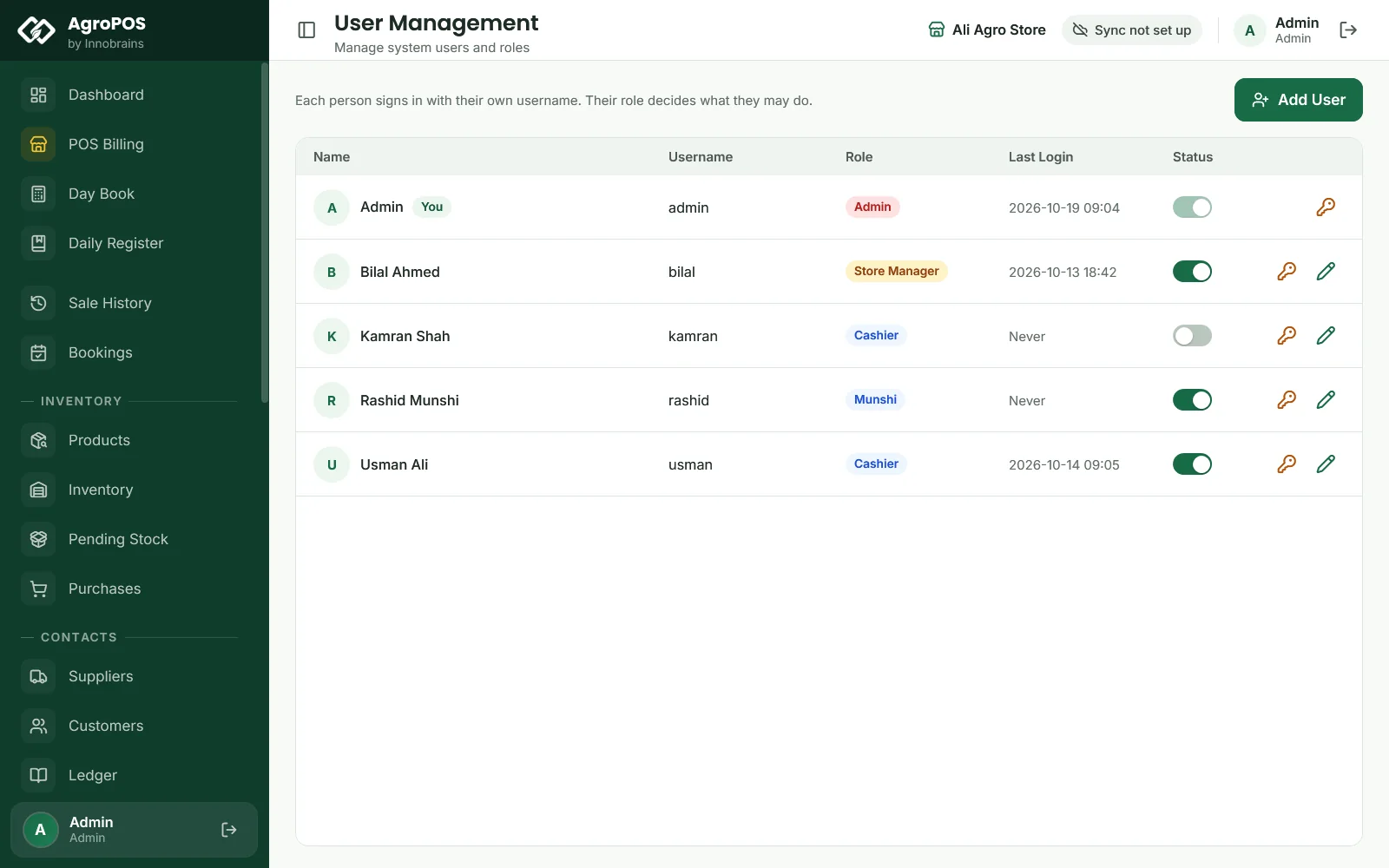
- Open Users and click Add User.
- Type the Full Name, a Username (what they type to sign in, such as
usman) and a Password of at least 4 characters. - Choose the Role. A new user starts as Cashier.
- Click Add User.
Usernames must be different, and they are typed exactly as saved when signing in. Tell the person their password; they cannot change it themselves, so the Admin changes it for them.
How to change, reset or switch off a user
- Edit (pencil): change the name or the role. The username cannot be changed.
- Change Password (key icon): type a New Password of at least 4 characters for that person, for example when they have forgotten it.
- Status switch: switches a user off at once, for example when a cashier leaves. They can no longer sign in ("Invalid username or password"), but their name stays on every bill they made. Users cannot be deleted.
AgroPOS will not take away the last active Admin, so the shop can never lock itself out of user management. Your own row is marked You.
The standard roles
| Role | What it may do as standard |
|---|---|
| Cashier | Make bills, view past bills, take sale returns, look up stock, add and edit customers, view the ledger, take recovery payments |
| Store Manager | Everything a Cashier does, plus discounts, cancelling bills, wholesale, bookings, products and stock adjustments, purchases and suppliers, expenses, closing the day, reports and registers, cheques, party settlements, exports and backups |
| Admin | Everything, including settings, users and roles, wallets and banks, restoring backups, deleting parties, the change history and the money figures on the dashboard |
The Store Manager does not see the dashboard's money figures, the bank accounts or the change history unless you give those permissions.
How to change what a role may do
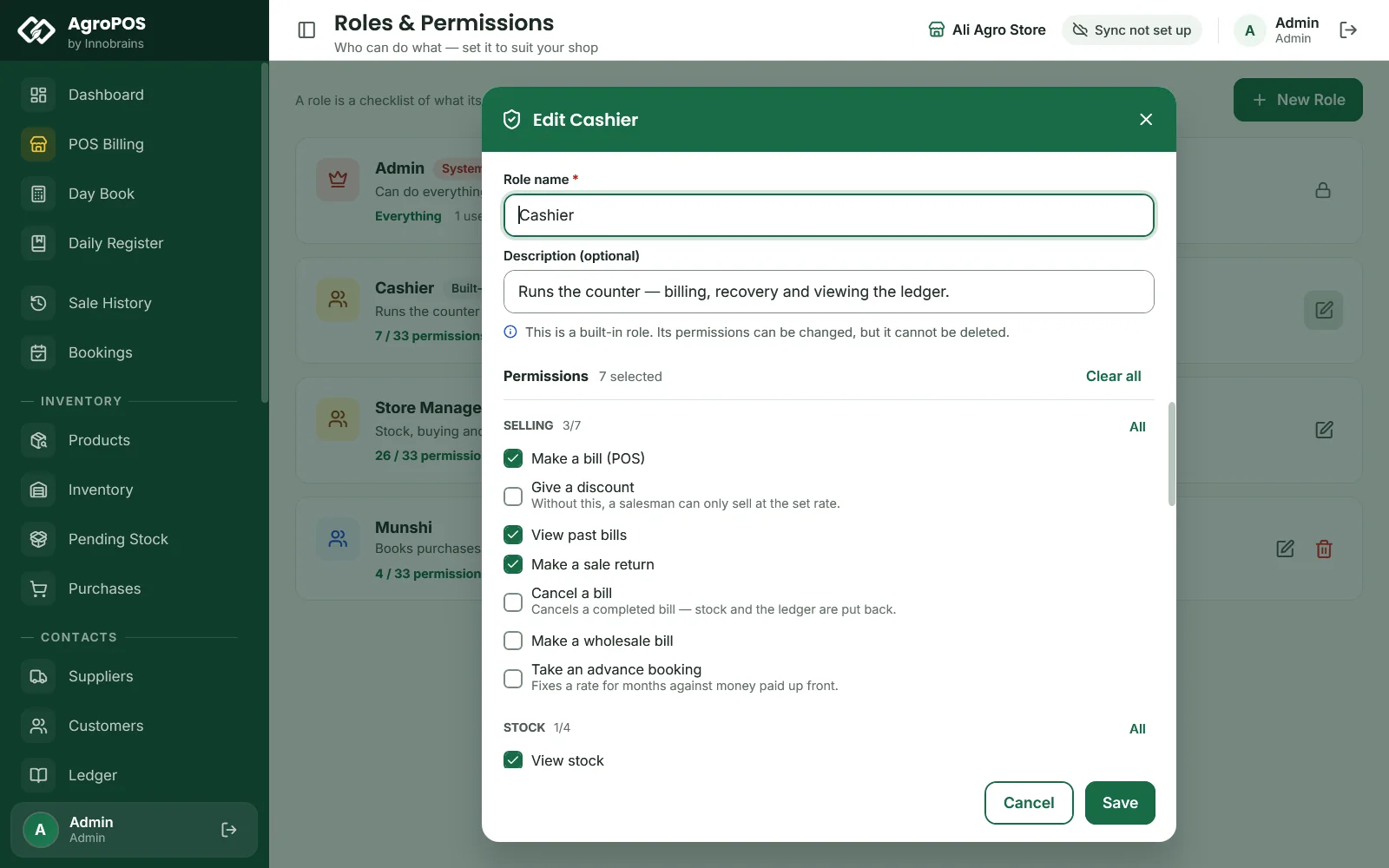
- Open Roles & Permissions. Each card shows the role, how many of the 33 permissions it has, and how many users hold it.
- Click the edit icon on Cashier or Store Manager to change them, or New Role to make your own, such as "Munshi" or "Godown Incharge".
- Tick what the role may do, group by group: SELLING, STOCK, BUYING, MONEY and BACK OFFICE. All and Clear work on a whole group. Grey hints explain the sensitive ones, such as "Restore a backup": "Replaces all current data. Give this only to someone accountable for it."
- Click Save.
Swipe to see the whole screen · tap to close
The Admin role cannot be changed. Cashier and Store Manager can be changed but not deleted. A role of your own can be deleted once nobody holds it. Ask staff to sign out and in again after you change their role.
Some permissions also cover other screens, and their hints say so: Make a sale return is needed for every return on Sale History and Wholesale Bills, cash refunds included; Record expenses to record an expense or lend money to a customer on Payments; Add and edit suppliers to pay a supplier or take money back from one there; and Close the day (count cash) to delete an expense.
When an AgroPOS update brings new standard permissions, they are added once to the built-in Cashier and Store Manager roles at the next sign-in, and recorded in Change History.
The cashier's price lock
The permission Give a discount ("Without this, a salesman can only sell at the set rate.") locks prices at the till:
- Without it, the price, the line discount and the bill discount boxes at POS Billing cannot be changed, and the till shows "Only a Store Manager or Admin can give a discount".
- A bill with a changed price is refused at F12: "Prices were changed. Only a Store Manager or Admin can give a discount."
- On Wholesale Billing, the discount box is not shown at all.
The Store Manager and the Admin have it as standard; the Cashier does not. A user without it can still sell a loose (parchoon, by the kg) line at its parchoon rate and lift a booking at its booked rate: neither is a price change. On a lifting, such a user may type a booked product's booked rate, but no other price.
Locking an unattended counter
Under Settings → Modules → Counter Security Module, Lock the counter when nobody is using it after 5, 10, 15 (the standard) or 30 minutes, or Never, then Save Settings. Thirty seconds before, AgroPOS warns "Locking in 30 seconds." Only key presses and clicks count as use, not moving the mouse.
The lock screen shows Counter locked with the user's name. Type the password and click Unlock: the bill and the cart are still there underneath. Sign out and use another account lets someone else take over.
Rules and tips
- Give every person their own username. A shared login makes the history useless.
- Keep the Admin password with the owner only, and change it from the first-sign-in password at once.
- In a Multi-Counter shop, the Admin signs in on the main counter, and cashiers and store managers on the tills, unless Admin can sign in on every counter is on under Settings → Counters.
- Role, password and active changes are recorded in Change History.
Common questions
How do I stop my cashier from giving discounts?
The standard Cashier role already cannot. If you made your own role, untick Give a discount in Roles & Permissions. The till then refuses any changed price or discount.
A cashier forgot her password. What do I do?
As the Admin, open Users, click the key icon on her row and type a new password. Staff cannot reset their own passwords.
Can I delete a user who has left?
No. Switch them off with the Status switch. They can no longer sign in, and the bills they made still show their name.
Can I let my store manager see the profit on the dashboard?
Yes. Edit the Store Manager role and tick See the money figures. Profit in Reports is already open to the Store Manager as standard.
Related guides
Last updated 21 October 2026. Still stuck? Contact us or message us on WhatsApp.