Stock changes by itself with every purchase, sale and return. Sometimes the shelf and AgroPOS still disagree: two bags torn in the rain, a carton found in the back store, a leaking can thrown away, or an old count that was never entered. Adjust Stock corrects this with a reason, and the stock history shows who changed what. This guide covers adding, removing and setting stock, counting the godown, and reading a product's movements.

Swipe to see the whole screen · tap to close
Who can adjust stock
Adjust Stock is on the Inventory page for the Store Manager and the Admin ("Adjust stock": "Can change stock outside of a physical count."). Without that permission the button is not shown. Everyone who can open Inventory can see the movements.
How to adjust a product's stock
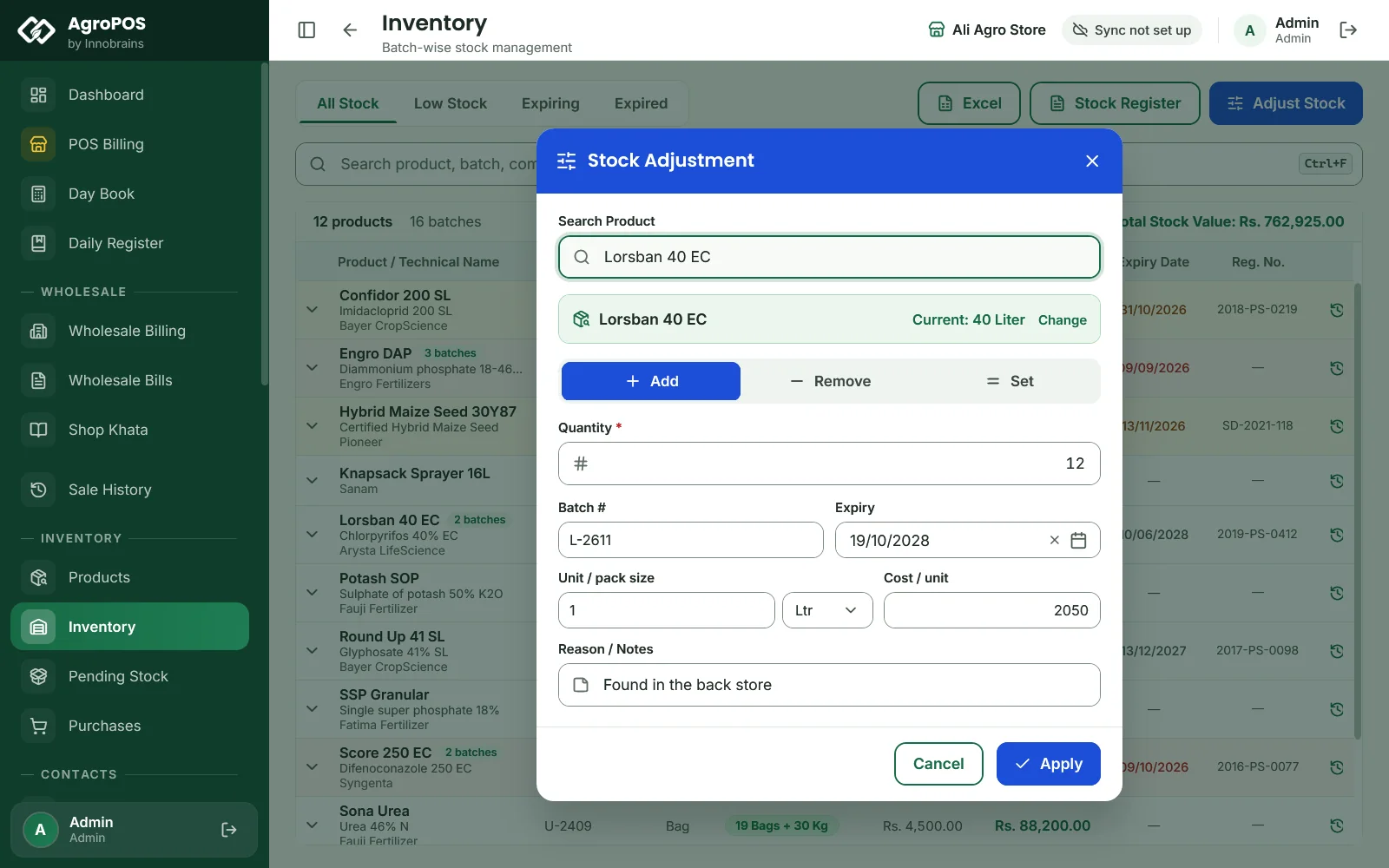
- Open Inventory and click Adjust Stock (Ctrl+N).
- In Search Product, type part of the name, company, barcode or technical name, and pick the product. AgroPOS shows its Current stock.
- Choose what to do:
- Add: stock that came in without a purchase, such as a carton found in the back store;
- Remove: stock that left without a sale, such as torn bags or a leaking can;
- Set: the stock should be exactly this figure, for example after a count.
- Type the Quantity.
- For Add and Set, fill in the Batch # as printed on the pack, the Expiry, the Unit / pack size (such as 50 Kg) and the Cost / unit. Leave the cost empty to use the product's own purchase price. A batch with no expiry date is sold last and never warns.
- Type the reason in Reason / Notes, such as "2 bags torn in the rain".
- Click Apply (Ctrl+Enter).
The dialog closes and Inventory shows the new stock. There is no fixed list of reasons: write it in your own words, because it is what you will read in the history later.
What each choice does
| Choice | What happens |
|---|---|
| Add | A new batch is made with the quantity, batch number, expiry and cost you typed. Without a batch number, it is named ADJ- and a number. |
| Remove | The quantity comes off the batches that expire first, expired batches included. You do not choose the batch. |
| Set | AgroPOS works out the difference from the current stock: more is added as a new batch, less is removed as above. A difference of zero changes nothing. |
Removing more than is in stock is refused: "Cannot remove 10 — only 6 in stock." An adjustment changes only the stock: it does not touch the khata, the cash or the profit and loss, and it is recorded as an Adjustment in the product's history.
How to count the godown
AgroPOS has no separate stock-count screen. A full count is done with the tools above:
- Close the day's billing, so no sale changes the stock while you count.
- On Inventory, click Stock Register to print the stock of every product, or Excel to save it.
- Count each product on the shelf and in the godown, and write the figure on the sheet.
- For every product whose count differs, open Adjust Stock, choose Set, type the counted quantity, and write "Count" with the date in Reason / Notes.
For a product with several batches, check the batches in Inventory too: open the product to see each batch's quantity and expiry.
Swipe to see the whole screen · tap to close
How to read a product's movements
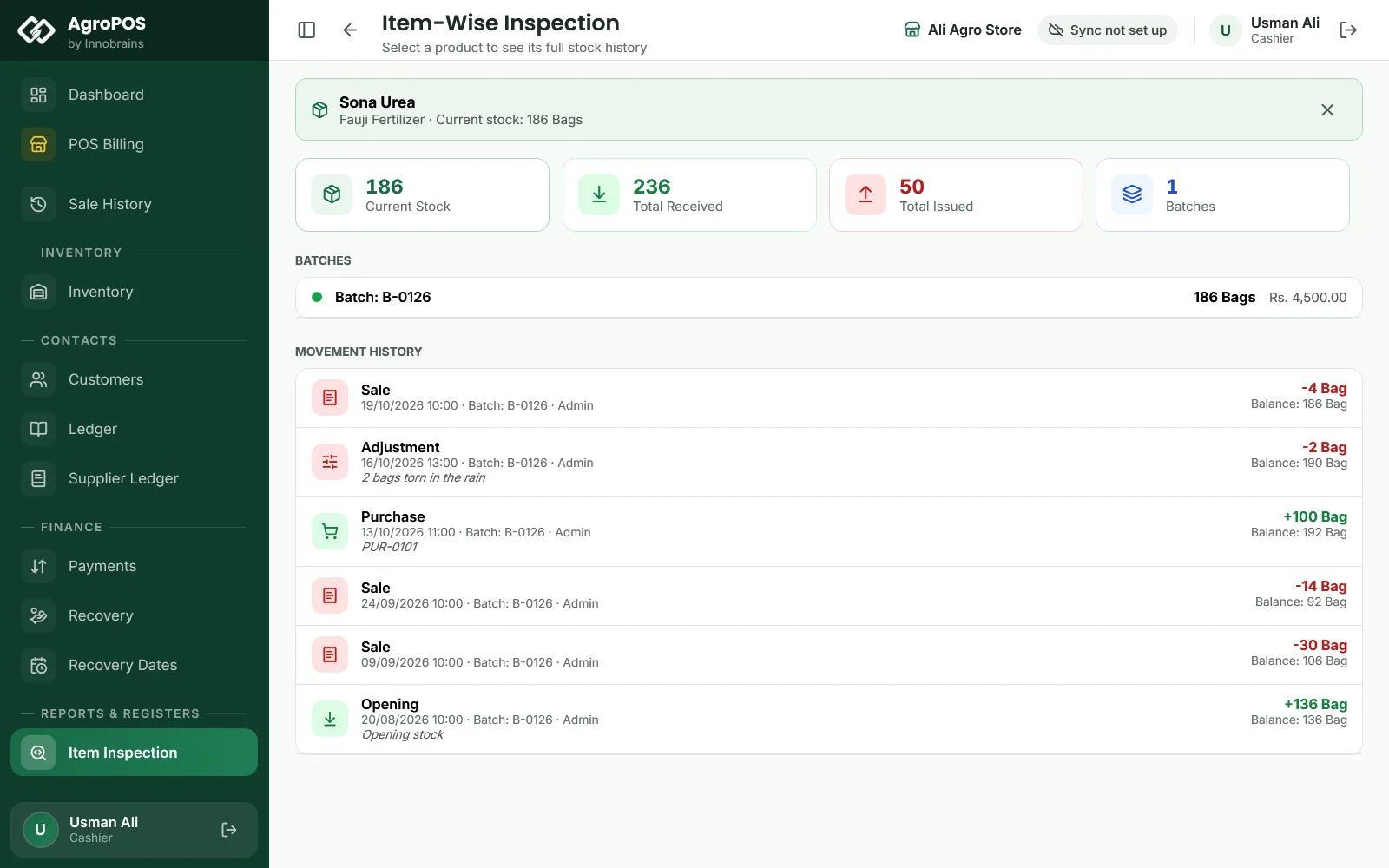
On Inventory, click the history icon on a product, or select it and press Ctrl+H. Stock movements lists, newest first, every Sale, Purchase, Purchase Return, Sale Return, Wholesale bill, cancelled bill and Adjustment, each with the date and time, the batch, the user, the note, the quantity in or out and the Balance after it. The bottom line shows how many movements there are and what is in stock now. Item Inspection under REPORTS & REGISTERS shows the same history with the totals received and issued.
Expired and damaged stock
- Expired stock cannot be sold. To take it off the shelf, use Remove with a reason such as "Expired, destroyed": it comes off the batch that expires first, which is the expired one.
- Returning to the company. Goods from a purchase go back with Return Items on that purchase (see Purchases from suppliers). Stock with no purchase in AgroPOS, such as opening stock, is taken off with Remove, and the company's allowance is entered as a Credit Note on the supplier.
Rules and tips
- Use an adjustment only for real differences. A sale, a purchase or a return should always go through its own screen, so the khata and the money stay right.
- Always write the reason. The history shows it with the user's name.
- Count fast movers such as urea and DAP more often in the season.
- Bringing stock in with Add does not record a purchase: the supplier's khata does not change. For goods you bought, enter the purchase.
Common questions
Can I choose which batch to remove stock from?
No. Remove always takes from the batches that expire first, expired ones included. To remove a later batch, adjust it with care, or record a return on the purchase it came from.
Does an adjustment change my profit?
No. It changes only the stock. The stock value on the dashboard and in Inventory changes with it.
Is there a stock count screen?
No. Print the Stock Register from Inventory, count the shelf, and use Set in Adjust Stock for each product that differs.
Why can my cashier not see Adjust Stock?
Adjusting stock needs the Adjust stock permission, which the Store Manager and the Admin have as standard. The cashier can still look up stock in Inventory.
Related guides
Last updated 19 October 2026. Still stuck? Contact us or message us on WhatsApp.