A busy counter in the season often needs to put one bill aside while serving the next farmer, print a bill again for a customer who lost his slip, or cancel a bill that was made wrongly. This guide covers held bills at POS Billing, reprints from Sale History and Wholesale Bills, and cancelling (deleting) a bill, with what each one does to stock, khata and cash.
How to hold a bill (F8)
A farmer has three bags of DAP on the bill but has gone to fetch money from his son, and two people are waiting.
- Press F8, or click Hold Bill · F8 under the bill.
- Hold this bill asks Name it so you can find it. The customer's name is already there; you can type something else, such as "red pickup" or "gate par".
- Click Hold Bill (or press Enter). AgroPOS says "Bill held. Open “Held bills” to bring it back." and starts a fresh bill.
The bill is kept aside with its products, quantities, prices, customer, bill type, discount and paid amount. No invoice number is used and no stock is reserved, so nothing changes until you bring it back.
How to bring back a held bill (F9)
- Finish or hold the bill on the till first: with products on the till, AgroPOS says "Finish or hold the current bill first."
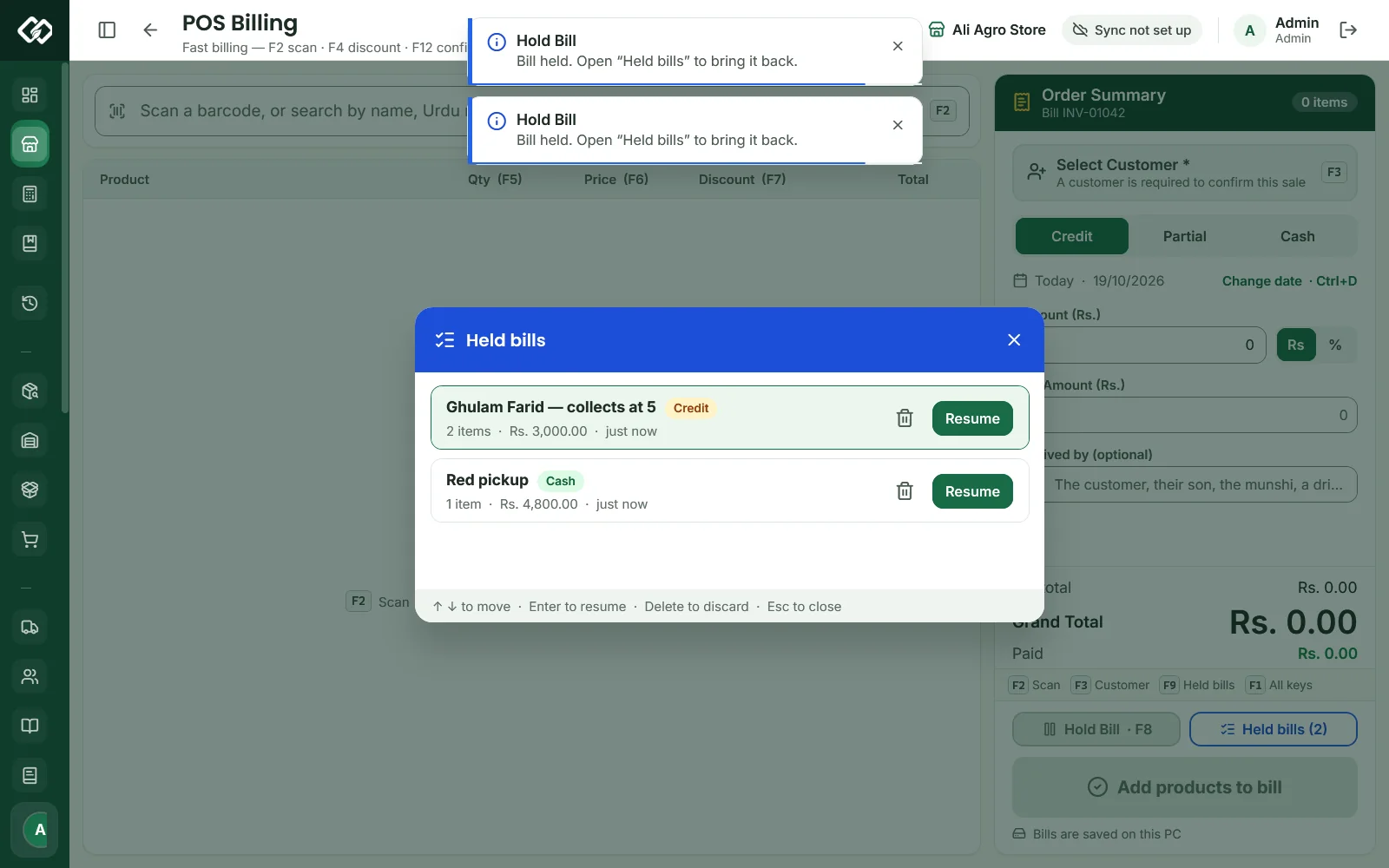
- Press F9, or click Held bills, which shows how many are waiting.
- Each held bill shows its name, its type (Cash, Credit or Partial), the number of items, the total and how long ago it was held.
- Press Enter or click Resume. The bill comes back on the till; finish it with F12 as usual.

Swipe to see the whole screen · tap to close
To throw one away, select it and press Delete (or click the bin), then Discard. Nothing was sold or reserved, so discarding changes no stock and no khata.
When a bill comes back, AgroPOS checks every product again. A line whose product is out of stock, or no longer active, is removed, and a quantity above what is in stock now is cut down to the stock; a message tells you how many lines changed. The prices stay as they were when the bill was held. An old-sale date, a payment date or a chosen bank account is not kept: set them again before F12.
What to know about held bills
- They stay until used. Held bills are saved in the shop's data, so they survive closing AgroPOS, a power cut and the end of the day. There is no limit and they never expire.
- Every counter sees them. In a Multi-Counter shop, a bill held on Counter 1 can be resumed on Counter 2. The list does not show which counter held it, so name it clearly.
- Signing out with an open bill asks Leave with a bill open?. Hold it first (F8) to keep it.
- Wholesale Billing has no held bills: it keeps its bill while you look at other screens.
How to reprint a bill
- Open Sale History and find the bill (see Sale History: finding any bill).
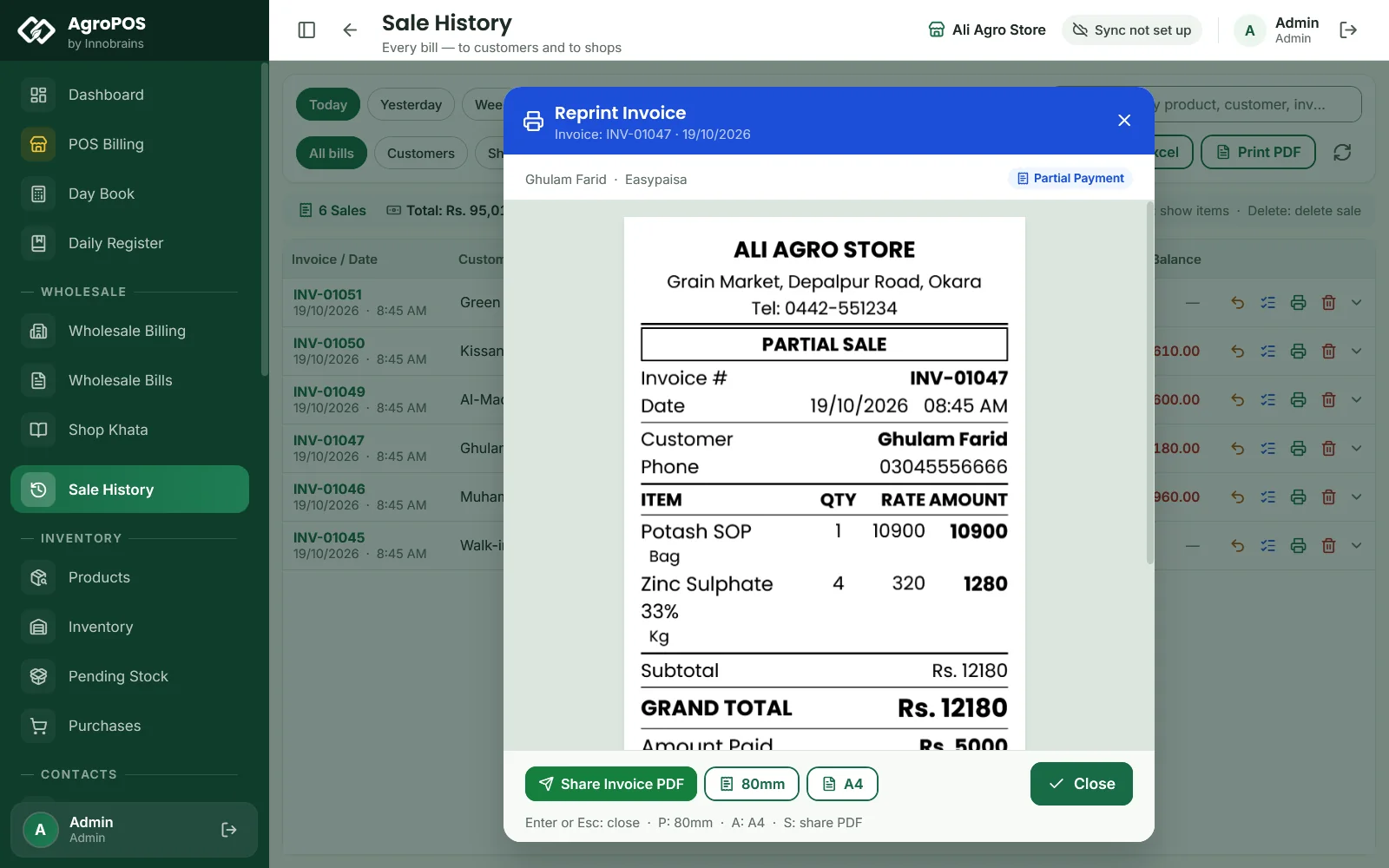
- Click the printer icon on its row, Reprint receipt / invoice. For a shop bill you can also use Wholesale Bills: the printer icon, or Enter on the row.
- Reprint Invoice shows the slip exactly as it prints. Press P for the 80mm slip, A for the A4 invoice, or S for Share Invoice PDF, which saves the A4 invoice in
Documents\AgriPOS\Invoicesand opens the Windows share window, for example to send it on WhatsApp.
Swipe to see the whole screen · tap to close
A reprint is never printed by itself, even when receipts print automatically after a sale, and it is not marked as a copy. The amount paid and the bill balance on it are the bill's figures today, so a later recovery or return shows on the reprint. The account summary is the one from the day of the bill.
How to cancel (delete) a wrong bill
Cancelling a bill puts its stock back and reverses what the customer still owed on it. It is switched off as standard, so the owner decides first:
- As the Admin, open Settings → Modules and find Sales — Deletion Rules.
- Switch on Allow deleting a sale. AgroPOS asks Allow deleting sales? and explains what deleting does. Click Allow, then Save Settings.
Then, as a Store Manager or Admin:
- Open Sale History and find the bill.
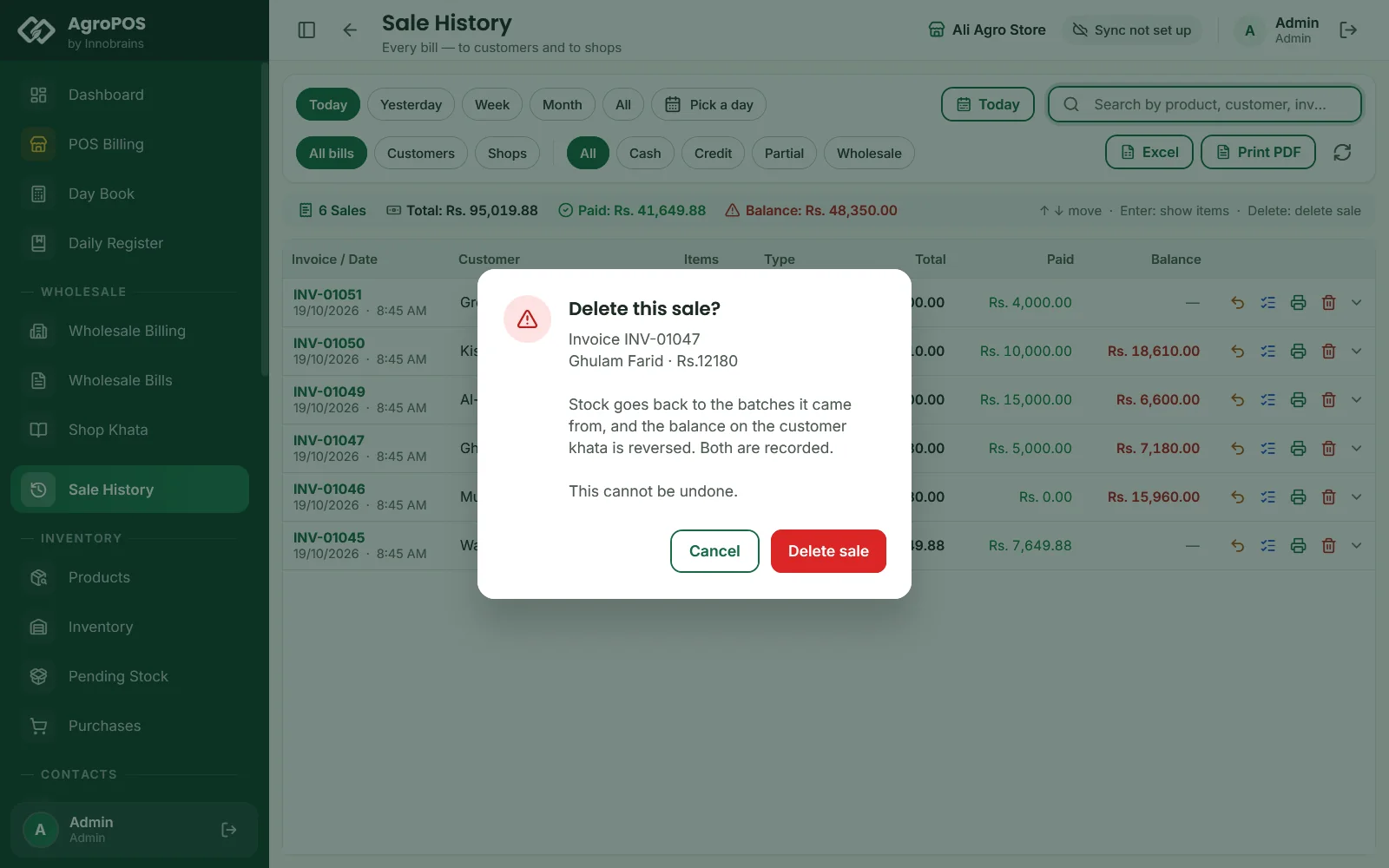
- Click the bin icon, Delete sale (reverses stock and balance), or select the row and press Delete.
- Check the invoice, customer and amount in Delete this sale? and click Delete sale. For a bill to a shop it reads Cancel this bill? and Cancel bill.
- AgroPOS says the invoice is deleted, "Stock and balance reversed."
Swipe to see the whole screen · tap to close
Wholesale Bills has its own cancel icon for bills to shops, for the Store Manager and the Admin, shown only while Allow deleting a sale is on.
What cancelling does and does not do
| What happens | |
|---|---|
| Stock | Goes back into the same batches it was sold from, recorded in the stock history |
| Khata | The customer's balance goes down by what was still unpaid on the bill, with a reversal entry in the khata. An extra kept as advance on an overpaid bill is taken back off the khata |
| The bill | Kept, marked deleted, and left out of Sale History, the Day Book and the reports. Its number is never used again |
| Money paid on the bill | Not given back by AgroPOS. Hand the cash back yourself; if you keep it, the drawer will count over |
| Wallet or bank entries | Removed from Wallets & Banks with the bill, and the account's balance is put right |
| Payment date | A payment date promised at the counter on this bill is withdrawn, and never counts as missed |
| Booking lifting | The goods and the advance it used go back to the booking |
A bill can be cancelled whatever its age, even on a day already closed; that day's Day Book figures change. A bill with a sale return against it cannot be cancelled until the return is cancelled. There is no undo and no list of cancelled bills. On AgroPOS Cloud, the web panel leaves the bill out of Sale History and marks it "cancelled on the shop PC".
Rules and tips
- Hold a bill instead of cancelling it whenever the customer may still come back.
- For one or two items taken back, use a sale return, not a cancel. See Sale returns.
- Cashiers do not get the bin icon with the standard Cashier role. The owner decides who may cancel under Roles & Permissions ("Cancel a bill").
- Switching Allow deleting a sale on or off is recorded in Change History. The cancelled bills themselves are not listed there.
Common questions
Does a held bill reserve the stock?
No. Another counter can sell the last bags while the bill waits. Stock is checked again when you resume the bill and when you confirm it.
Will my held bills be lost when I close AgroPOS?
No. They are saved in the shop's data and stay until someone resumes or discards them, even after a restart or the end of the day.
A customer lost his receipt. How do I print it again?
Find the bill in Sale History and click the printer icon on its row. Choose 80mm for the slip, A4 for a full invoice, or S to share it as a PDF.
Why is there no bin icon in Sale History?
Deleting is off until the Admin switches on Allow deleting a sale under Settings, Modules, Sales — Deletion Rules. Even then only roles with Cancel a bill see it, which as standard are the Store Manager and the Admin.
Does cancelling a bill refund the customer?
No. AgroPOS puts the stock back, reverses what was still owed on the bill and removes its wallet or bank entry, but any money paid must be handed back by you.
Related guides
Last updated 21 October 2026. Still stuck? Contact us or message us on WhatsApp.