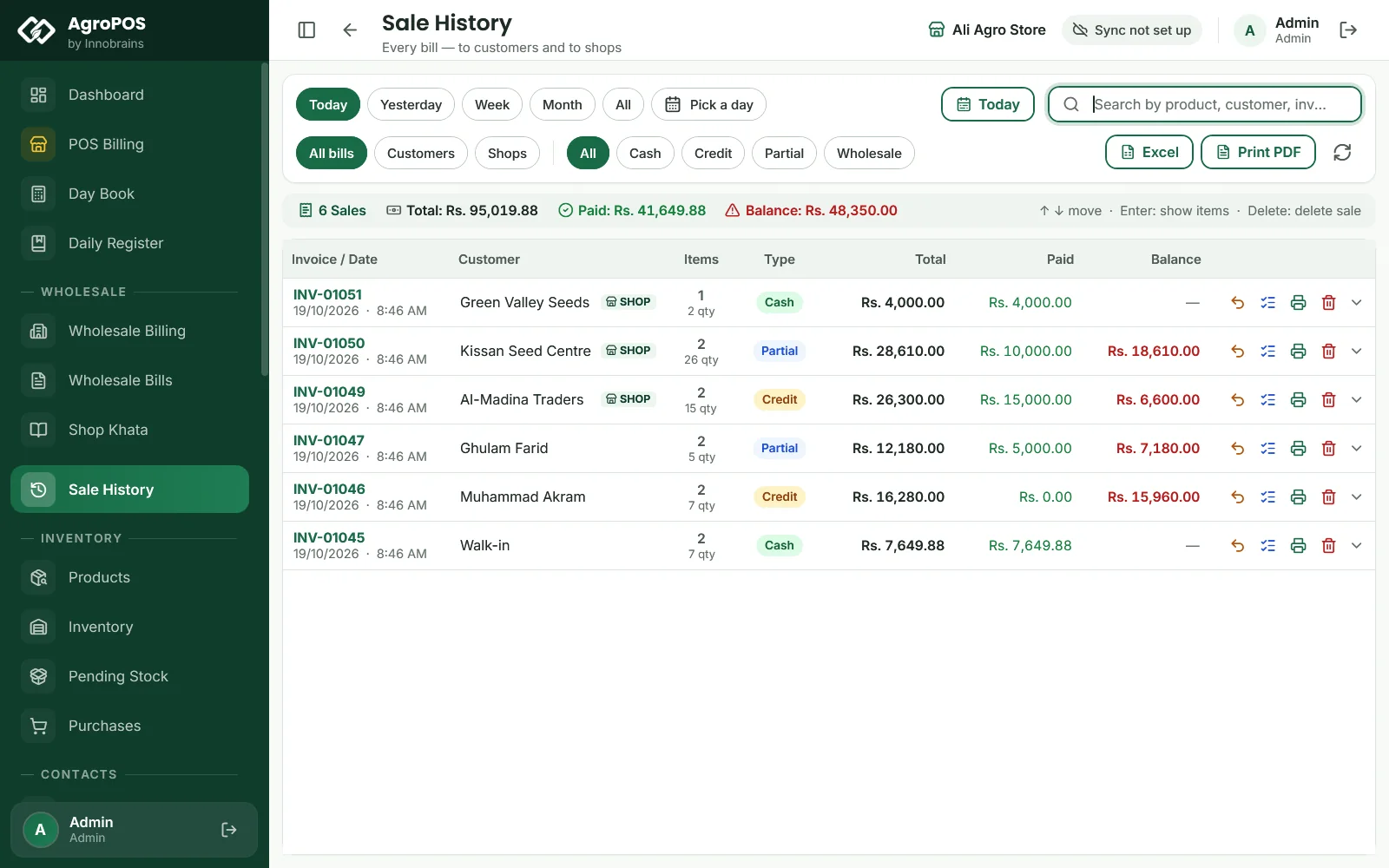
Sale History lists every bill the shop has made, to farmers and, with wholesale on, to shops. It is where you find a bill a customer asks about, check what a cashier sold today, reprint a slip, take a return, or save a period's bills to Excel for your accountant. This guide covers the filters, what each column means, opening a bill, the actions on each row, and Sale History on the AgroPOS Cloud web panel.

Swipe to see the whole screen · tap to close
Who can open Sale History
Sale History is in the menu for every standard role: Cashier, Store Manager and Admin ("View past bills"). The Cashier can reprint and take returns ("Make a sale return"), but does not see the icons for cancelling bills or returns, and cannot export.
How to find a bill
Sale History opens on Today. Then:
- Pick the dates. Click Today, Yesterday, Week (Monday to today), Month (the 1st to today) or All (everything since 1 January 2020). Pick a day shows one day; the range button beside the search shows the bills between two dates (Show these dates). Each day runs to 23:59:59.
- Pick the book. With wholesale on, choose All bills, Customers (farmers and walk-ins) or Shops (bills made to other shops).
- Pick the type. All, Cash, Credit or Partial. To see bills made to shops, use Shops: the Wholesale type chip is for bills from older versions.
- Search. Type part of the invoice number, the customer's or shop's name, or a product, such as
lorsban. The list filters as you type; Esc clears the search.
F2 or Ctrl+F puts the cursor in the search, ↓ moves into the list, and F5 refreshes. In a Multi-Counter shop, the list also refreshes when another counter saves a bill.
What the list shows
The strip above the list shows how many bills are listed, their Total, what was Paid, and the Balance still owed on them. Each row shows:
| Column | What it means |
|---|---|
| Invoice / Date | The bill number, such as INV-01046 (INV-C1-… from a till), with its date and time |
| Customer | The customer, Walk-in, or a shop with a SHOP badge |
| Items | How many lines, and the total quantity |
| Type | Cash, Credit or Partial |
| Total | The bill as it was made |
| Paid | Paid at the counter plus later recoveries on this bill, less any cash refund |
| Balance | What is still owed on this bill today |
So a credit bill of last week shows a smaller Balance once the farmer pays part of it.
How to open a bill
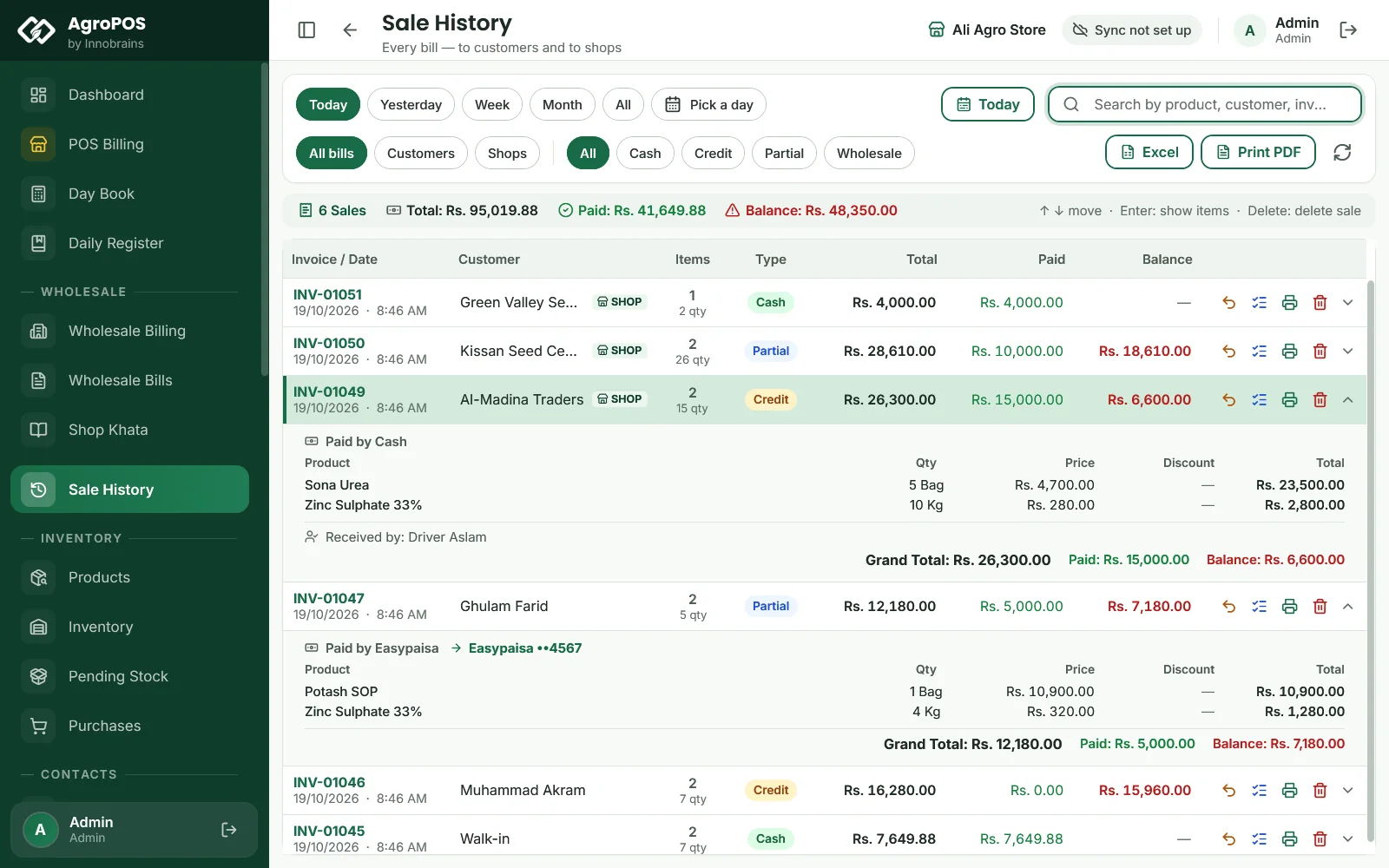
Click a row, or select it and press Enter. It opens underneath with:
- how it was paid, such as "Paid by Easypaisa" and the account;
- each Product with its Qty, Price, Discount and Total;
- the note, such as "Received by: Driver Aslam";
- the Discount, Grand Total, Paid and Balance.
Swipe to see the whole screen · tap to close
What you can do from a row
The icons at the end of each row work without opening the bill:
- Customer Return / Refund (roles with "Make a sale return"): take goods back on this bill. See Sale returns.
- View / cancel returns (Store Manager and Admin): the returns already made on it.
- Reprint receipt / invoice: print the 80 mm slip or the A4 invoice again, or share it as a PDF.
- Delete sale (Store Manager and Admin, when Allow deleting a sale is on): cancel the bill, putting its stock and khata back and removing its wallet or bank entry. See Held bills, reprints and cancelled bills.
How to save or print the list
- Excel saves the bills listed on screen as a file named like
Sales_01-10-2026_to_19-10-2026.xlsx, after asking where to save it. - Print PDF prints a Sales Report of the bills listed, through the Windows print dialog.
Both need the "Export or print data" permission (Store Manager and Admin as standard) and cover exactly the bills on screen, so set the dates and filters first. To give your accountant a month, click Month, then Excel.
Sale History on AgroPOS Cloud
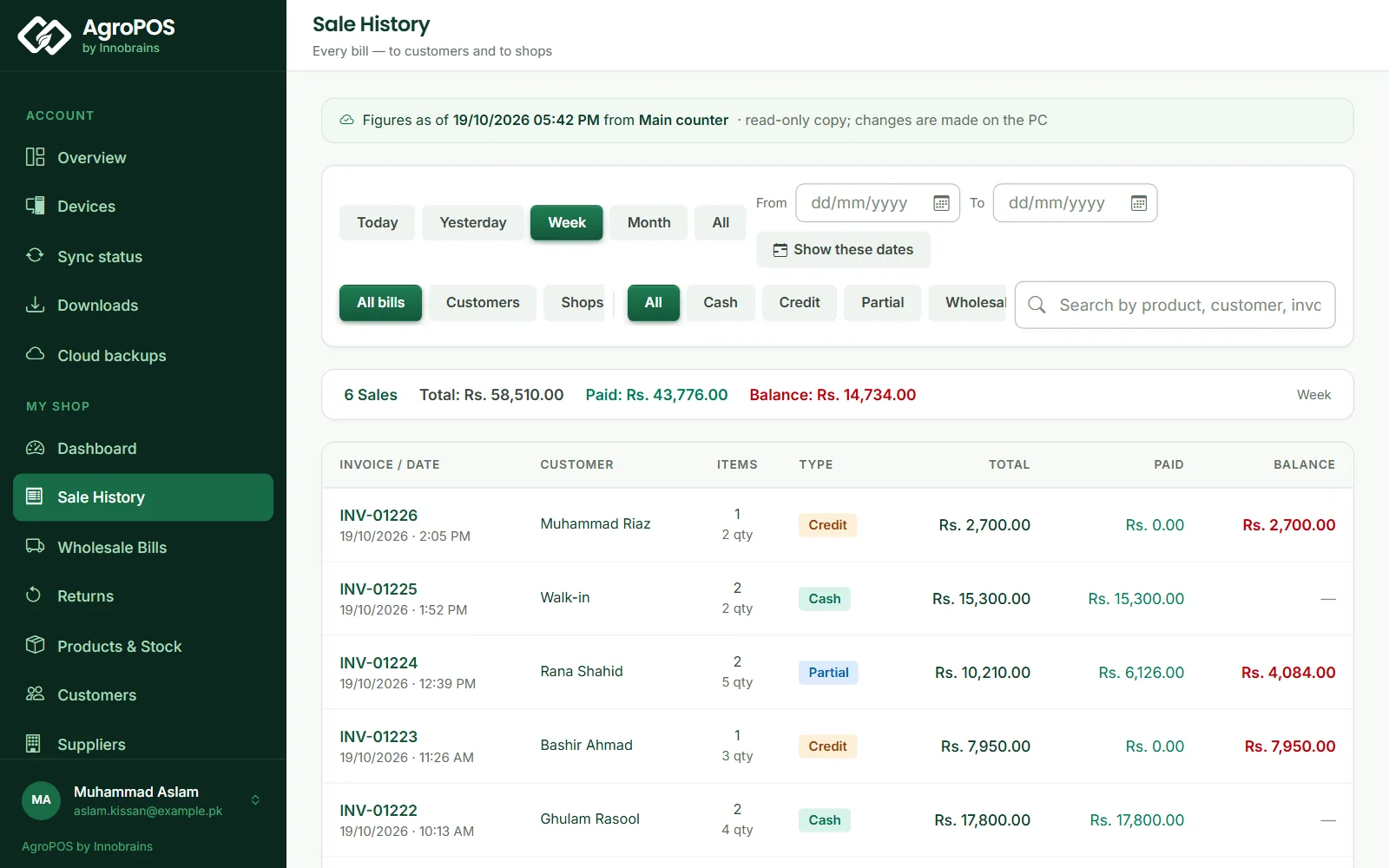
On a Cloud plan, the web panel at agropos.pk has the same Sale History: the same date, book and type chips, the search and the totals, 25 bills a page. Clicking an invoice opens the bill with its items, the payment, the customer's account summary as the receipt prints it, and any returns. A Returns page lists the goods customers and shops brought back. The web is read-only: reprints, returns and cancelling are done on the shop PC.
Swipe to see the whole screen · tap to close
Rules and tips
- Search by the product to answer "who bought the last Confidor?".
- Check Balance before taking a payment: it is what is still owed on that bill today.
- Bills cancelled with Delete sale no longer appear here, and their numbers are not used again.
- Sale History has no filter by cashier or counter. The Daily Register shows who entered each udhaar bill and payment.
Common questions
How do I find a bill from last month?
Click the range button beside the search, pick the first and last day, and click Show these dates. Or click All and search the customer's name or the invoice number.
Why does a bill's Paid amount change after the sale?
Paid includes the payments recovered against that bill later, so a credit bill shows more paid and less balance as the farmer pays. A cash refund on a return lowers it.
Can my cashier export Sale History to Excel?
Not with the standard Cashier role. Excel and Print PDF need Export or print data, which the Store Manager and the Admin have. The owner can change roles under Roles & Permissions.
Where are the bills from my tills?
In the same Sale History, on every counter. Bills from a till carry its tag in the number, such as INV-C1-00012 from Counter 1.
Related guides
Last updated 21 October 2026. Still stuck? Contact us or message us on WhatsApp.