Settings is where the owner makes AgroPOS fit the shop: the name and phone numbers on every bill, the invoice numbers, tax, the footer line and the logo, the stock alerts, and which parts of the software are switched on. This guide goes through each section of Settings and what it changes.

Swipe to see the whole screen · tap to close
Who can change settings
Settings is under SYSTEM for the Admin ("Change settings"). Anyone else sees "Only an Admin can change shop settings." The sections on the left are Shop, Billing, Printing, Stock, Modules, Counters (in a Multi-Counter shop) and About.
Changes to Shop, Billing, Printing, Stock and Modules are kept only when you click Save Settings at the top; AgroPOS then says "Settings saved successfully!". Counters and About act at once, so click Save Settings before you move to another page.
Shop: the details on every bill
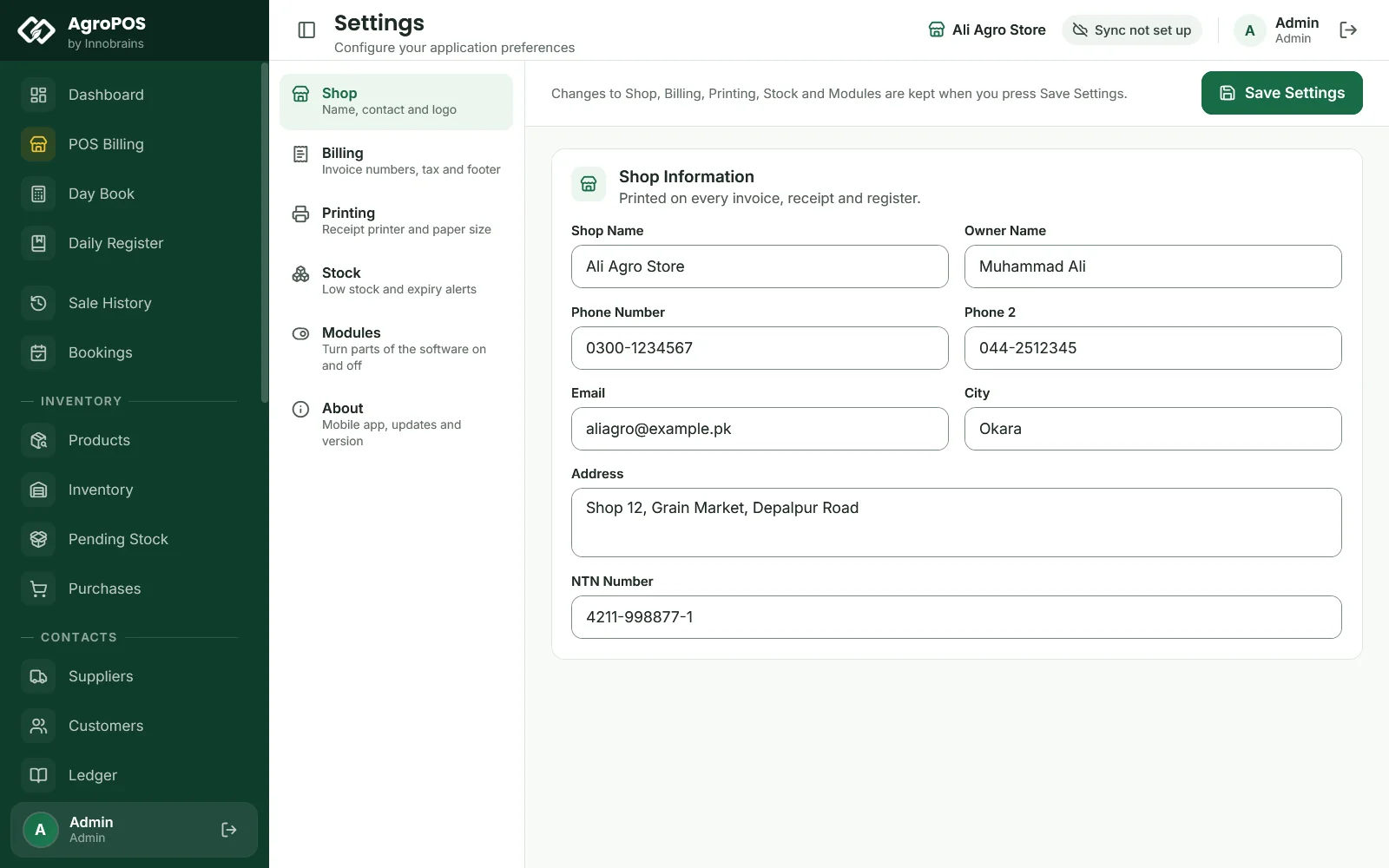
Under Shop Information ("Printed on every invoice, receipt and register"), fill in the Shop Name, Owner Name, Phone Number, Phone 2, Email, City, Address and NTN Number.
- The 80 mm slip prints the shop name, the address and the phone numbers.
- The A4 invoice and the registers also print the NTN Number.
- The Shop Name comes from activation; change it here if you like.
Billing: invoice numbers, logo, footer and tax
Swipe to see the whole screen · tap to close
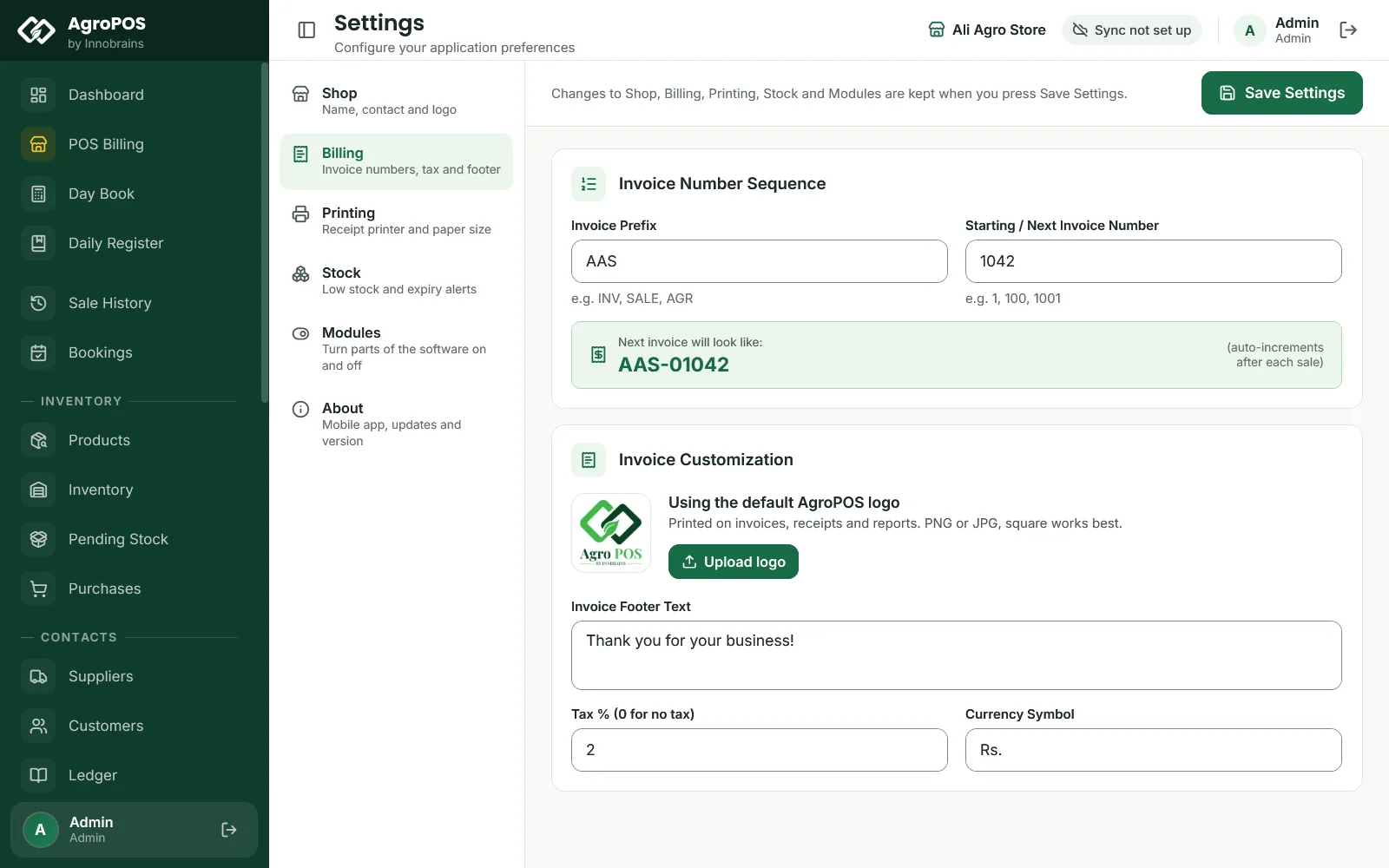
Invoice Number Sequence
- Invoice Prefix, such as
INV,SALEor your shop's initials likeAAS. - Starting / Next Invoice Number: the number of the next bill. If your last handwritten bill was 1041, type 1042.
- Next invoice will look like: shows the result, such as
AAS-01042.
Setting a number below one already used does not reuse old numbers: AgroPOS carries on above the highest number used. In a Multi-Counter shop each till adds its own tag, such as AAS-C1-00001.
Invoice Customization
- Logo: Upload logo picks a PNG or JPG of up to 3 MB; square works best. It prints on the A4 invoice and the PDF documents, not on the 80 mm slip. Remove goes back to the AgroPOS logo.
- Invoice Footer Text: the line at the bottom of every receipt, "Thank you for your business!" as standard. Write your own, such as "Shukriya! Dobara tashreef laayen."
- Tax % (0 for no tax): one percentage for the whole shop, added to every POS and wholesale bill after the bill discount. The till shows Tax and the receipt prints Tax / GST. There is no tax per product.
- Currency Symbol: Rs. as standard.
Figures outside their range are refused when you save, for example "Tax %: 0 and 100."
Stock: when the alerts start
Inventory Alerts has the Low Stock Alert Threshold and the Expiry Alert Days that drive the dashboard's warnings. See Low stock and expiry alerts.
Modules: what is switched on
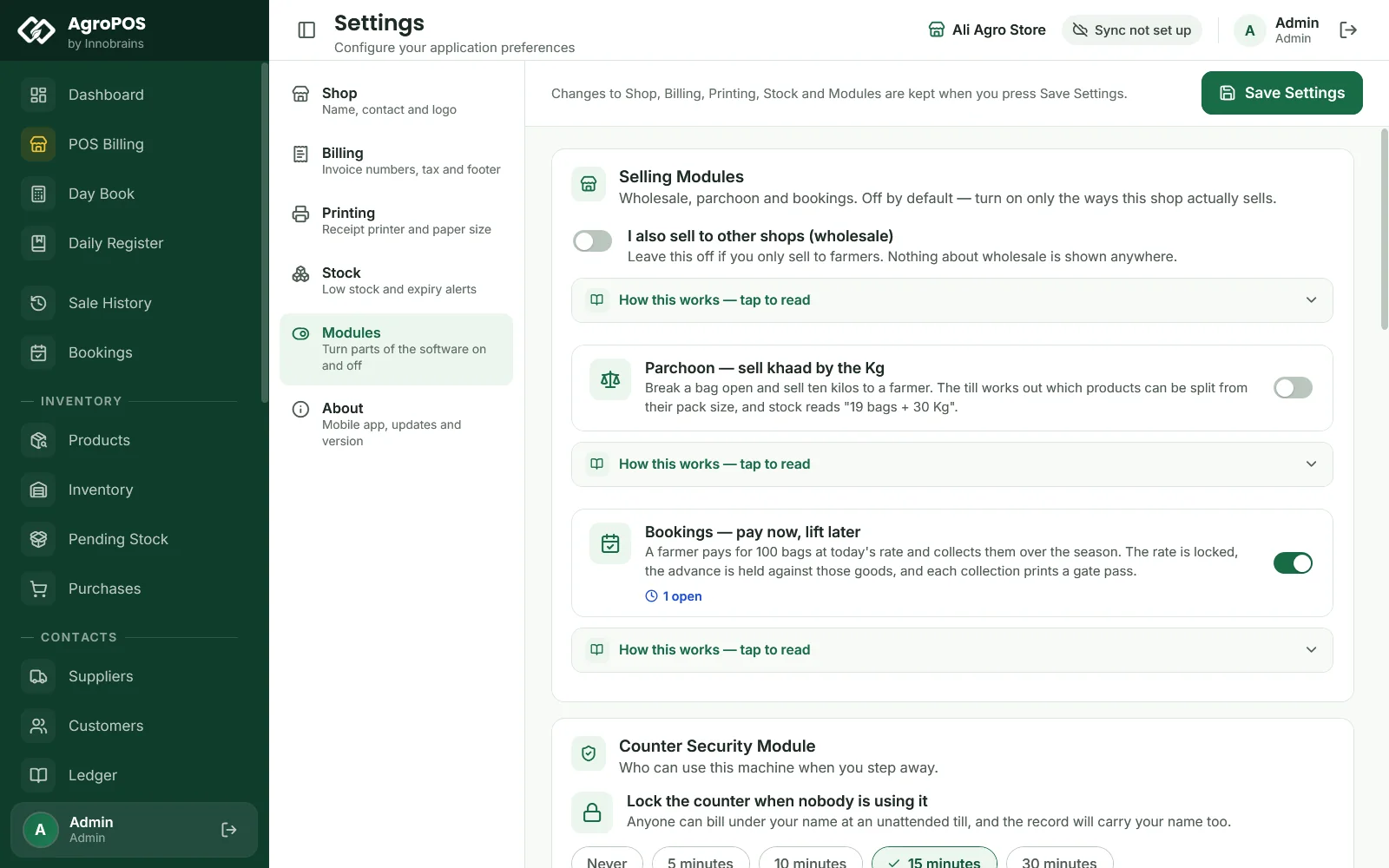
Everything under Modules is off until you switch it on, so the screens stay simple for a shop that does not need them. Each switch has How this works — tap to read, with what it does, where you will see it and what happens if you turn it off later.
Swipe to see the whole screen · tap to close
| Card | Switch | Guide |
|---|---|---|
| Selling Modules | I also sell to other shops (wholesale) | Wholesale billing |
| Parchoon — sell khaad by the Kg | Products, batches and expiry | |
| Bookings — pay now, lift later | Advance bookings | |
| Counter Security Module | Lock the counter when nobody is using it | Users and roles |
| Party & Settlement Modules | My customers pay my suppliers directly | Payments and settlements |
| Cheque Module | Cheques | Cheques |
| Accounts Module | Post payments to wallets and accounts | Wallets and bank accounts |
| Sales — Deletion Rules | Allow deleting a sale | Cancelled bills |
| Parties — Deletion Rules | Allow deleting a customer, shop or supplier | Supplier ledger |
| Banks — Deletion Rules | Allow removing a bank entry | Wallets and bank accounts |
Some switches protect you when turned off: Cheques cannot be switched off while a cheque is outstanding, Bookings asks before hiding open bookings, and wholesale asks Turn wholesale off? while shops are on your books.
Counters and About
- Counters (Multi-Counter): the tills, pairing codes, the cash drawers and this PC's receipt printer. See Multi-Counter setup.
- About: the Mobile App Module with its QR code for AgroPOS Mobile, Software Update with the installed version, Cloud Sync, Restore from AgroPOS Cloud (Cloud shops), the Licence with Change licence key, Reset Shop Data, and Application Info.
Rules and tips
- Set the shop details and the invoice number before the first real bill.
- Keep the footer short: the 80 mm slip is narrow.
- Changes to tax, the invoice prefix and number, the stock alerts and the module switches are recorded in Change History with who made them.
- There is no field for a dealer licence number or for terms and conditions on the invoice.
Common questions
How do I start invoice numbers from where my old book ended?
Under Settings, Billing, type the next number in Starting / Next Invoice Number, such as 1042, and click Save Settings. The preview shows how the next bill will look.
Why is my logo not on the thermal slip?
The 80 mm slip prints no logo. The logo prints on the A4 invoice and the PDF documents, such as the invoice you share on WhatsApp.
Can I charge tax on some products only?
No. Tax % is one rate for the whole shop, added to every bill. Leave it at 0 if your bills carry no tax.
Why did my change not stay?
Shop, Billing, Printing, Stock and Modules are kept only when you click Save Settings. Leaving the page without saving keeps the old values.
Related guides
Last updated 21 October 2026. Still stuck? Contact us or message us on WhatsApp.