With AgroPOS Multi-Counter, several PCs bill at once. One PC is the main counter and keeps the shop's only copy of the data. Every other PC is a till that bills on that data over your shop network, so stock, khata and bills match on every counter the moment they are saved, with no internet needed. This guide is for the owner adding a second or third counter: pairing tills, cash drawers, bill numbers, a main counter that is off, and moving from the older AgroPOS Multi-Counter.
Before you start
- A Multi-Counter licence with a free counter. A 3-counter licence is the main counter and two tills; tills are never activated on their own. With a single-counter licence the till choice is greyed with "Needs a Multi-Counter licence". Contact Innobrains to upgrade, or see pricing for extra counters.
- One shop network. Every PC on the same router or switch, by cable or Wi-Fi.
- A Private network in Windows. The AgroPOS setup opens its counter ports (TCP 8420 and 8422, UDP 8421) for Private and office networks only, and Windows 11 calls every new network Public. On the main counter open Settings → Network & internet → Ethernet (or Wi-Fi, then your network) and set Network profile type to Private network.
- The same AgroPOS version on every PC. Install each counter with the same setup file.
- A UPS for the main counter, the router and any switch. During load-shedding the tills cannot bill if any of them goes dark.
How to set up the main counter
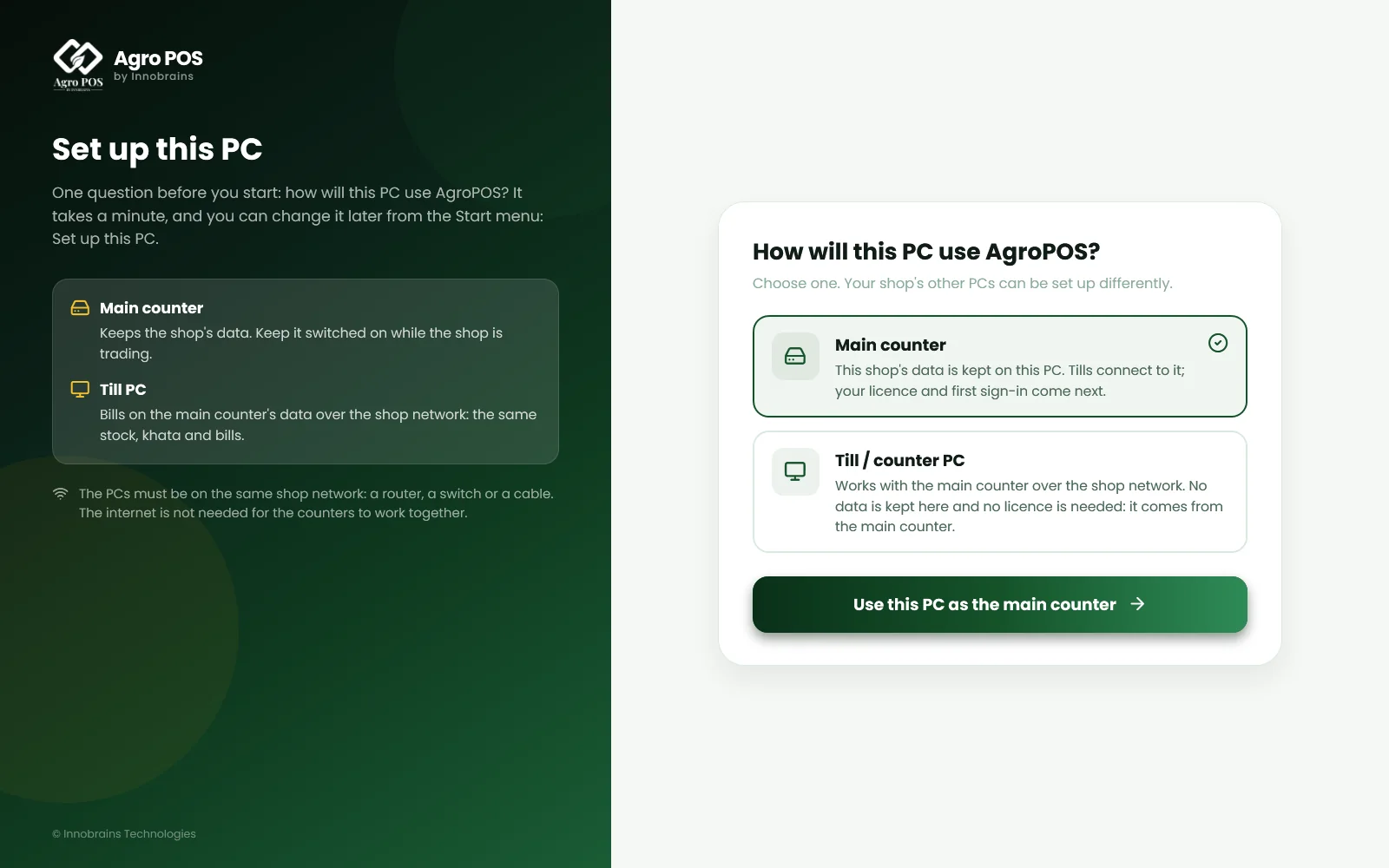
Choose the PC that stays on all day. If your shop already bills on AgroPOS, that PC is the main counter already and keeps its data. On a new install, AgroPOS first asks How will this PC use AgroPOS?: choose Main counter, click Use this PC as the main counter, then activate and sign in as in Installing AgroPOS.

Swipe to see the whole screen · tap to close
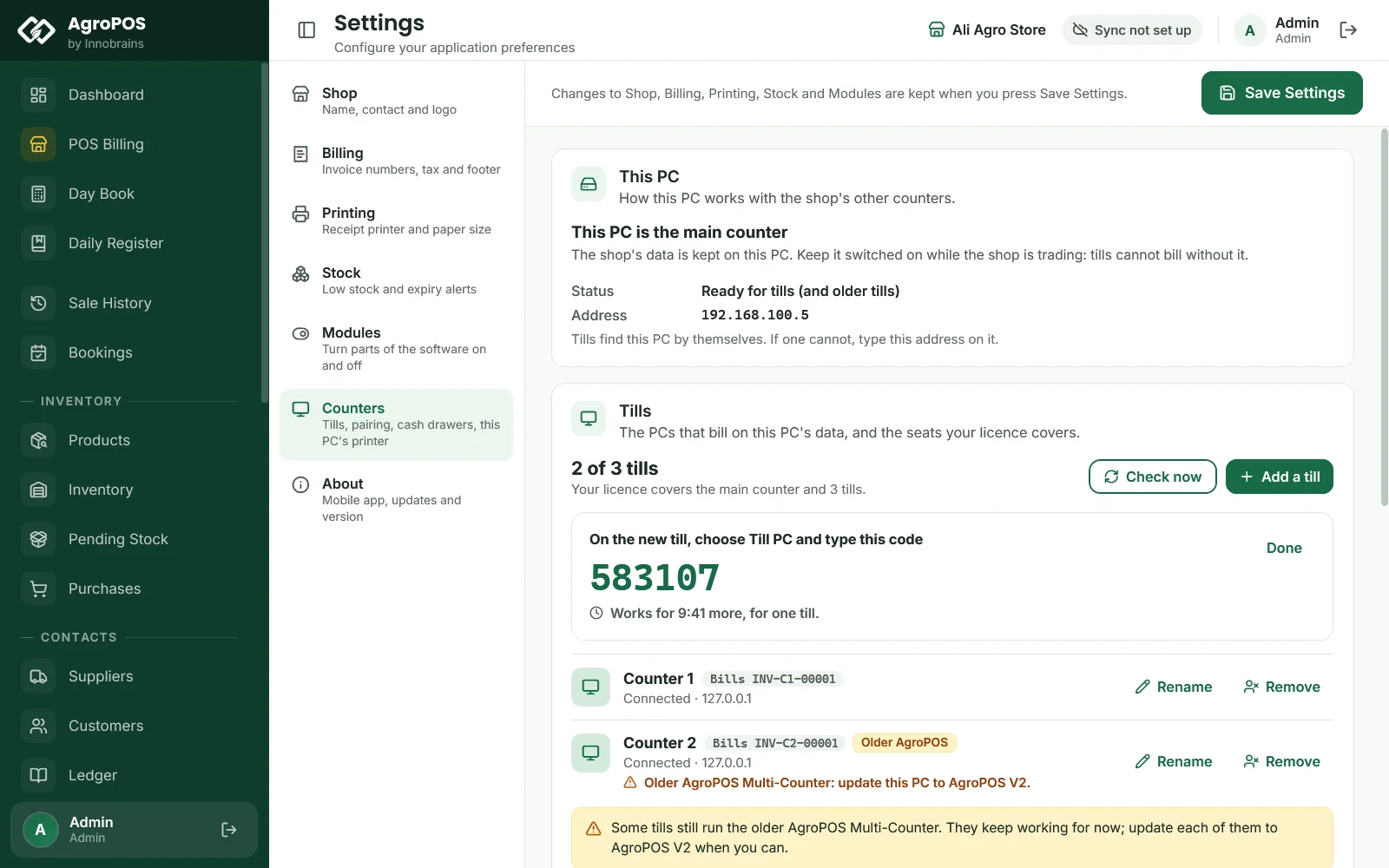
Settings → Counters then shows This PC is the main counter, Ready for tills and its Address on the shop network, such as 192.168.1.10. The main counter serves the tills from the AgroPOS program itself, so keep it on, with AgroPOS open, while the shop is trading.
How to make a pairing code
- On the main counter, open Settings → Counters. Tills shows how many your licence covers, for example 1 of 2 tills.
- Click Add a till. A 6-digit code appears under "On the new till, choose Till PC and type this code".
- The code works once, for one till, for 10 minutes, and five wrong tries end it. Click Add a till again for the next till.
Swipe to see the whole screen · tap to close
Add a till is greyed when every till of your licence is in use, or when the main counter does not yet know how many your licence covers. Connect the main counter to the internet and click Check now, also after buying more counters.
How to set up each till
- Install AgroPOS with the same setup file and open it.
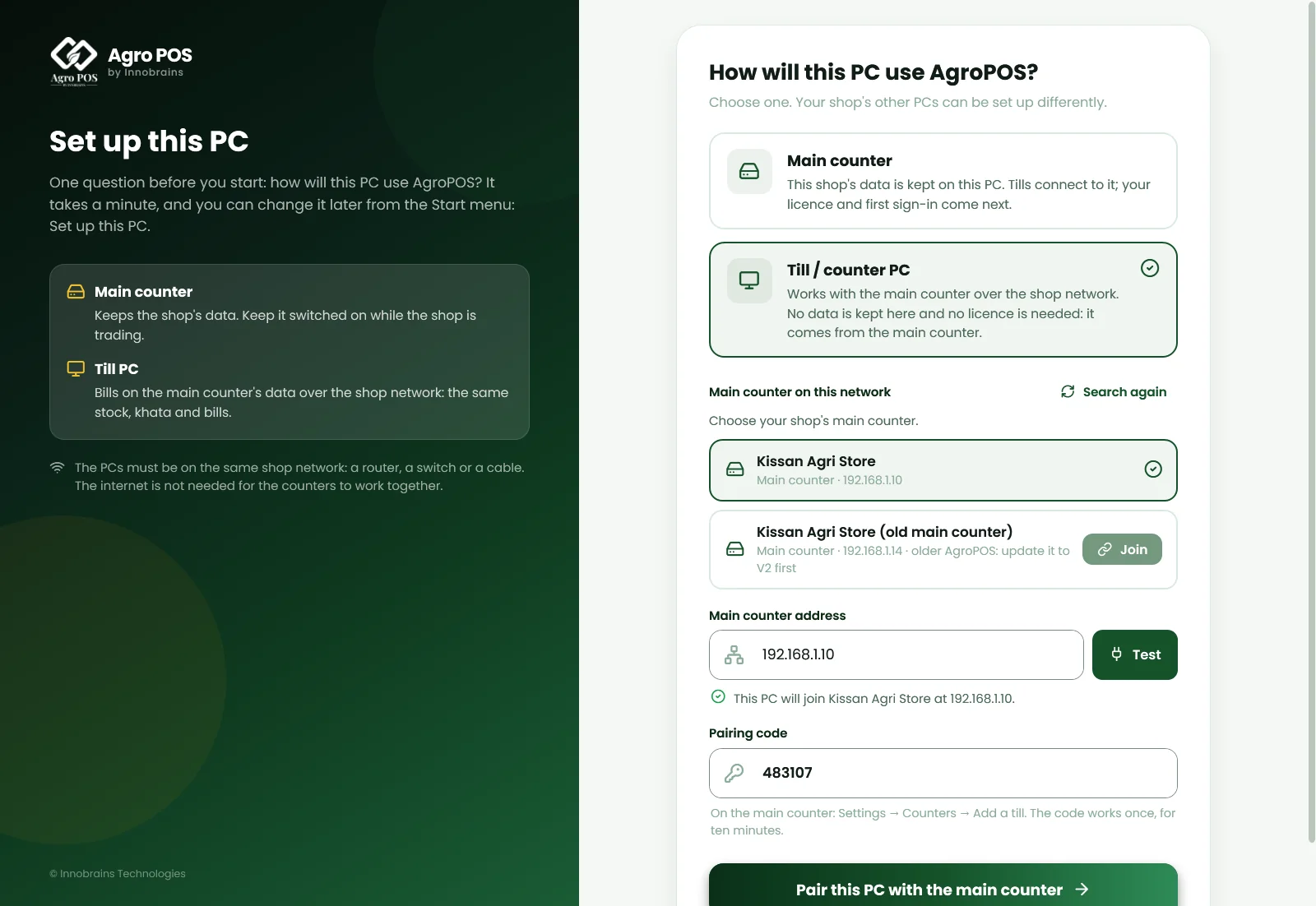
- Choose Till / counter PC. A till needs no licence of its own.
- AgroPOS looks for the main counter for a few seconds and lists it under Main counter on this network, for example Kissan Agri Store, Main counter · 192.168.1.10. A single main counter is chosen by itself; Search again looks once more.
- If nothing is found, type the address shown on the main counter in Main counter address and click Test. "Connected: Kissan Agri Store's main counter answers at 192.168.1.10" means the network is ready.
- Type the code in Pairing code and click Pair this PC with the main counter.
Swipe to see the whole screen · tap to close
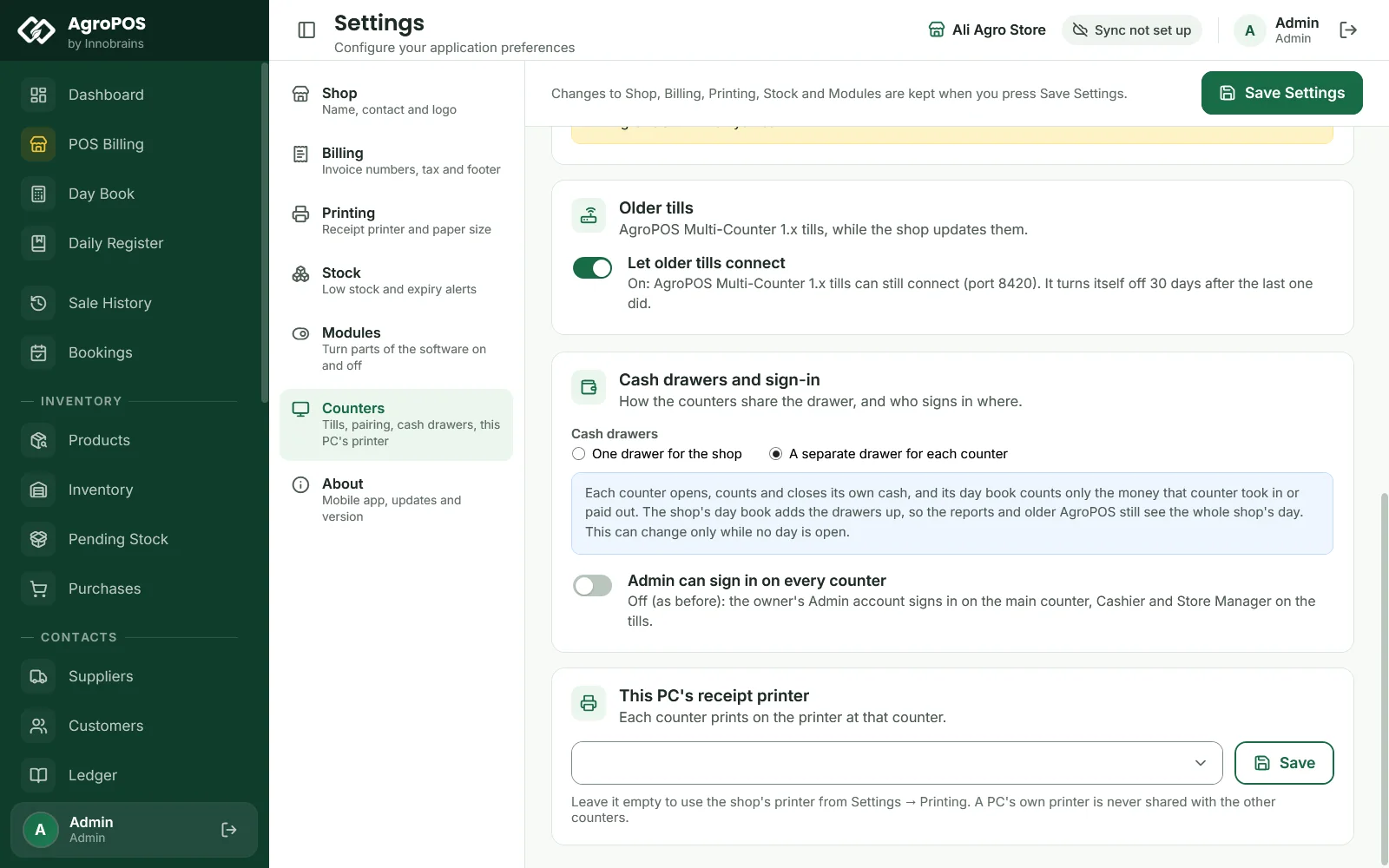
The till is named Counter 1, Counter 2 and so on, and opens on the sign-in screen. As standard, the owner's Admin signs in only on the main counter, and once a till is paired, Cashier and Store Manager sign in only on tills ("Ye account is counter par login nahi ho sakta"). To let the owner bill on tills, switch on Admin can sign in on every counter under Settings → Counters.
A failed pairing says why: a wrong code, a code that ran out, or every till of the licence in use.
What a till keeps
| On the till | On the main counter |
|---|---|
| Its pairing with the main counter | Products, stock, bills, customers, khata and the day book |
| Its own receipt printer (Settings → Counters → This PC's receipt printer) | Shop settings, backups, the licence and Cloud Sync |
A till's own printer prints each receipt by itself only when Print every receipt automatically is on; left empty, the till uses the shop's printer from Settings → Printing. Lists such as Products and Sale History reload by themselves when another counter saves. A broken till is replaced by pairing another PC; there is nothing to restore.
Cash drawers: one for the shop, or one per counter
Under Settings → Counters → Cash drawers and sign-in, choose:
- One drawer for the shop: every counter uses one drawer, counted and closed once for the whole shop.
- A separate drawer for each counter: each counter opens, counts and closes its own cash, and its Day Book counts only the money that counter took in or paid out. On a shop set up as Multi-Counter in V2, the shop's day book adds the drawers up.
Swipe to see the whole screen · tap to close
With separate drawers, each counter's Day Book names its drawer, such as "Counter 1's drawer" or "Main Counter's drawer". On a shop set up as Multi-Counter in V2, the main counter's Day Book also adds Drawers on this day: each counter's opening, what it should hold and its count, then the whole shop's line. A till that never opened its drawer shows Not opened.
The choice saves at once, can change only while no day is open (AgroPOS names any open day to close first), and applies from the next day each counter opens. New Multi-Counter shops start with one drawer; shops moved from the older Multi-Counter keep the drawer setting they had. The web panel's Day Book shows the whole shop's figures. See Day Book: opening, counting and closing the day.
How bill numbers work
The main counter keeps the shop's series, INV-00001, and each till has its own: Counter 1 bills INV-C1-00001, Counter 2 INV-C2-00001, so no two counters print the same number. Wholesale bills share one series. Rename next to a till changes its name and tag (1 to 6 letters or digits, such as C2).
Each sale is checked and saved on the main counter in one step, against the stock and khata as they are at that moment.
What happens when the main counter is off
Tills keep no copy of the data, so nothing can be billed while the main counter or the network is down. Bills already saved are safe on the main counter.
- A till that starts without it shows Cannot reach the main counter, with Retry and Change how this PC connects.
- If the link drops while you work, the till tries again every few seconds and says when it is back.
- If it drops while a bill is being saved, the bill "may have been saved: check Sale History on this till before entering it again." A bill sent twice is never saved twice.
If a till cannot reach the main counter
- Check that the main counter is on, with AgroPOS open, on the same router, and that its Windows network is Private.
- Compare the main counter's Address in Settings → Counters with the one on the till. A router can hand out a new address after a power cut; ask whoever set it up to reserve the main counter's address.
- On the till, click Change how this PC connects, choose Till / counter PC, find the main counter (or type its address and Test) and pair with a new code. The till keeps its name and bill tag.
Update this PC or Update the main counter first means the versions differ: they must match exactly, so run the same setup on both. Pair this till again means the till was removed or the main counter was replaced.
Moving an older Multi-Counter shop to V2
Innobrains moves shops from AgroPOS Multi-Counter 1.x to V2 with you, main counter first. Its data stays in place, with a safety copy, and its licence and counters come with it. Older tills keep billing on it while Let older tills connect is on in Settings → Counters, each marked "update this PC to AgroPOS V2". The switch turns itself off when the main counter starts more than 30 days after the last older till connected (or after the switch was turned on, if that is later). See Older 1.x tills with a V2 main counter. To move a till, run the same setup on it and pair it with a code: it keeps its name, drawer and, when free, its bill tag.
Rules and tips
- Backups, restores, data reset, Cloud Sync and the licence are on the main counter only.
- Remove next to a till stops it at once and frees its counter. Its bills stay in the shop's data.
- A till pairs for one Windows user; if someone else signs in to Windows there, pair it again.
- Install updates on every PC, main counter first. The main counter and every till must run exactly the same version.
Common questions
Do the counters need the internet?
No. Tills talk to the main counter over the shop network. Only the main counter needs the internet now and then, for its licence and to learn how many tills the licence covers.
Does each till count towards my licence?
Yes. A licence covers a number of counters, the main counter included, so a 3-counter licence is the main counter and two tills. Settings → Counters on the main counter shows how many are in use.
Do I need to back up the tills?
No. Every bill, product and khata entry is kept on the main counter, so back up the main counter only.
Related guides
- Multi-Counter POS software: what it does for a busy shop
- Installing AgroPOS on a new PC
- Making your first bill
- Restoring your shop or moving to a new PC
Last updated 19 October 2026. Still stuck? Contact us or message us on WhatsApp.