Most agri shops print an 80 mm thermal slip for every bill, and an A4 invoice when a zamindar or a shop asks for a proper bill. AgroPOS prints both, and saves any bill as a PDF to send on WhatsApp. This guide covers choosing the printer, printing every receipt automatically, what the slip and the invoice show, sharing a PDF, and a printer for each till in a Multi-Counter shop.

Swipe to see the whole screen · tap to close
How to set up the receipt printer
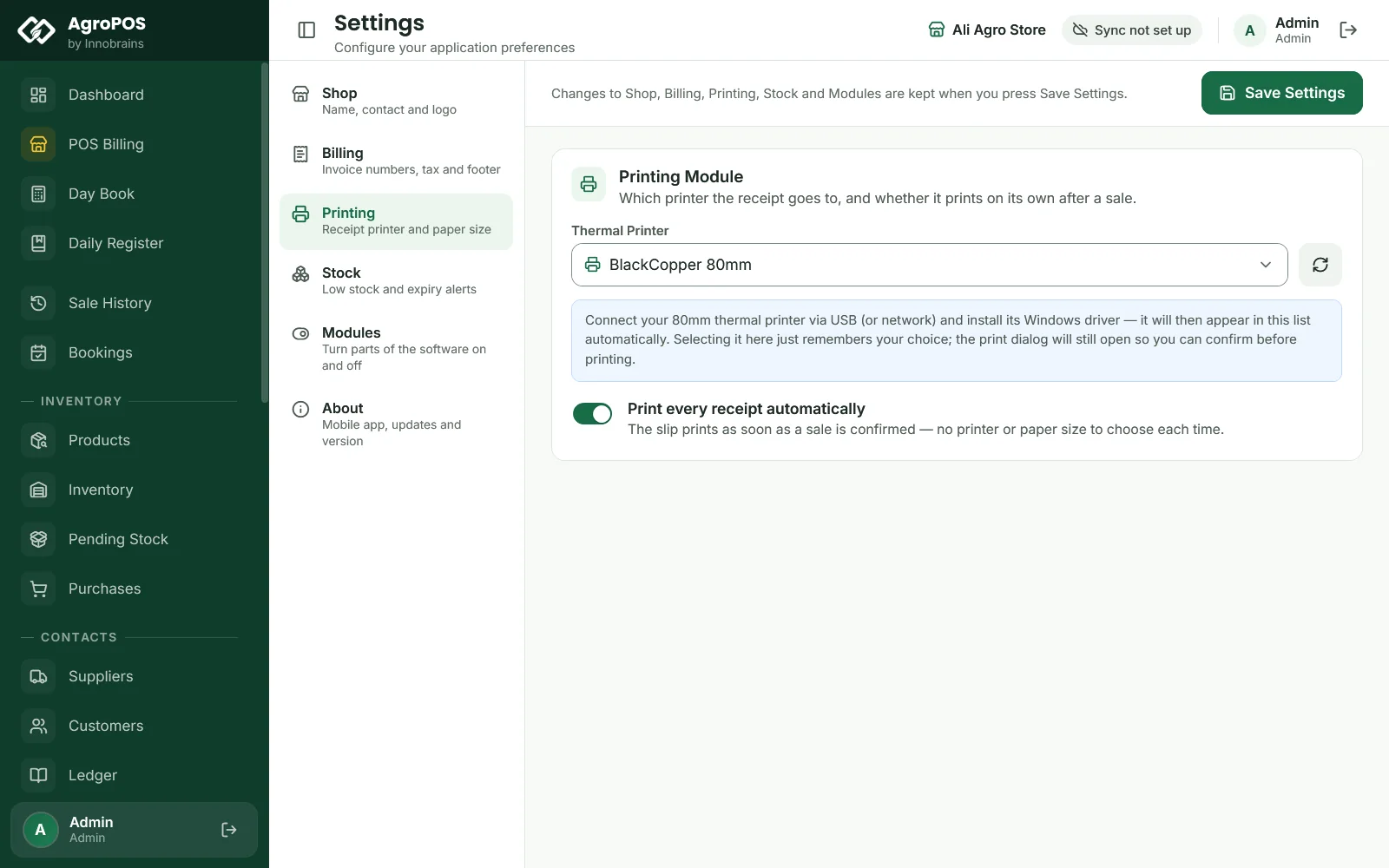
- Connect the 80 mm thermal printer by USB or the network, and install its Windows driver from the printer's CD or website. Until the driver is installed, Windows and AgroPOS cannot see it.
- As the Admin, open Settings → Printing.
- Under Thermal Printer, pick the printer from the list. The Windows default printer has a Default chip. If it is not listed, click the rescan button.
- Switch on Print every receipt automatically if you want the slip to print the moment a bill is confirmed, without any dialog.
- Click Save Settings.
Swipe to see the whole screen · tap to close
A saved printer that is switched off or unplugged shows as "(offline)". With nothing installed, AgroPOS says "No printers detected — check USB/driver, then Rescan". There is no test-print button: make a small real bill to test.
Printing after a sale
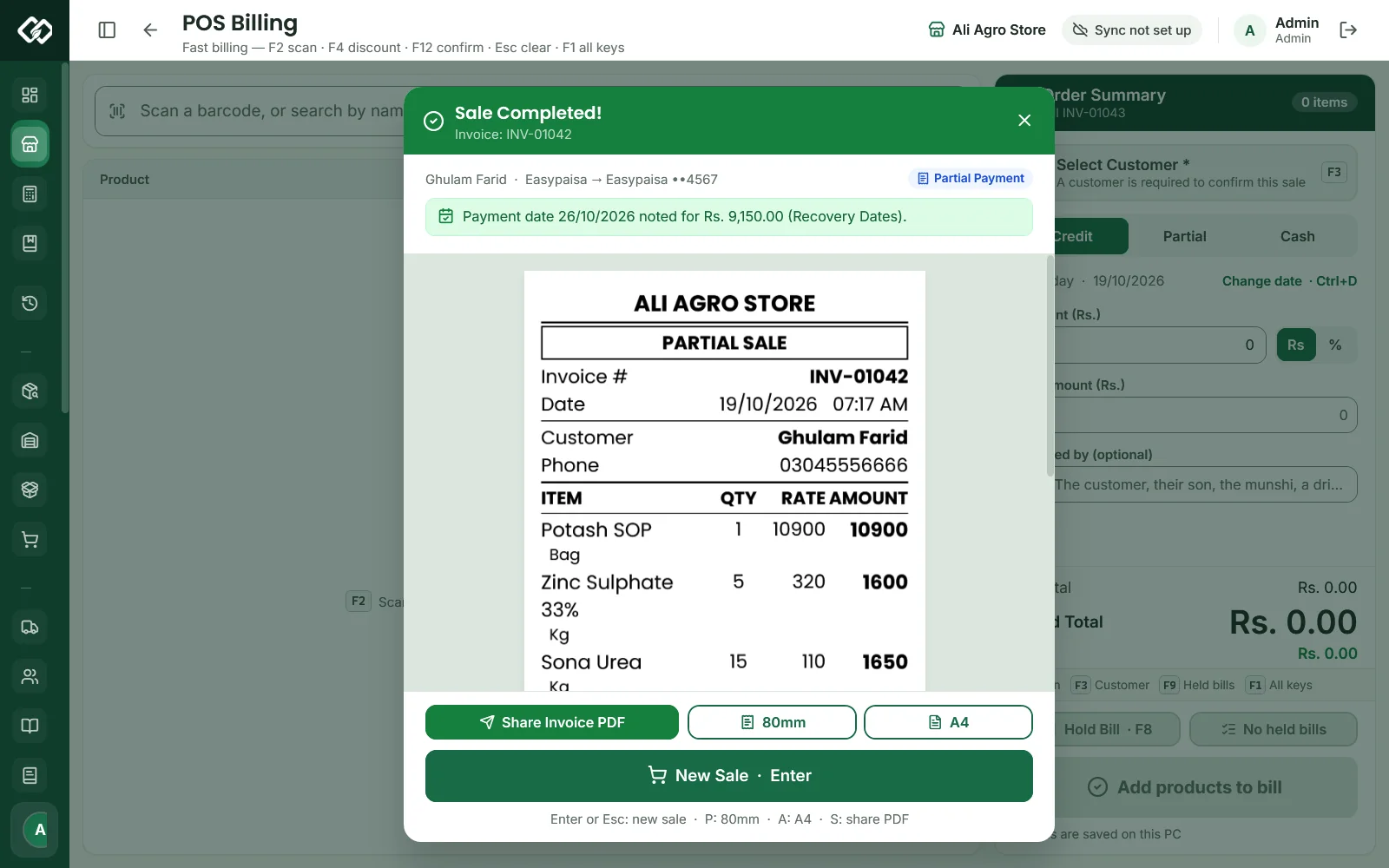
After F12, Sale Completed! shows the slip exactly as the 80 mm printer receives it. Then:
| Key | Button | What it does |
|---|---|---|
| P | 80mm | Prints the slip: straight to the saved printer when automatic printing is on, otherwise through the Windows print dialog |
| A | A4 | Prints the full-page invoice, always through the Windows print dialog |
| S | Share Invoice PDF | Saves the A4 invoice as a PDF and opens the Windows share window |
| Enter | New Sale | Starts the next bill |
With Print every receipt automatically on, the slip prints once by itself for each sale. If the printer cannot be reached, AgroPOS says "Auto-print could not reach the printer" with the reason, and you can print with P once it is fixed.
What the slip and the invoice show
The 80 mm slip: the shop name, address and phones; CASH, CREDIT or PARTIAL SALE; the invoice number and date; the customer's name, phone and address; each item with quantity, rate, amount and any discount; the subtotal, discount, Tax / GST, GRAND TOTAL, Amount Paid, This Bill Balance and change; for a named customer, an ACCOUNT SUMMARY with the Previous Balance, This Bill Credit and the TOTAL PENDING, which is the previous balance plus what this bill left unpaid; your footer line; and "AgroPOS · agropos.pk".
The A4 invoice: your logo, the shop's details with the NTN, BILLED TO, a table with each item's Batch No., unit, quantity, rate, discount per unit and total, the totals, signature lines for the customer and the shop, your footer and the page number.
Urdu names are not printed: products print with their English names. Payment slips after a recovery and gate passes after a booking lifting print by themselves once, in the same way as receipts. The payment slip names how the money came under Method, and the gate pass gives a loose line's quantity in kilos.
Sharing a bill on WhatsApp
Share Invoice PDF (S) saves the A4 invoice in Documents\AgriPOS\Invoices, named by its invoice number, and opens the Windows share window. You can also attach the file from that folder yourself, for example in WhatsApp. A bill shared again replaces the earlier file of the same number.
Reprinting an old bill
Find the bill in Sale History and click its printer icon: Reprint Invoice offers the same 80mm, A4 and Share Invoice PDF. A reprint is never printed by itself. See Held bills, reprints and cancelled bills.
A printer for each till
In a Multi-Counter shop, each PC can print on the printer at its own counter. Under Settings → Counters → This PC's receipt printer, type or pick that counter's printer and click Save; AgroPOS says "This PC prints receipts on …". Leave it empty to use the shop's printer from Settings → Printing. A till's own printer prints receipts by itself only when Print every receipt automatically is on for the shop.
Reports and registers
Reports, statements, the Daily Register and the inspection registers print on A4 through the Windows print dialog, and need the "Export or print data" permission. To keep a file instead of paper, choose a PDF printer, such as Microsoft Print to PDF, in that dialog.
Rules and tips
- Install the printer's driver before choosing it in AgroPOS.
- Keep a spare paper roll at the counter: a slip that runs out mid-bill can be printed again with P or from Sale History.
- Put the PC, the printer and the router on a UPS for load-shedding.
- There is no 58 mm layout, no paper-size setting and no number-of-copies setting: the slip is laid out for 80 mm paper.
Common questions
Why does a print dialog open every time I print a slip?
Print every receipt automatically is off, or no printer is chosen. Choose the thermal printer under Settings, Printing, switch it on and click Save Settings. Then 80mm prints straight to it.
My printer is not in the list. What do I do?
Install the printer's Windows driver, check the USB cable or network, then click the rescan button under Thermal Printer.
Can I print the bill on A4 paper?
Yes. Press A on Sale Completed!, or on Reprint Invoice in Sale History. The A4 invoice goes through the Windows print dialog, so choose your A4 printer there.
Does the slip show my logo?
No. The logo prints on the A4 invoice and the shared PDF, not on the 80 mm slip.
Related guides
Last updated 21 October 2026. Still stuck? Contact us or message us on WhatsApp.