When the Agriculture Department's inspector visits a pesticide or fertilizer dealer, he asks for the stock register, the batch-wise stock with expiry dates, and the sales and purchase registers. Inspector Mode prints each of these from the shop's own bills and purchases, with the shop's details at the top and a declaration and signature box at the bottom. This guide covers the seven registers, the product details that print on them, and Item Inspection for tracing one product.

Swipe to see the whole screen · tap to close
Who can print the registers
Inspector Mode is under REPORTS & REGISTERS in the menu for the Store Manager and the Admin. Printing a register also needs "Export or print data", which both have as standard. Anyone without it is told "Not available for your role".
Before the first inspection
The registers print what AgroPOS knows, so fill in these details once:
- Shop details. Under Settings → Shop, fill in the Shop Name, Phone Number, Phone 2, Address and NTN Number, and upload the shop's logo. They print at the top of every register.
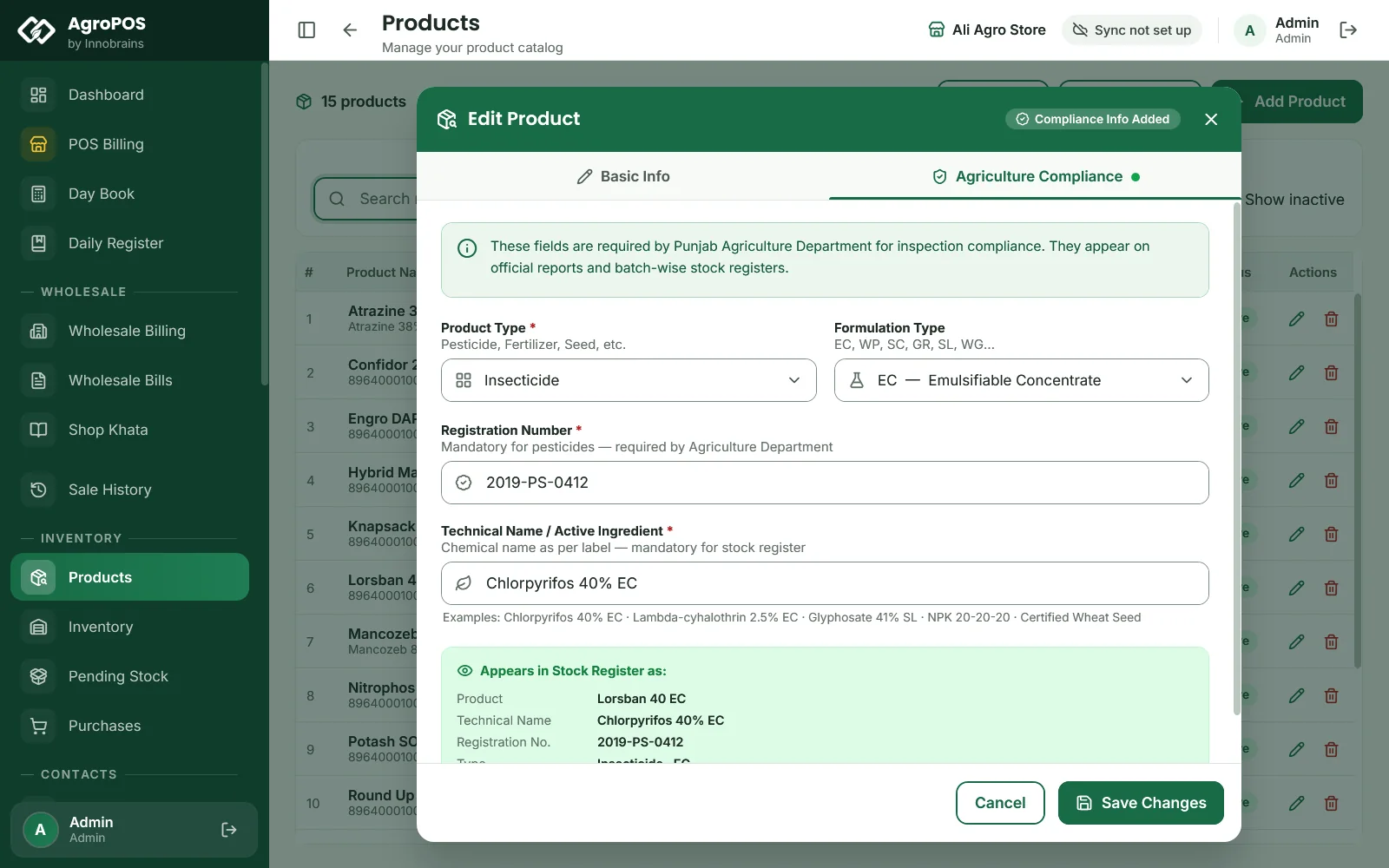
- Registration number and technical name. Open each pesticide in Products, click the pencil, and open the Agriculture Compliance tab. Fill in the Registration Number (the number on the label, such as
2024-PS-0123), the Technical Name / Active Ingredient (such as "Chlorpyrifos 40% EC"), and if you like the Product Type and Formulation Type. The box Appears in Stock Register as: shows how the product will print. - Company and batches. Each product's company, and each purchase with its batch number and expiry date, so the batch-wise and expiry registers are complete.
Swipe to see the whole screen · tap to close
AgroPOS does not insist on these fields when you save a product, so a product left without them prints "—" in those columns.
How to print a register
- Open Inspector Mode.
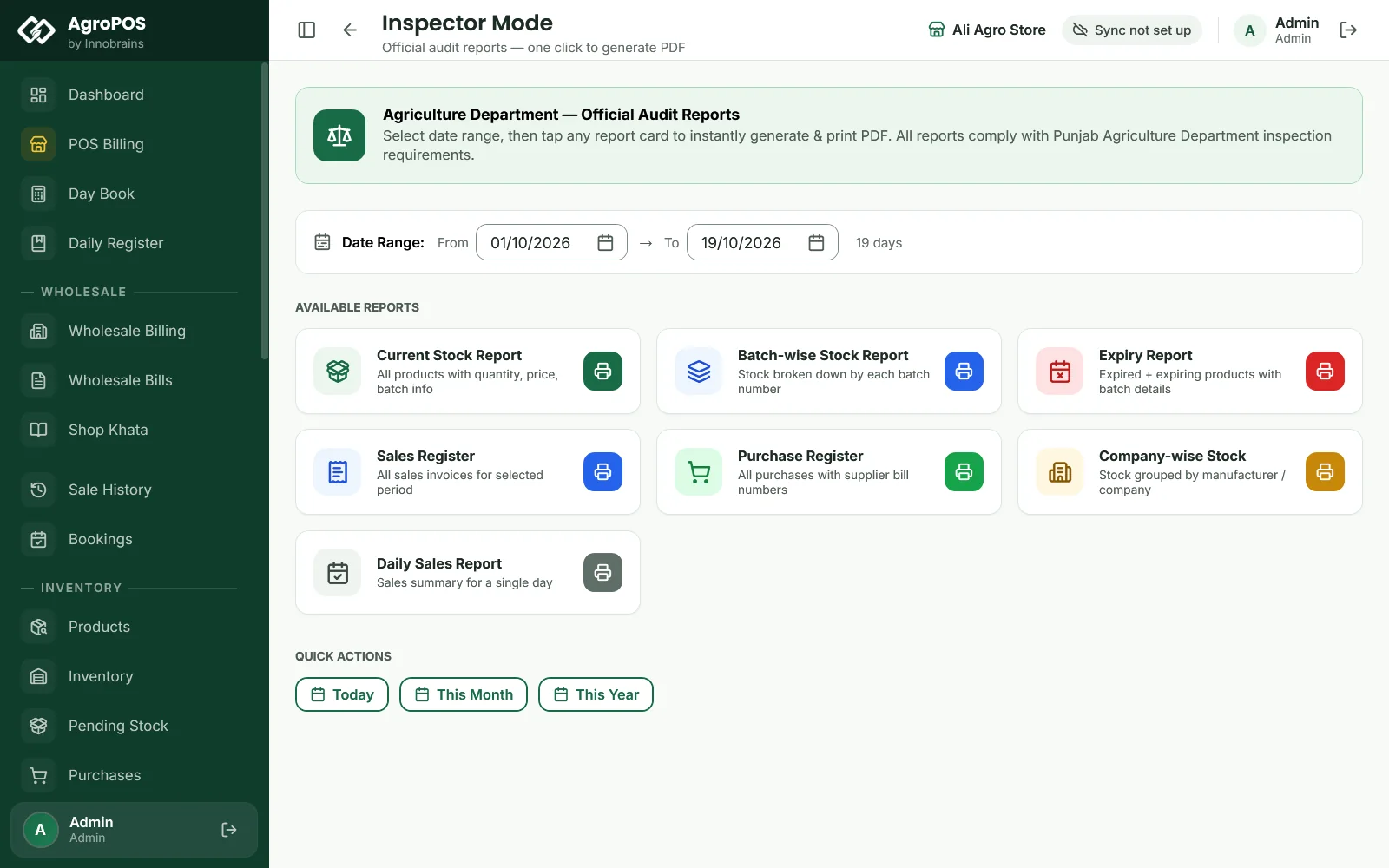
- Set the dates under Date Range: From and To, or click Today, This Month or This Year under QUICK ACTIONS. These buttons only set the dates; they do not print.
- Click the register's card, or move to it with the arrow keys and press Enter. The card shows a spinner while the register is built.
- The Windows print dialog opens with the register on A4 paper. Choose the printer and print. To keep a file, choose a PDF printer such as Microsoft Print to PDF.
The seven registers
| Card | What it prints | Dates used? |
|---|---|---|
| Current Stock Report | Every product with its technical name, company, registration number, batch, quantity, expiry and a status: EXPIRED, EXPIRING (30 days), OUT OF STOCK, LOW or OK | No: stock as it is now |
| Batch-wise Stock Report | Every batch of every product, grouped by product, nearest expiry first | No: as it is now |
| Expiry Report | Batches in stock that have expired, then those expiring within 60 days | No: as it is now |
| Sales Register | Every retail bill of the period: invoice number, date and time, customer, phone, products sold, quantity and cash or credit | Yes |
| Purchase Register | Every consignment received in the period: date, supplier, supplier's bill number, product, pack size, batch, expiry and quantity | Yes |
| Company-wise Stock | Stock grouped by company or manufacturer, with a summary and a breakdown per company | No: as it is now |
| Daily Sales Report | The bills of the dates chosen, with totals, collected and pending, and sales product by product | Yes |
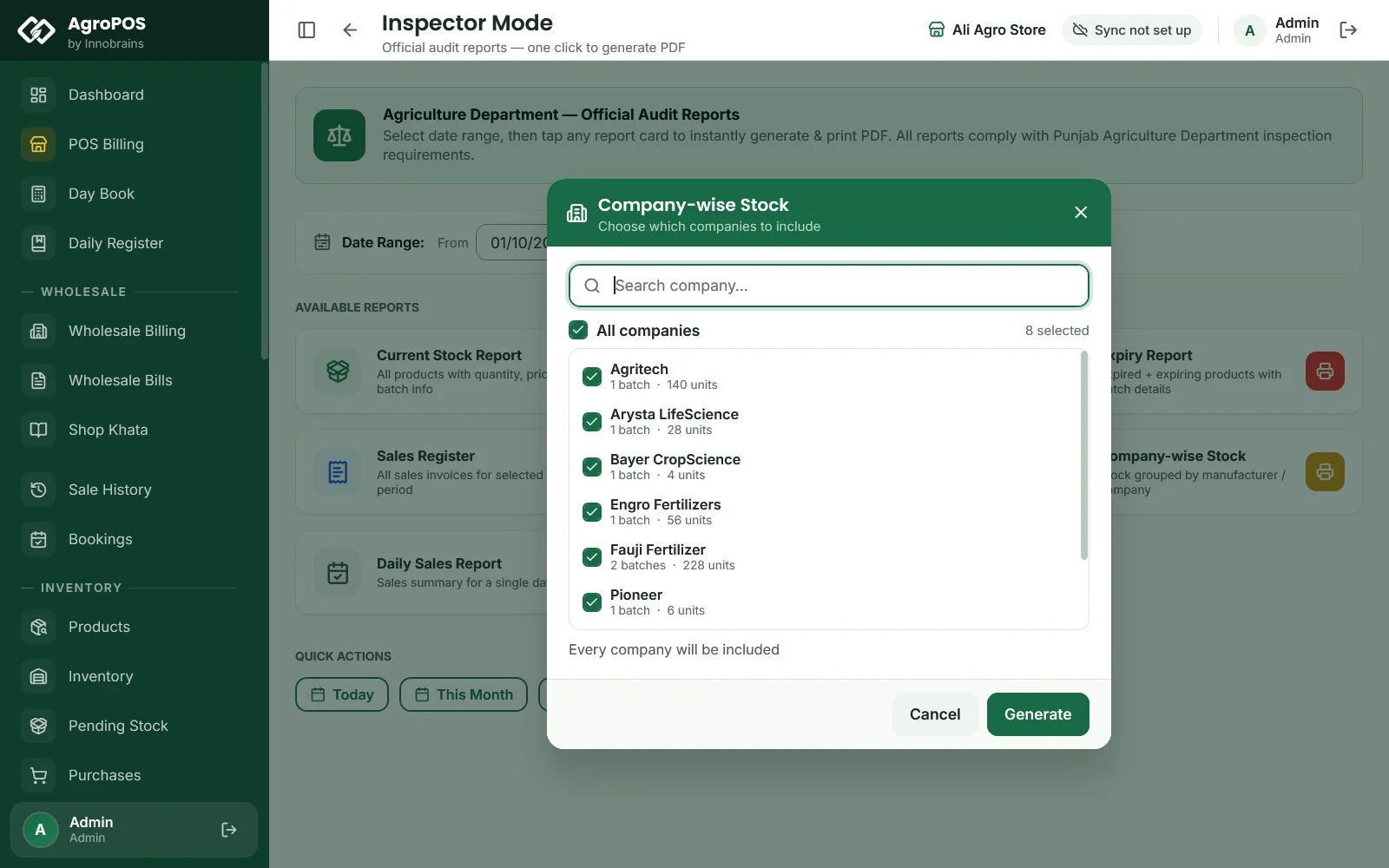
The stock registers show no prices. For Company-wise Stock, a list of companies opens first: everything is ticked, so untick the ones you do not want, or search, and click Generate.
Swipe to see the whole screen · tap to close
For the Daily Sales Report of one day, set From and To to the same day. Wholesale bills are not part of the Sales Register or the Daily Sales Report.
What prints on every register
- At the top: the shop's logo, name, address, phone numbers and NTN, the register's title, the period for the dated registers, and when it was generated.
- At the bottom of every page: a Dealer Signature box and the page number.
- A DECLARATION after the stock, batch-wise, sales and purchase registers, stating that the stock listed is a true and complete account, with places for the dealer's signature and the date and shop stamp.
The registers carry no Agriculture Department logo or branding: they are the dealer's own record.
Item Inspection: one product's full history
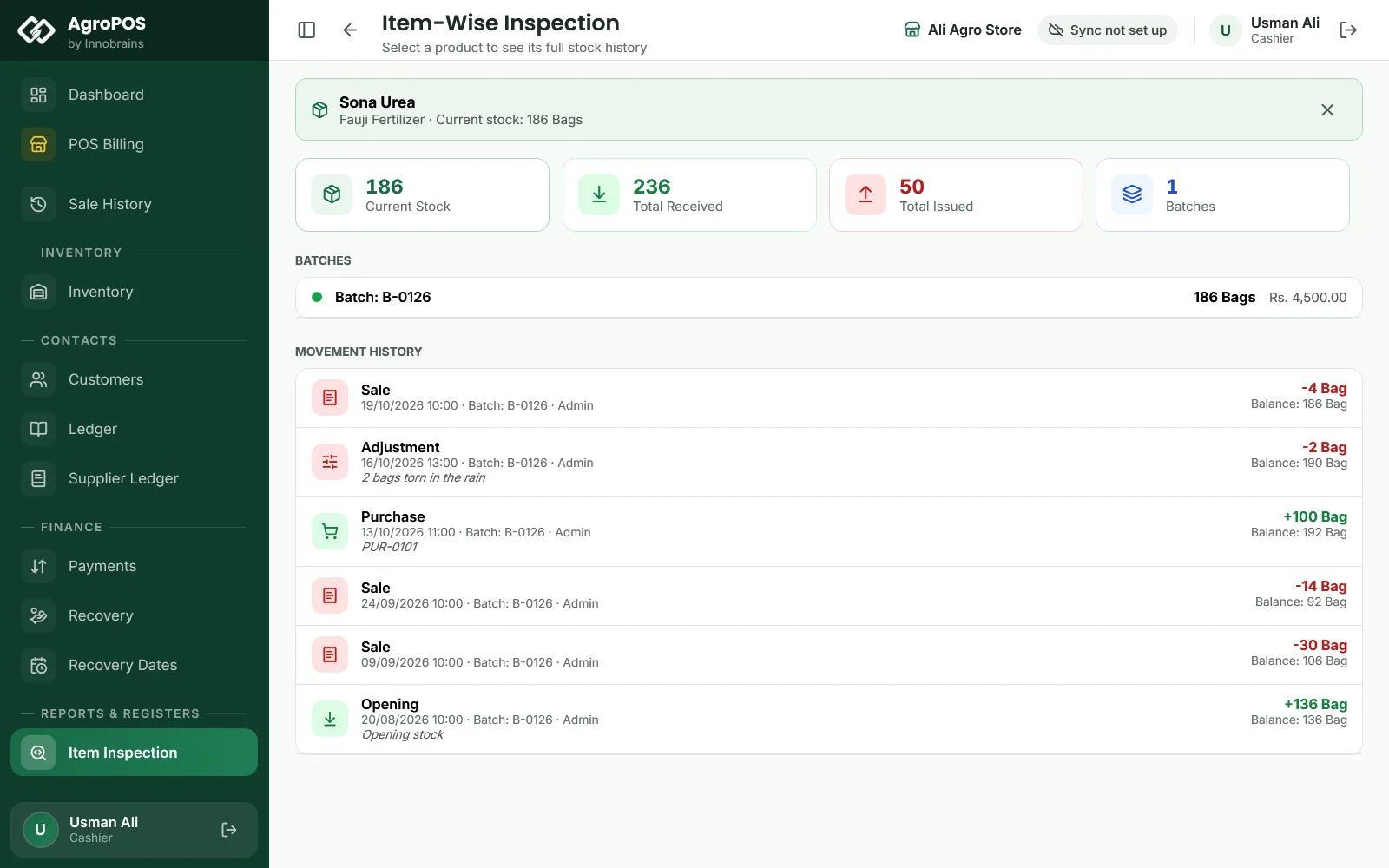
When the inspector asks about one product, such as "where did these 50 bags of urea go?", open Item Inspection under REPORTS & REGISTERS.
- Type part of the product's name, company, category or barcode, and press Enter on it.
- AgroPOS shows its Current Stock, Total Received, Total Issued and number of Batches.
- BATCHES lists each batch with its number, expiry and stock. MOVEMENT HISTORY lists every sale, purchase, return and adjustment, newest first, with the batch, the user, any note and the balance after it.
Swipe to see the whole screen · tap to close
Item Inspection is open to every user, including cashiers, and shows each batch's purchase cost. It is for reading only: it has no printout.
Registers on AgroPOS Cloud
On a Cloud plan the web panel at agropos.pk has Inspector Mode too. Clicking a card there shows the register on screen, with the same header and declaration, so the owner can check it from home. Printing for the inspector is done from Inspector Mode on the shop PC.
Rules and tips
- Fill in the registration number and technical name when you add a product, not on the day of the inspection.
- Enter every purchase with its batch and expiry from the supplier's bill. The batch-wise and expiry registers come from those entries.
- Expired stock cannot be sold at the till. The Expiry Report lists it, so you can return it to the company.
- Keep the printed registers with the shop's licence papers, signed and stamped.
Common questions
Which registers does the inspector usually ask for?
Most often the current stock register, the batch-wise stock with expiry, and the sales and purchase registers. Inspector Mode prints each one in a click, plus the expiry, company-wise and daily sales reports.
Why does the registration number show a dash?
The product has no registration number yet. Open the product, go to the Agriculture Compliance tab, type the number from the label, and save. The next print shows it.
Can I save a register as a PDF file?
Yes, through the print dialog: choose a PDF printer such as Microsoft Print to PDF instead of the paper printer.
Does the stock register use the dates I chose?
No. The current stock, batch-wise, expiry and company-wise registers always show the stock as it is now. The dates apply to the sales register, the purchase register and the daily sales report.
Can my cashier print the registers?
Not as standard. Inspector Mode is for the Store Manager and the Admin. A cashier can open Item Inspection to look at one product's history.
Related guides
- Products, batches and expiry
- Purchases from suppliers
- Low stock and expiry alerts
- Shop settings
- Agriculture inspection reports: what the registers do for a dealer
Last updated 21 October 2026. Still stuck? Contact us or message us on WhatsApp.