When the shop PC's disk dies, Windows has to be reinstalled, or you buy a new computer, your shop comes back from AgroPOS Cloud or from a backup file. This guide, for the owner, covers moving the licence, a restore from AgroPOS Cloud step by step, restoring a backup file, and checking your data afterwards. In a Multi-Counter shop all of this happens on the main counter: tills keep no data.
Which situation are you in?
| Situation | What to do |
|---|---|
| The old PC still works and you are replacing it | Move the licence, then restore on the new PC: from AgroPOS Cloud, or from a backup file made at closing time. Nothing is lost. |
| The disk died or the PC was stolen, and your shop is on AgroPOS Cloud | Restore from AgroPOS Cloud. Everything that reached the cloud comes back. |
| The disk died on the Offline edition | Restore your newest backup file (from USB), or the newest cloud backup if your licence includes cloud backup. Bills made after it must be entered again. |
| This PC's records are wrong and Innobrains support asks you to | Settings → About → Restore from AgroPOS Cloud (below). |
| A till PC broke | Nothing to restore. Install AgroPOS on another PC and pair it: see Multi-Counter setup. |
How to move the licence to the new PC
The licence is tied to the PC it was activated on, so the new PC needs it moved, unless your licence still has a PC free.
- Install AgroPOS on the new PC. On How will this PC use AgroPOS? choose Main counter.
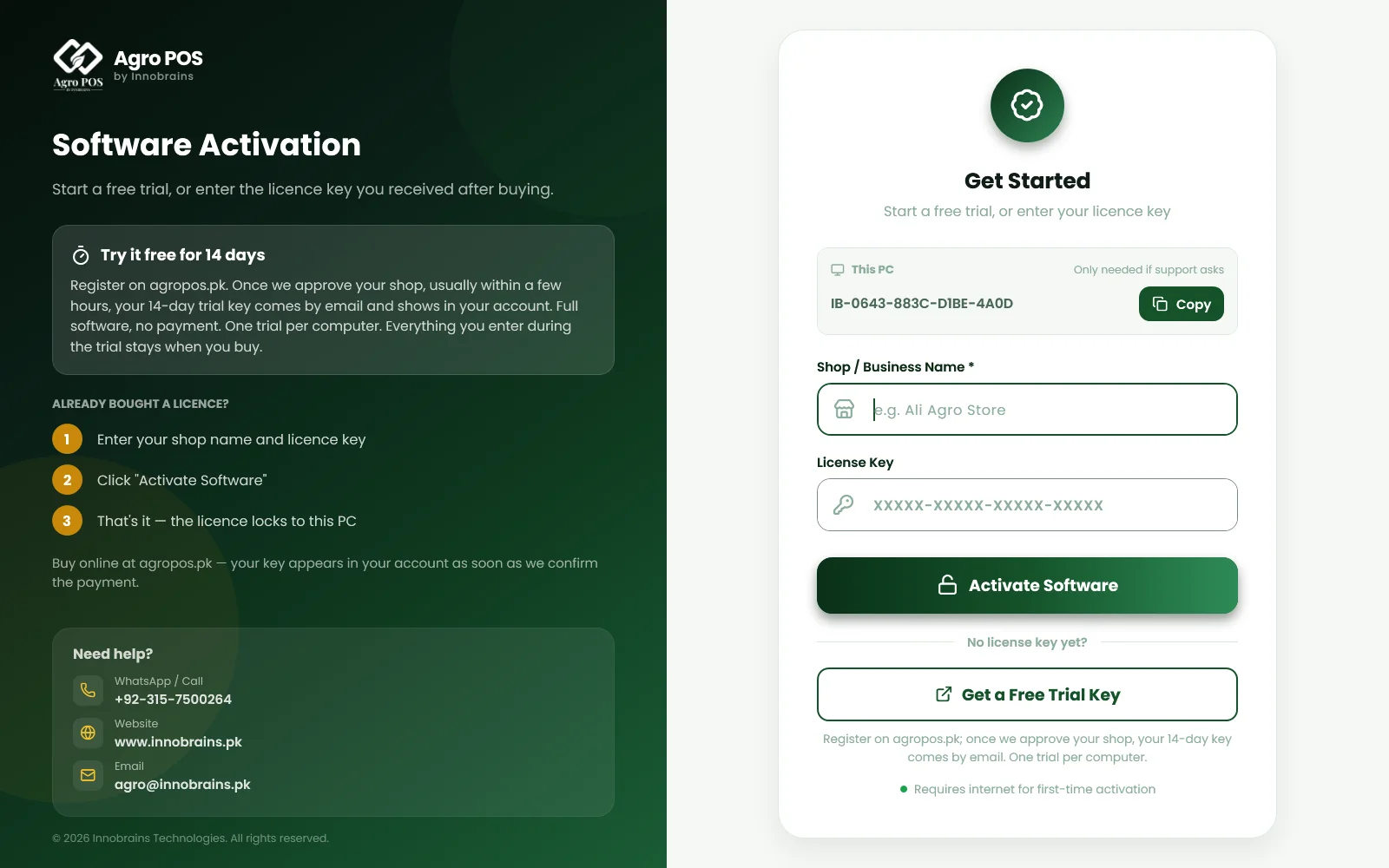
- On Software Activation, type your Shop / Business Name and your License Key, and click Activate Software.
- If the key is still active on the old PC, AgroPOS shows Machine Limit Reached. At that moment a transfer request for this PC is sent to Innobrains and you get an email about it; clicking Submit Request or Cancel does not change that.
- Innobrains checks the request with you and approves it, and you get an email.
- Click Activate Software again on the new PC.
- Uninstall AgroPOS from the old PC, or stop using it there.

Swipe to see the whole screen · tap to close
You can also ask from your account: sign in at /portal/login, open the licence, and under Move to another PC choose the PC it replaces, type the New PC's machine ID (shown in the This PC box of the activation screen) and the Shop name on the new PC, and click Request transfer. The form is shown while the licence is active on at least one PC. The request shows as pending until it is approved. See Licence, activation and moving to a new PC.
How to restore from AgroPOS Cloud on a new PC
This works when your shop is on a Cloud plan (or its free trial), Cloud Sync was switched on under Settings → About on the old PC, and its first upload had finished. The new PC needs the internet.
- Install AgroPOS, choose Main counter and activate it with your shop's licence key (above).
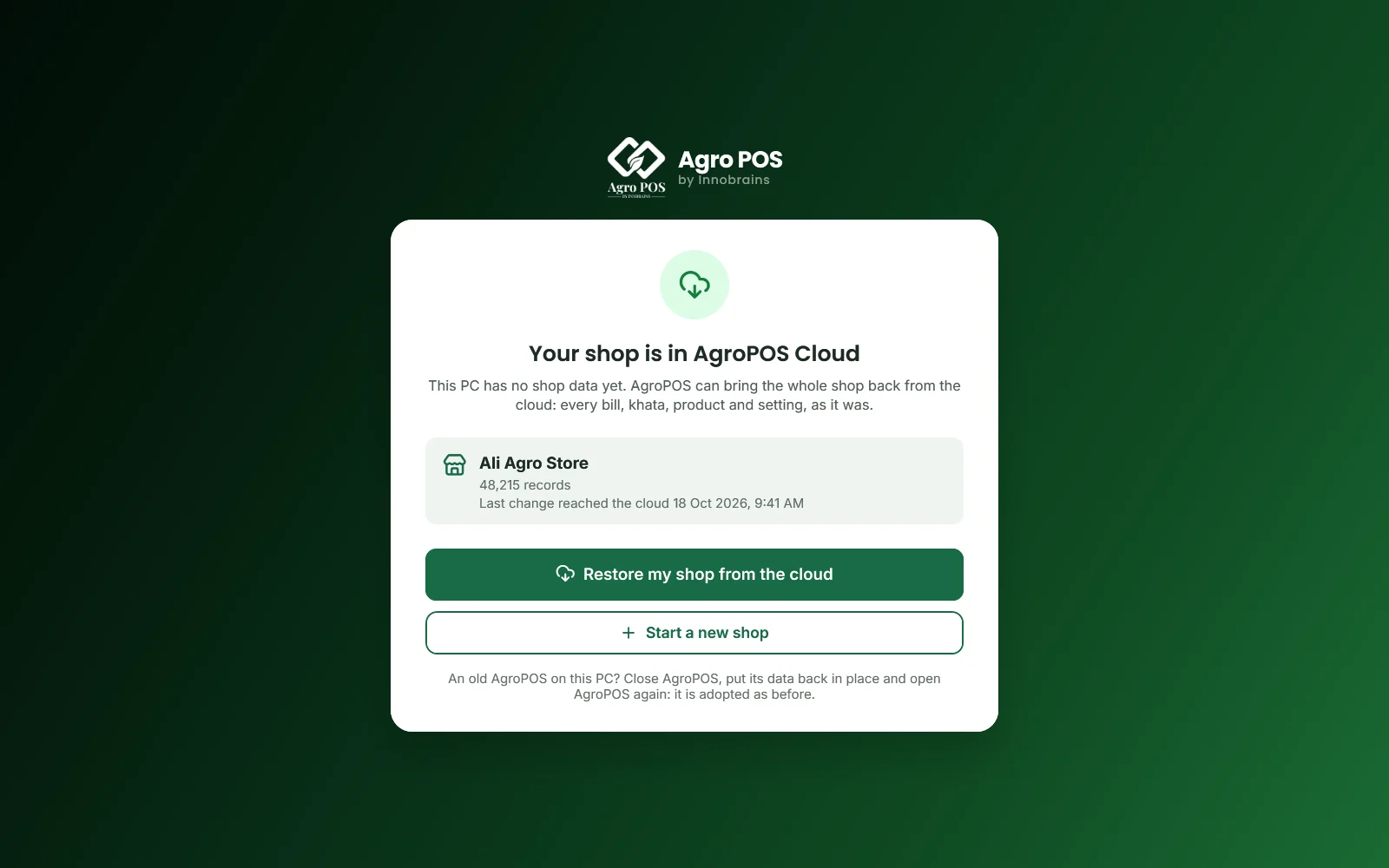
- AgroPOS asks AgroPOS Cloud about your shop and shows Your shop is in AgroPOS Cloud, with the shop's name, how many records it holds and when the last change reached the cloud.
- Click Restore my shop from the cloud.
Swipe to see the whole screen · tap to close
-
AgroPOS connects, the cloud prepares your shop, and the download starts. Each part is checked as it arrives, then every table and every total (customer balances, stock, sales and purchases) is compared with the cloud. Nothing on the PC is replaced until every check has passed.
-
At Everything checked. Choose the Admin password, type a New Admin password (at least 4 characters, not
admin123) and type it again. Passwords never leave a PC, so the restored shop has none yet. -
Click Switch to the restored shop. AgroPOS keeps a safety copy of whatever was on this PC and switches.
-
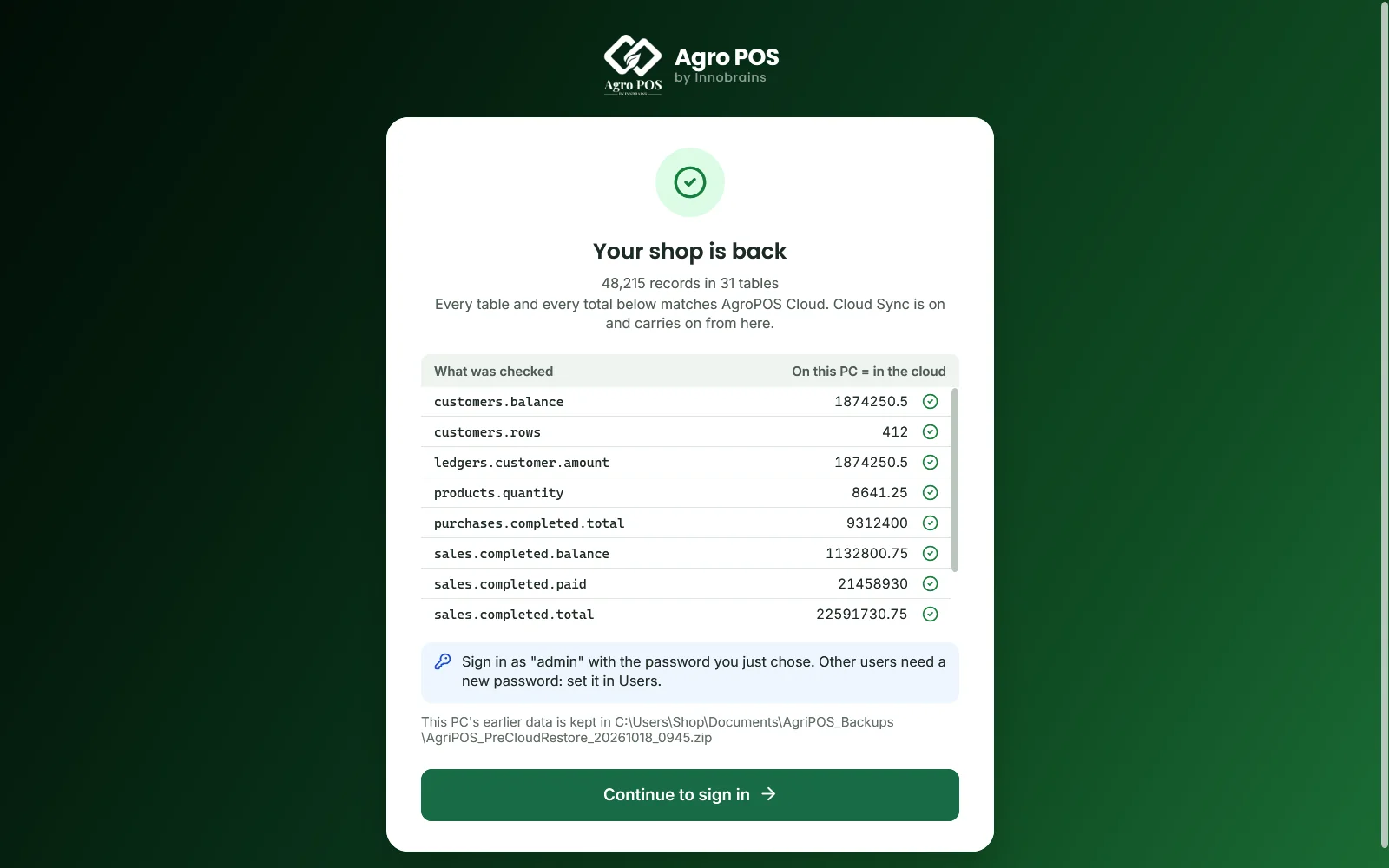
Your shop is back lists each total checked, "On this PC = in the cloud". Click Continue to sign in and sign in as the Admin user it names, usually
admin, with the password you just chose. -
Open Users and set a new password for each staff member. Until then they cannot sign in.
Swipe to see the whole screen · tap to close
Cloud Sync is on and carries on from the restored shop. If AgroPOS closes or the internet drops during the restore, it carries on from where it stopped the next time; Retry keeps the parts already downloaded.
If the restore stops with "Another PC of this shop … sent changes to AgroPOS Cloud in the last 10 minutes", the old PC is still in use. Close AgroPOS on it, wait 10 minutes and click Retry. Restoring while it still bills would split your shop's records. Once the new PC has taken over, its changes are the ones the cloud keeps, so do not bill on the old PC again.
Restoring over a PC that already has data
Use this only when Innobrains support or the owner asks for it. An Admin opens Settings → About → Restore from AgroPOS Cloud… (it is not shown on a till). AgroPOS warns that bills, khata and stock entered on this PC that never reached AgroPOS Cloud will no longer be shown, keeps a safety copy in Documents\AgriPOS_Backups, signs you out and runs the same steps.
How to restore a backup file
On the old PC, while it still works:
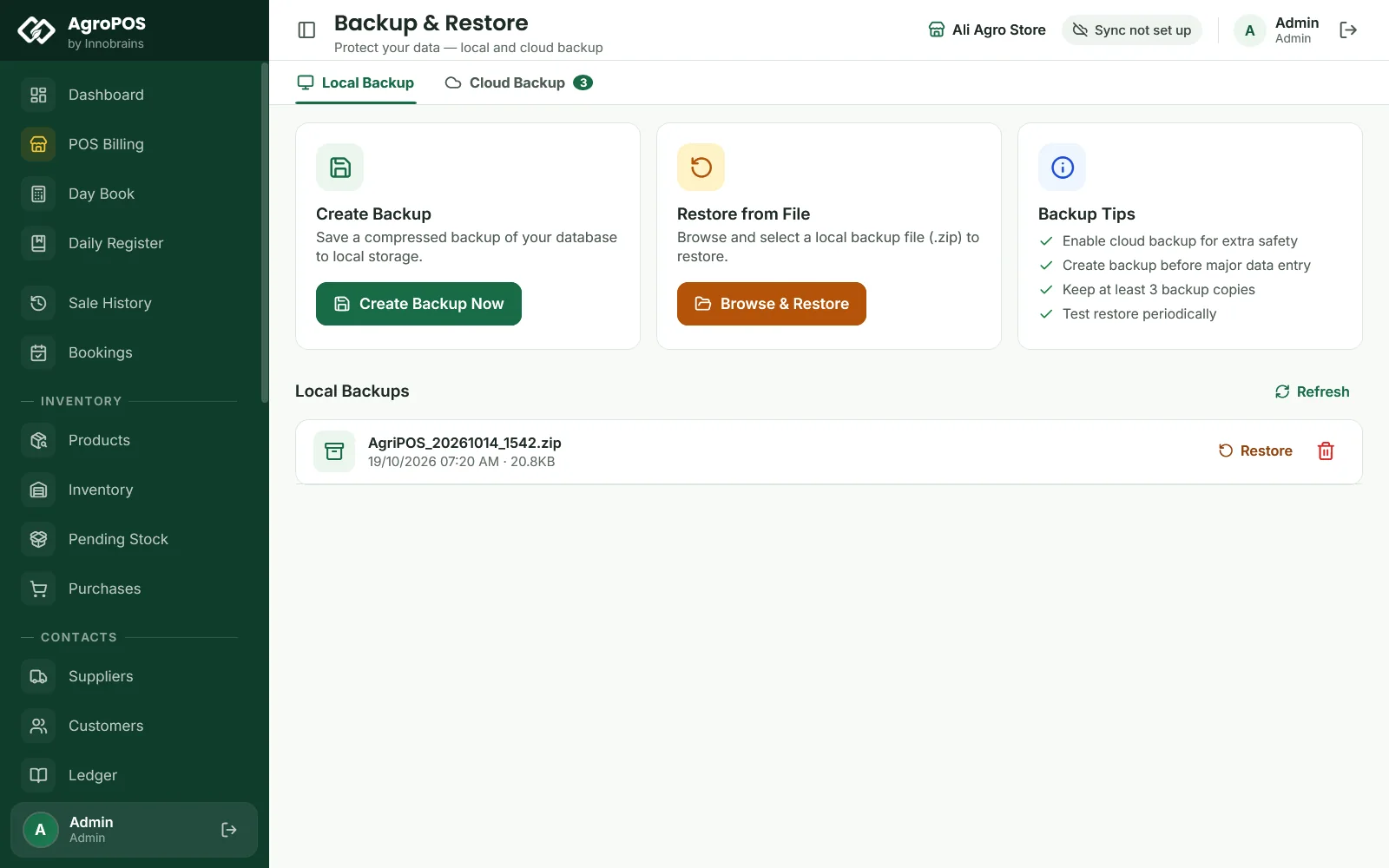
- Finish the day's bills. Open Backup & Restore → Local Backup and click Create Backup Now.
- The file is saved in
Documents\AgriPOS_Backups, named likeAgriPOS_20261014_1542.zip. Copy it to a USB drive. - Stop billing on the old PC. Anything entered after this backup will not come across.
On the new PC:
- Install AgroPOS, choose Main counter and activate it. If AgroPOS offers the cloud copy, choose Start a new shop.
- Sign in as
adminwithadmin123, and choose a new password when asked. - Open Backup & Restore and click Browse & Restore under Restore from File. Choose the zip file.
- Confirm "This will REPLACE all current data. This cannot be undone. Continue?" with Continue. AgroPOS checks the file, keeps a safety copy of what it replaces, puts the backup in its place and says "Restored successfully!".
- From now on, everyone signs in with the users and passwords the shop had when the backup was made.
Swipe to see the whole screen · tap to close
If your licence includes cloud backup, the Cloud Backup tab lists the backups AgroPOS uploaded by itself. Those made on the old PC are marked Another device. Click Restore on the newest one. As standard only an Admin can restore, and backups from the older AgroPOS restore too.
On a Cloud plan, prefer the cloud restore. Restoring an older backup of this same PC while Cloud Sync is on sends that older data up as the shop's new cloud copy, so ask Innobrains first. A backup from another PC switches Cloud Sync off on this PC; ask Innobrains before switching it on again.
After the move
- Tills: on each till, click Change how this PC connects and pair it with a code from the new main counter's Settings → Counters.
- Printer: check Settings → Printing on the new PC and print a test bill.
- The old PC: uninstall AgroPOS from it, stop using it, or make it a till. Two main counters are two shops whose stock never meets.
How to check your data after a restore
AgroPOS checks that the data matches its source. Only you can say it is up to date, so compare it with what you know:
- Sale History: the last bill's number and time match the last bill you made, for example
INV-04512at 9:48 pm. - Inventory: the stock of a few fast movers, such as Sona Urea and Confidor, looks right.
- Customers and Ledger: a few big udhaar balances, such as Haji Aslam's, match your own khata.
- Suppliers: what you owe your main distributor is right.
- Day Book: the last closed day matches your count.
Bills made after the backup are not in it. Enter them again from your receipts with Change date (Ctrl+D) on the day they happened. They get new numbers, continuing from the last bill in the restored data.
Rules and tips
- What you can lose depends on your newest copy away from the PC. On the Offline edition, copy a backup to USB at least once a week.
- Bills made while the internet was down reach AgroPOS Cloud only when the PC is online again. If the disk dies first, they are not in the cloud.
- Every restore keeps a safety copy of what it replaced in
Documents\AgriPOS_Backups, so a wrong choice can be undone. - Moving to a new PC keeps the same licence key and plan; only the PC it is activated on changes.
Common questions
Do I need a Cloud plan to get my shop back?
No. Without one, restore a backup file you copied to USB, or a cloud backup if your licence includes it. The full restore from AgroPOS Cloud needs a Cloud plan with Cloud Sync switched on before the old PC was lost.
Why does AgroPOS not offer my shop from the cloud?
The offer appears only on a main counter with no shop data yet, activated with your shop's licence key and online. It does not appear if Cloud Sync was never on, if its first upload had not finished, if the cloud copy is of the other kind of shop (single-counter or Multi-Counter), or after you chose Start a new shop. Call Innobrains support if none of these apply.
Will my staff passwords come back?
After a restore from AgroPOS Cloud, no: passwords never leave a PC. Set each one again under Users. After a backup file restore, everyone keeps the password they had when the backup was made.
Do my tills need restoring?
No. Tills keep no data. Pair each one with the new main counter using a code from Settings → Counters.
Related guides
Last updated 19 October 2026. Still stuck? Contact us or message us on WhatsApp.