AgroPOS turns every bill, purchase, expense and recovery into figures the owner can read at a glance. The Dashboard shows today: sales, udhaar, stock value and alerts. Reports shows any period: profit and loss, sales, top products, expenses and recovery. This guide explains each figure, who can see it, and how to print the sales report.

Swipe to see the whole screen · tap to close
The dashboard
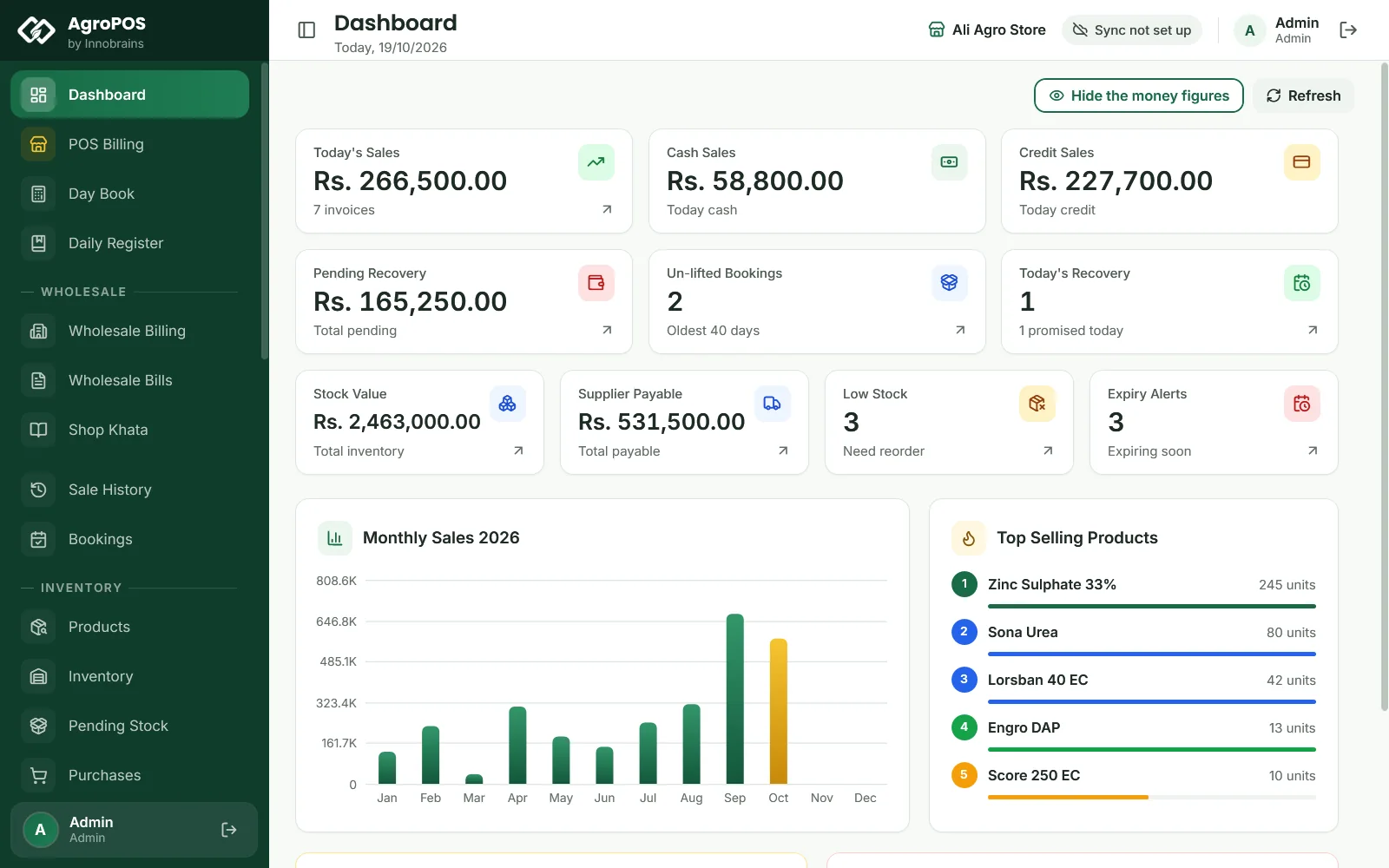
Dashboard is the first page after sign-in, for every user. It always shows today, with the cards:
| Card | What it shows |
|---|---|
| Today's Sales | The total of today's retail bills, and how many |
| Cash Sales / Credit Sales | The cash paid on today's bills, and what today's credit and partial bills left on udhaar |
| Pending Recovery | All udhaar still owed by customers and shops |
| Un-lifted Bookings | Open advance bookings with goods still to collect, and how old the oldest is (only with Bookings switched on) |
| Today's Recovery | Payment dates promised for today, and earlier ones still pending |
| Stock Value | Everything in stock at its batch purchase price |
| Supplier Payable | What the shop owes its suppliers |
| Low Stock / Expiry Alerts | How many products need reordering, and how many have stock expiring soon |
Below are the Monthly Sales chart for the year, the Top Selling Products of the last 30 days, and the Low Stock Alert and Expiry Alerts lists. A card with an arrow opens its page, such as Pending Recovery opening Customers, if your role may use that page. Refresh (F5) reads the figures again; in a Multi-Counter shop the dashboard also refreshes when a till saves.
Wholesale bills are not part of Today's Sales or the monthly chart: see Wholesale Bills for them. The low stock and expiry limits are set under Settings → Stock: see Low stock and expiry alerts.
Hiding the money figures
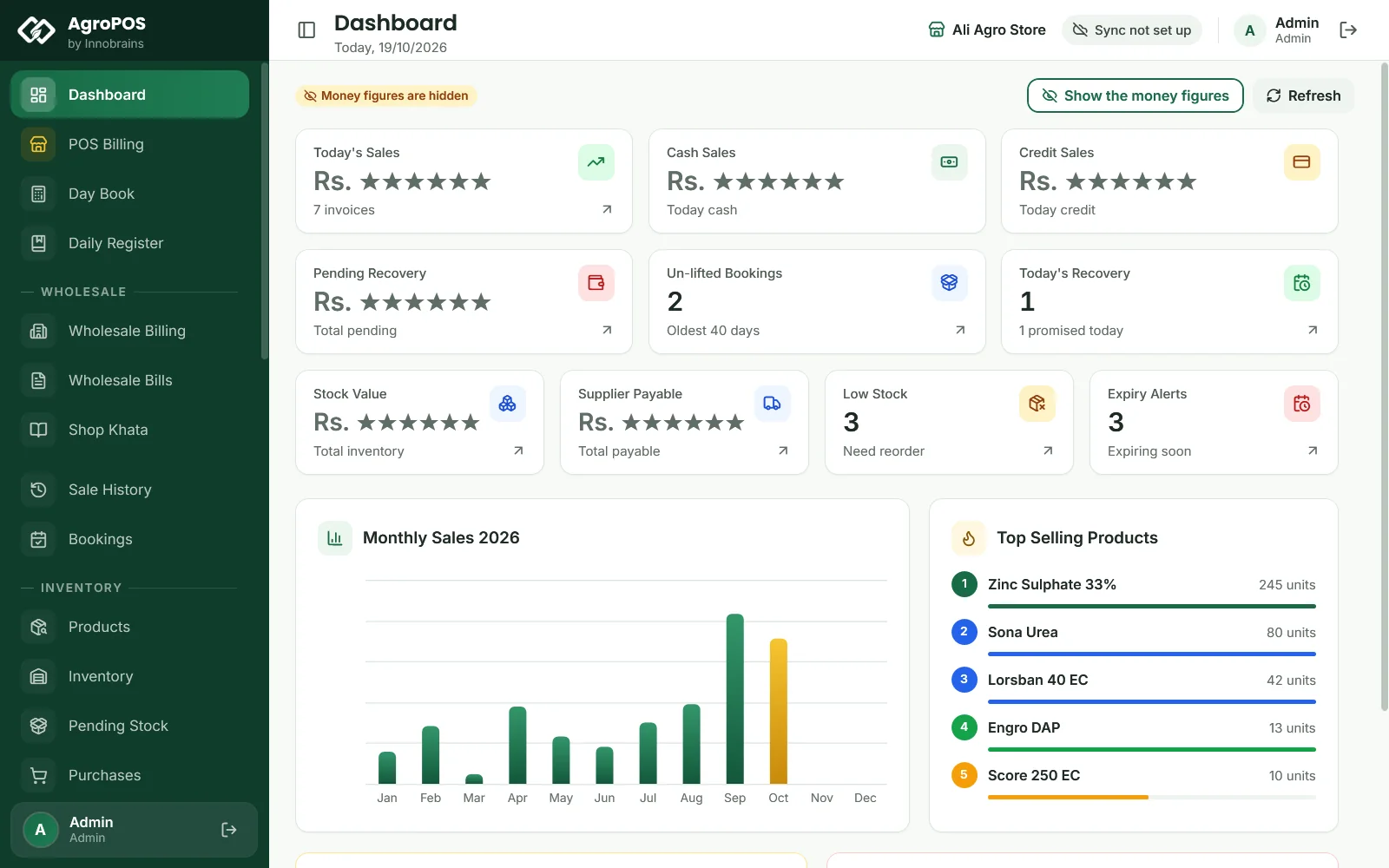
Money on the dashboard is shown only to users who may See the money figures, which as standard is the Admin alone. A Store Manager or Cashier sees stars in place of the six money cards, with "Money figures are hidden", but still sees the counts, alerts and top products.
The Admin has a button too: Hide the money figures puts stars on the cards while customers stand at the counter, and Show the money figures brings them back. AgroPOS remembers the choice on that PC.
Swipe to see the whole screen · tap to close
How to open a report for a period
Reports is for the Store Manager and the Admin ("View reports and profit"; it includes profit).
- Open Reports. It opens on the last 30 days.
- Click Today, This Month, Last Month or This Year, or pick two dates and click Show.
- Click a tab: Profit & Loss, Sales Report, Top Products, Expenses or Recovery. Ctrl+Tab moves between them.
Profit and loss
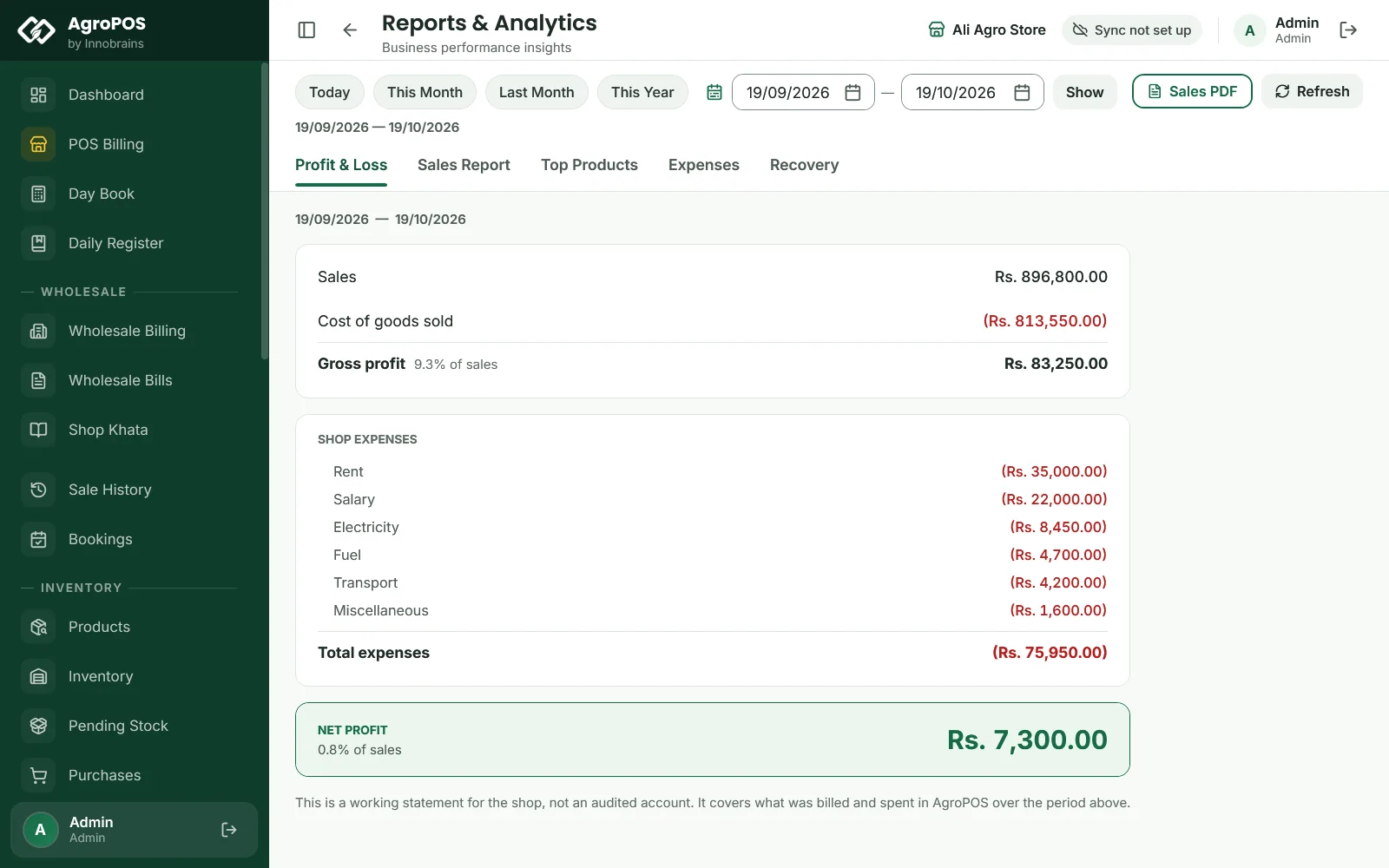
The Profit & Loss tab is a working statement of the period, from what was billed and spent in AgroPOS:
| Line | How it is worked out |
|---|---|
| Sales | The bill lines of retail and wholesale bills, less each bill's own discount and plus its tax |
| Less: returns and Net sales | Sale returns of the period taken off, when there were any |
| Cost of goods sold | The purchase rate stored with each line when it was sold, minus the cost of what came back |
| Gross profit | Net sales minus the cost of goods sold, with its % of sales |
| SHOP EXPENSES | Each expense category, largest first, then Total expenses. Sale return refunds are left out, as the return is already taken off the sales. |
| NET PROFIT or NET LOSS | Gross profit minus the expenses |
Swipe to see the whole screen · tap to close
If some products were sold with no purchase rate, AgroPOS warns that their full sale value is counted as profit and the real profit is lower. Enter purchase rates on those products to correct future bills. A period with no sales and no expenses says "Nothing recorded in this period".
The other report tabs
- Sales Report: Total Sales, Cash Sales, Credit / Partial and Invoices of the period you picked, with the monthly chart of the year the period ends in.
- Top Products: the ten best sellers of the period, by quantity, with their amount, after returns.
- Expenses: Total Expenses and a bar for each category in the period. Unlike the profit and loss, it includes sale return refunds.
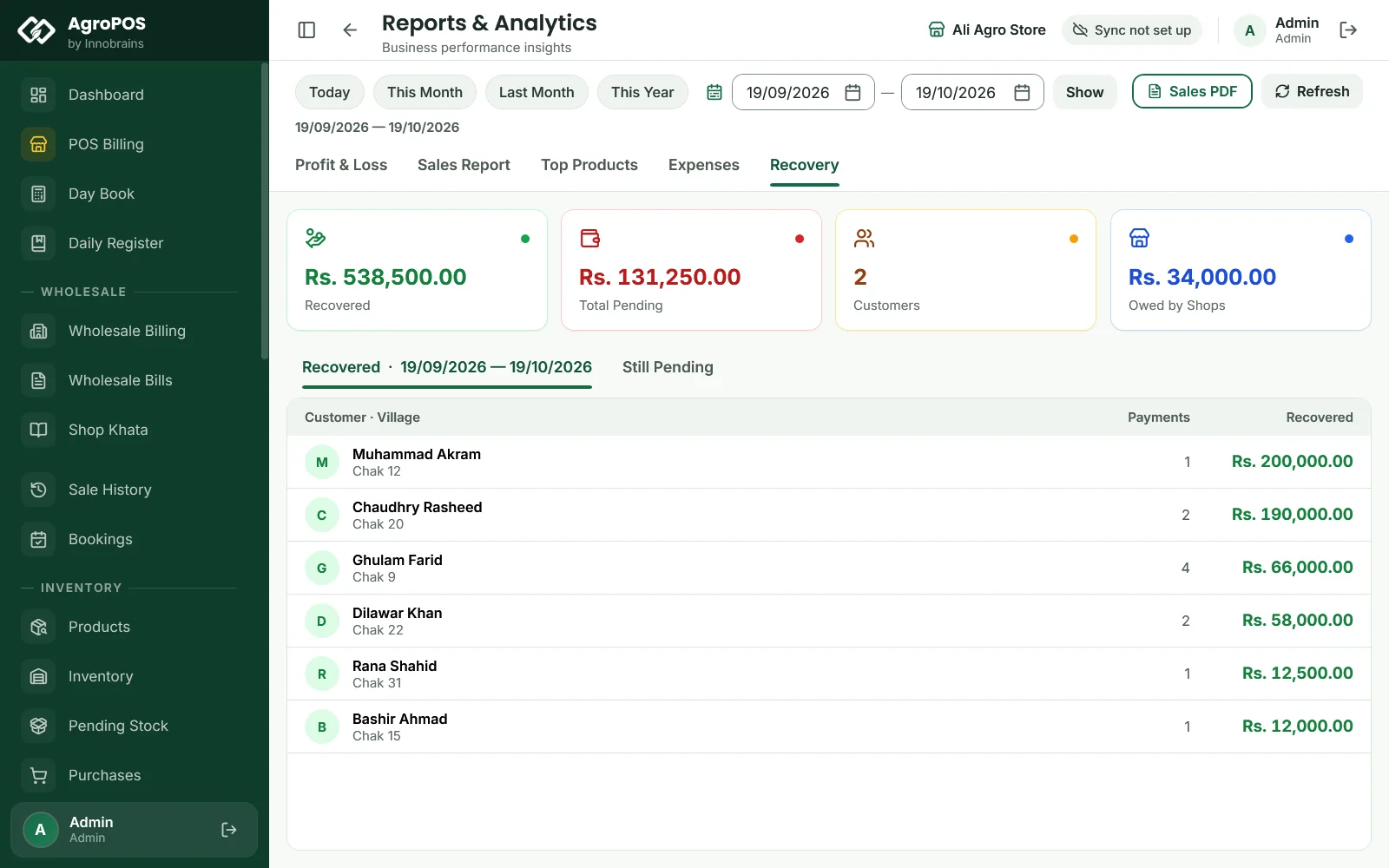
- Recovery: Recovered in the period, Total Pending, Customers, and Owed by Shops when wholesale shops owe money. The Recovered list shows what each customer paid in the period; Still Pending lists who owes, largest first.
Swipe to see the whole screen · tap to close
How to print the sales report
Click Sales PDF at the top of Reports. The Windows print dialog opens with an A4 Sales Report of the period: the shop's header, the number of cash and credit bills, the total, collected and pending amounts, and a table of every retail bill with its customer, type, total, paid and balance. To keep a file, choose a PDF printer, such as Microsoft Print to PDF, in the print dialog.
Printing needs the "Export or print data" permission (Store Manager and Admin as standard). The other tabs have no printout or Excel export; Excel lists are on Sale History, Inventory, the ledgers and the Daily Register.
Reports on AgroPOS Cloud
On a Cloud plan, the web panel at agropos.pk shows the same Dashboard and Reports, with the same figures, read-only, from any phone or computer. There are no hidden figures on the web: only the account owner signs in there. The Sales PDF prints from the shop PC. See Cloud Sync and the web panel.
Rules and tips
- Profit is only as good as the purchase rates. Enter each purchase with its real price, and set a purchase price on every product.
- Record every expense, so the net profit is the real one.
- Give staff a role without "See the money figures" if they should not see the shop's takings.
- The dashboard has no date picker. For yesterday or last month, use Reports.
Common questions
Why does my store manager see stars on the dashboard?
The money cards need See the money figures, which only the Admin has as standard. The owner can add it to the Store Manager role under Roles & Permissions. The Store Manager still sees profit in Reports.
Which purchase price does the profit use?
The purchase rate AgroPOS stored with each bill line when the item was sold. A product with no purchase rate counts its whole sale value as profit, and AgroPOS warns you about it.
Are wholesale bills in the profit and loss?
Yes. The profit and loss counts retail and wholesale bills. The dashboard's Today's Sales and the monthly chart count retail bills only.
Can I export a report to Excel?
Not from Reports. Sales PDF prints the sales report of the period. Excel lists are on Sale History, Inventory, the ledgers and the Daily Register.
Can I see the reports from home?
Yes, on a Cloud plan: the web panel at agropos.pk shows the dashboard and reports from any browser. On the Offline edition, AgroPOS Mobile shows khata, recovery, suppliers and stock.
Related guides
Last updated 21 October 2026. Still stuck? Contact us or message us on WhatsApp.